This article is written for Member and Super Admin. Use the role switch at the top to change what the menus show.
inLynk uses your organisation's SecureID account to sign you in. There is no separate inLynk password: you use the email and password of your SecureID account.
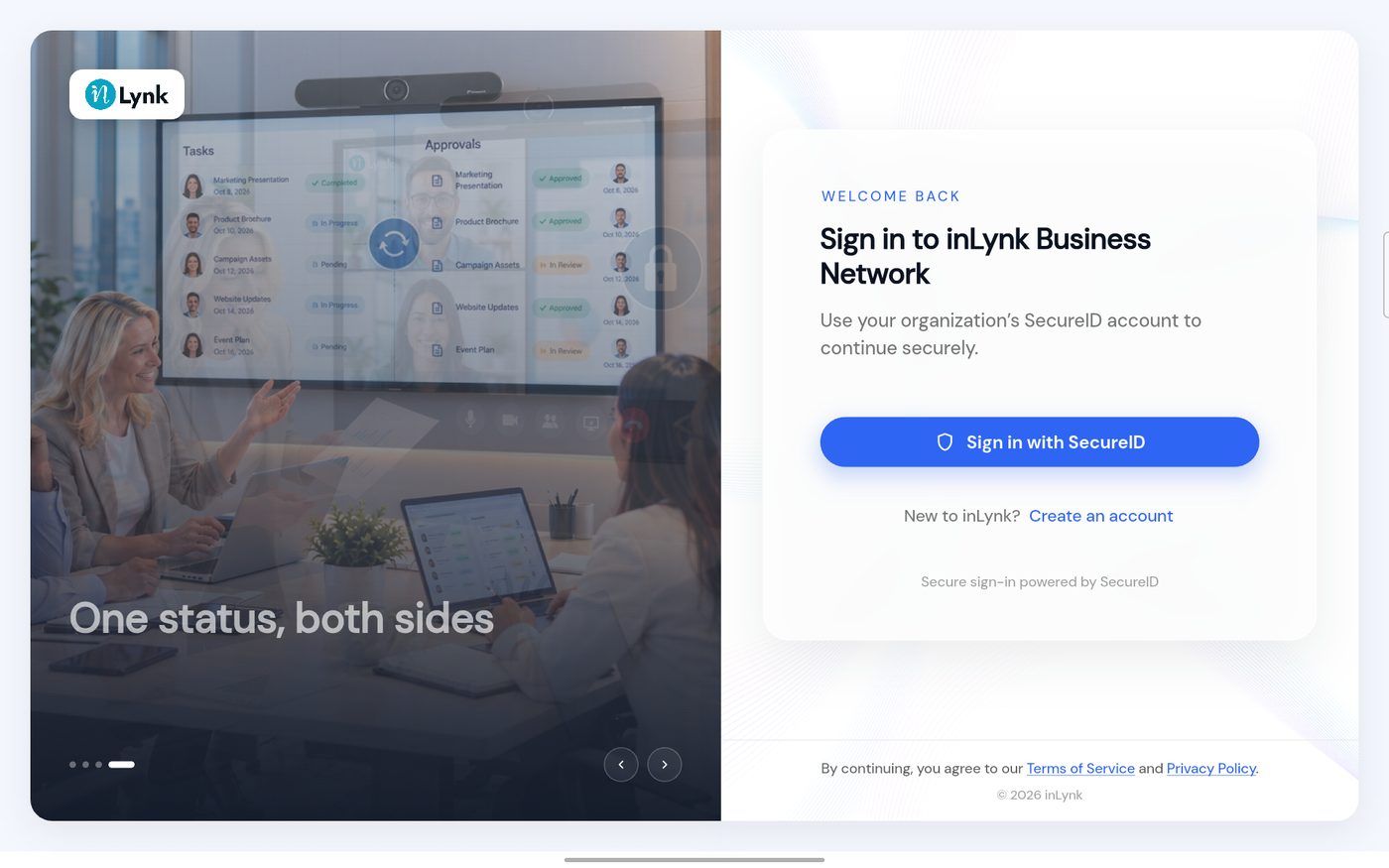
Open the app. The sign-in page appears.
The sign-in page
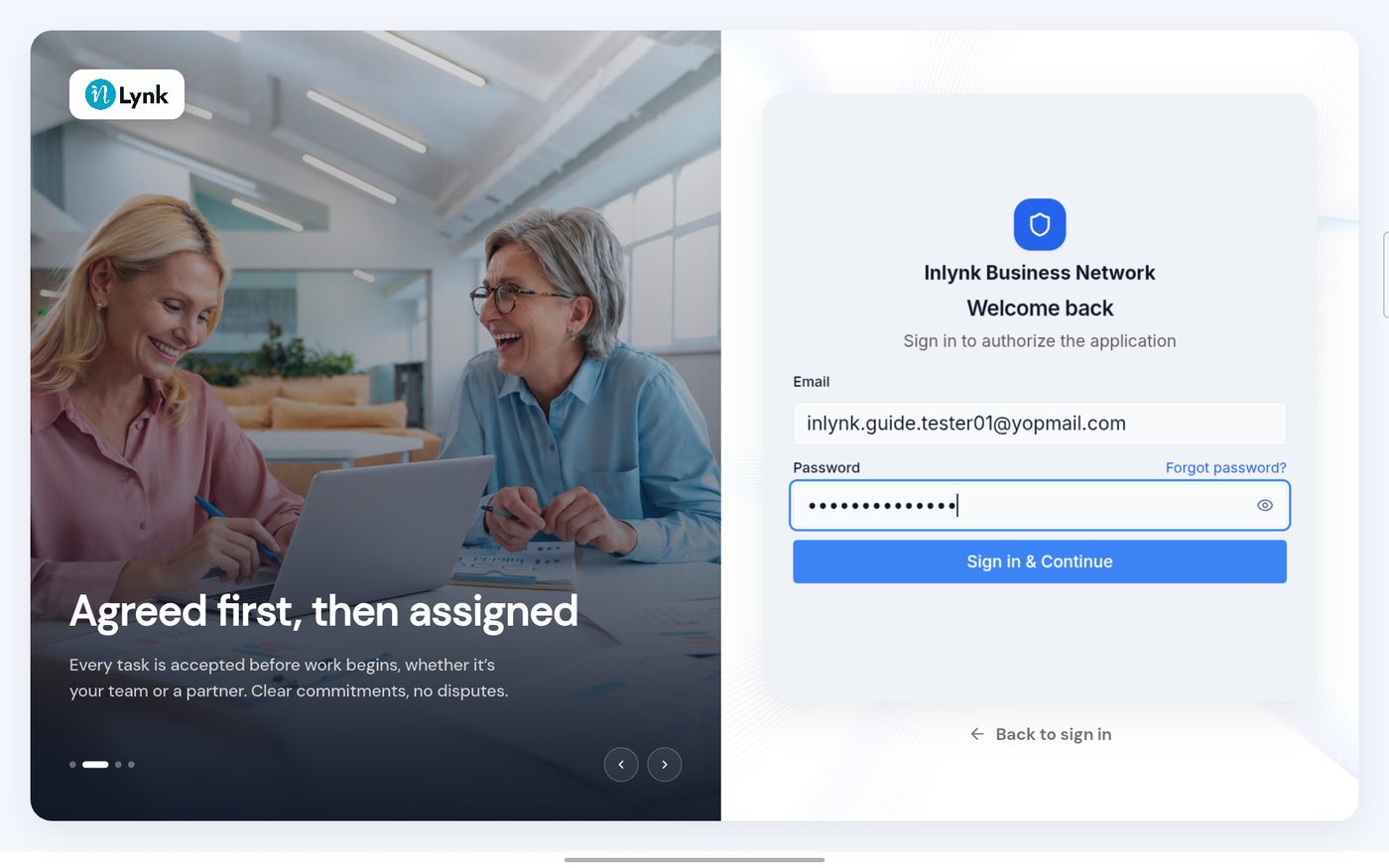
Tap Sign in with SecureID. A SecureID sign-in screen opens inside the app. Enter your email and your password.
The SecureID sign-in form
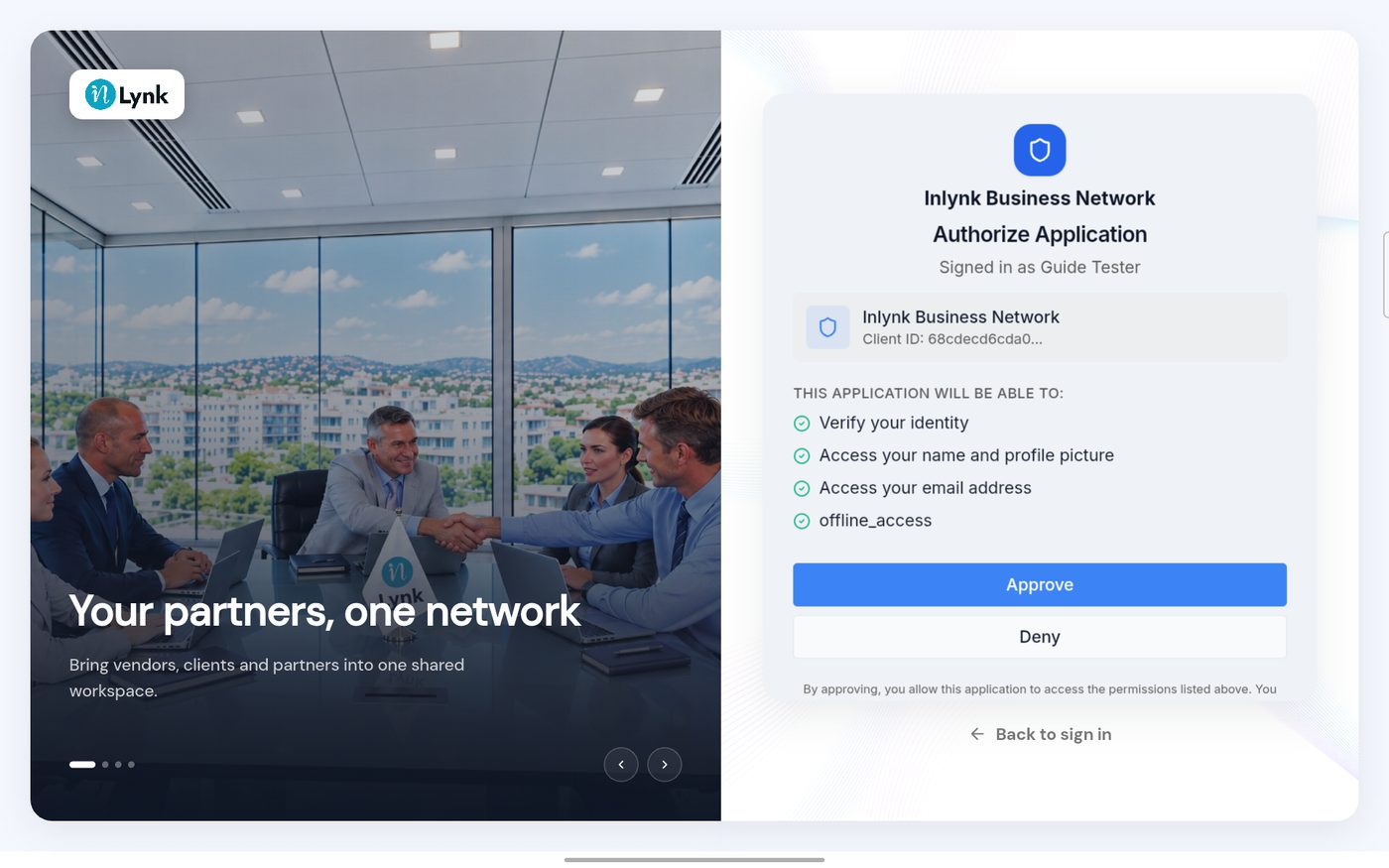
Tap Sign in & Continue. SecureID asks you to approve the sign-in; see Approve the sign-in.
Authorize Application
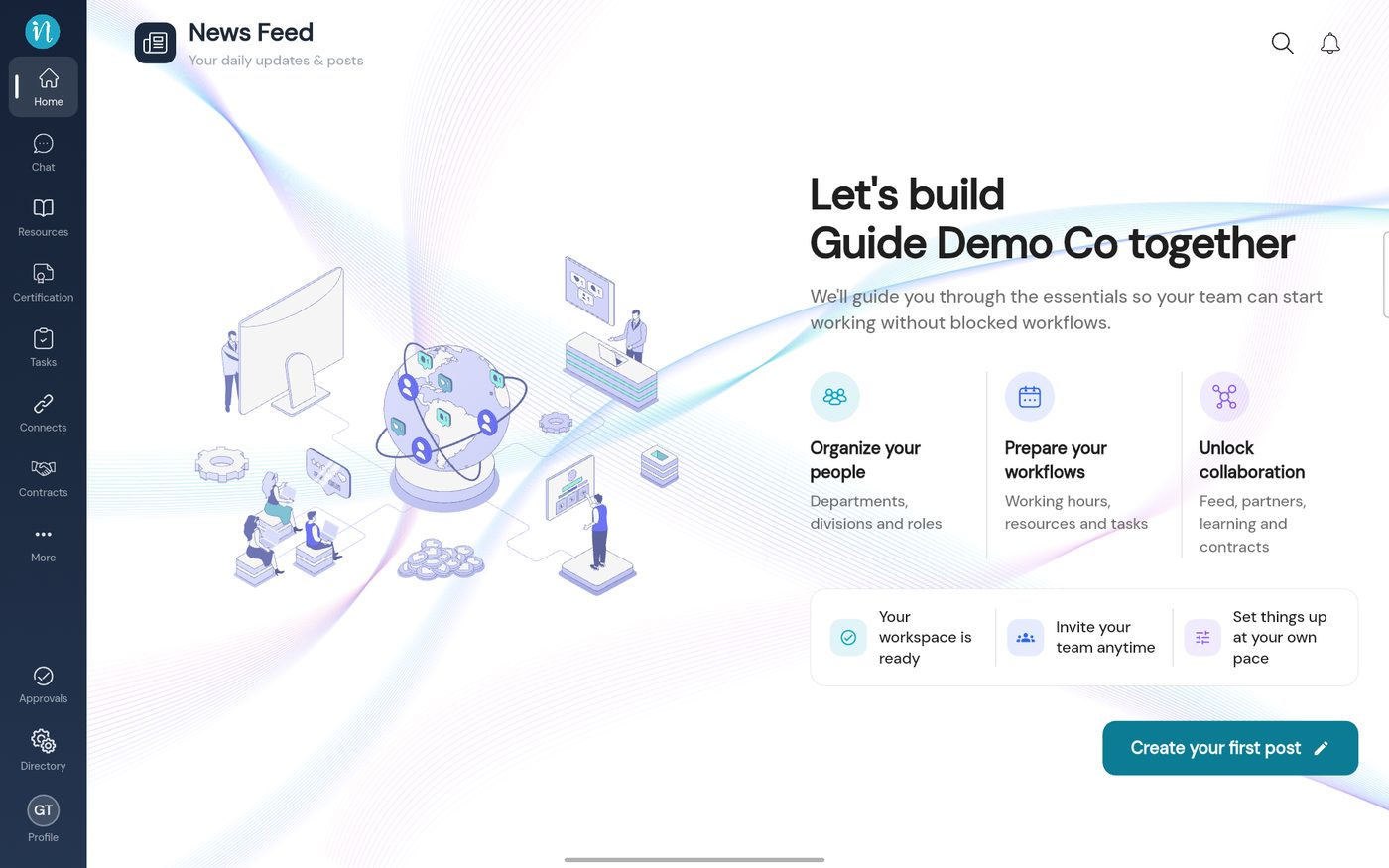
After you approve, the app opens on the Home page of your workspace.