This article is written for Member and Super Admin. Use the role switch at the top to change what the menus show.
If your administrator gives you a six-character code, you can join their workspace. You can do this from Profile at any time, even if you already belong to another workspace.
Get the code (administrator)
The code is on the workspace's own page: Profile → View … details. It refreshes every 10 seconds and shows a countdown, so send it straight away. See Workspaces explained.
Join (the person joining)
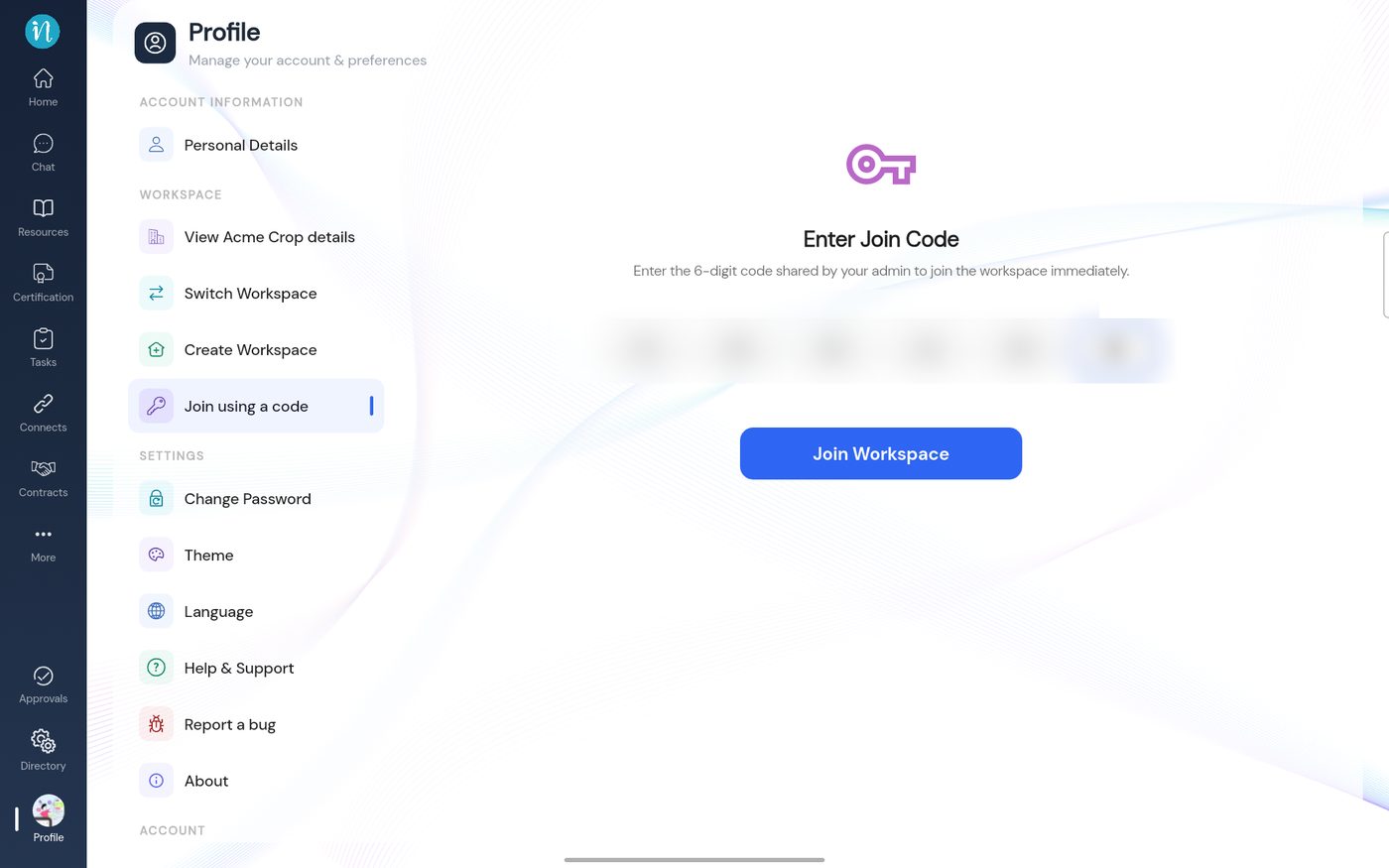
Tap Profile, then Join using a code, and type the code.
Enter Join Code
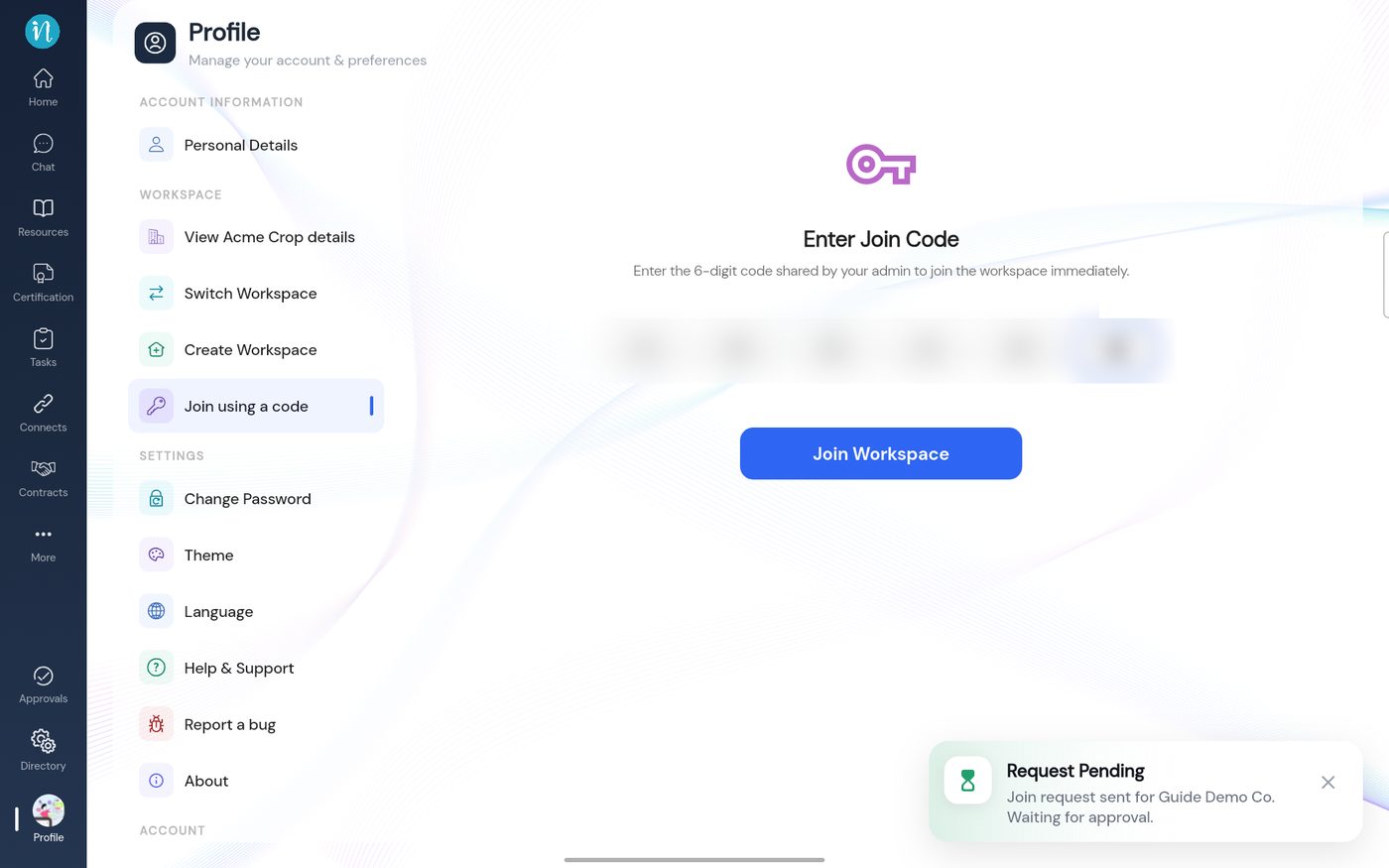
Tap Join Workspace. A message confirms that the request was sent.
Request pending
Approve the request (administrator)
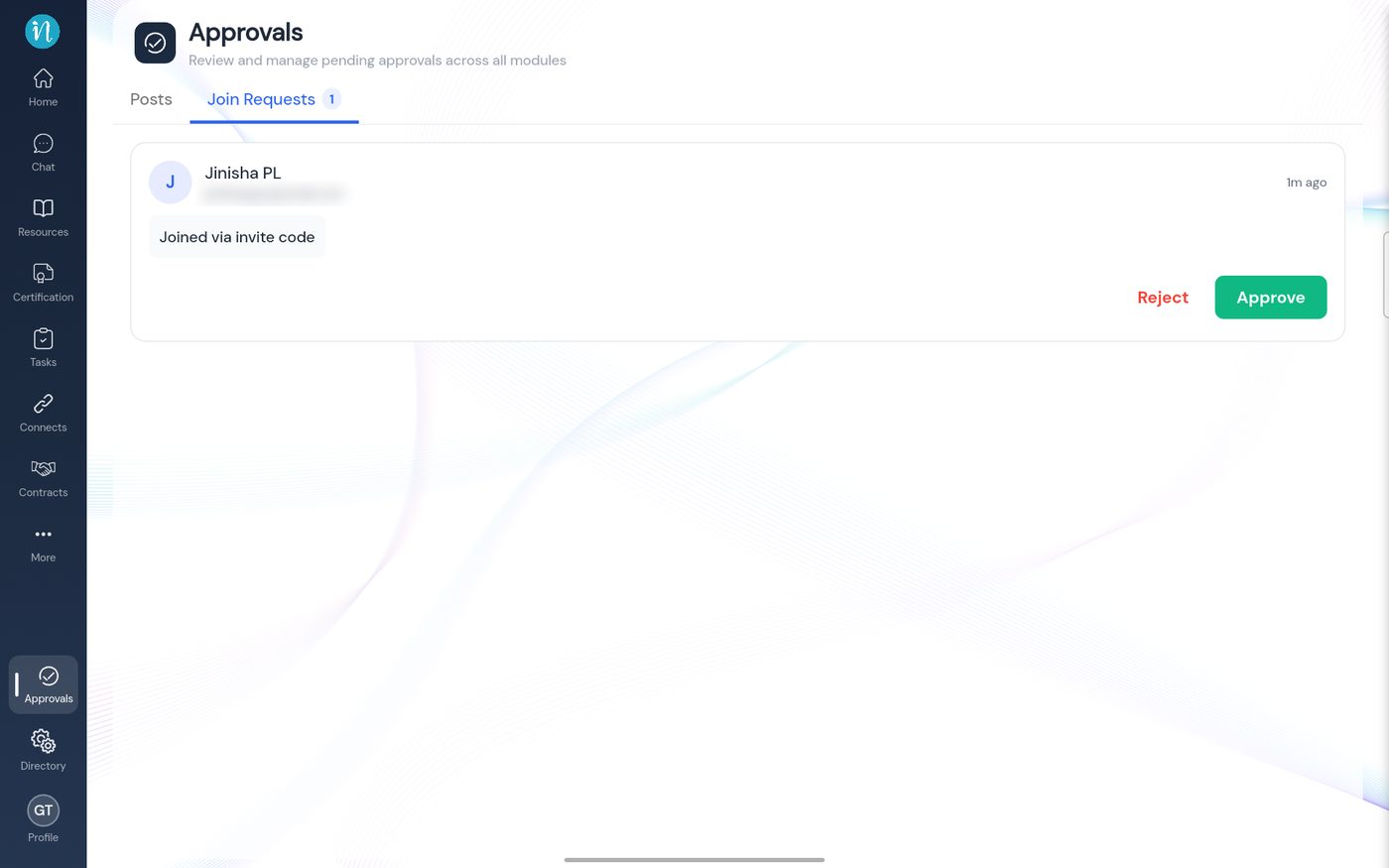
The administrator opens Approvals and taps the Join Requests tab. A number on the tab shows how many are waiting.
Join Requests
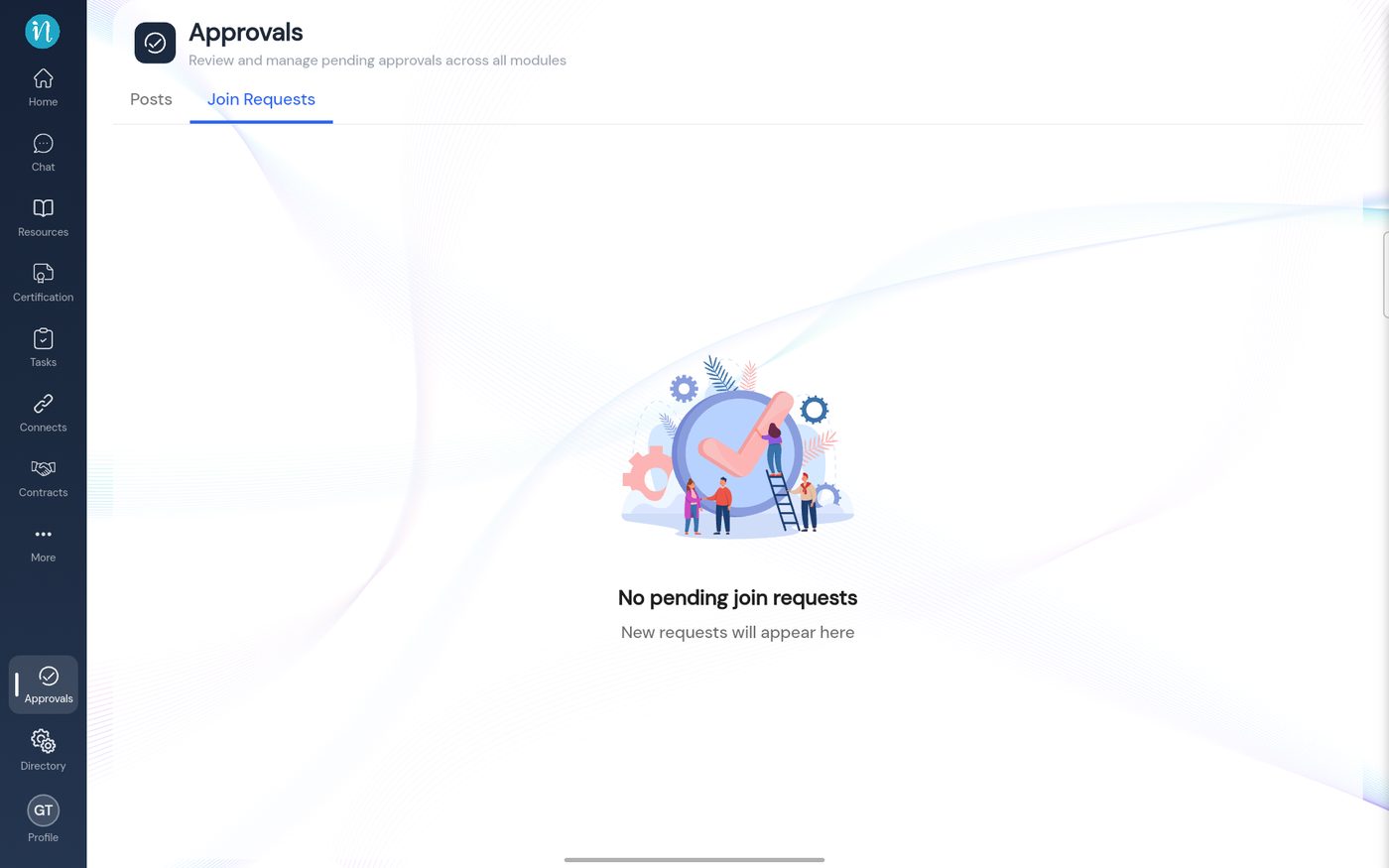
Tap Approve. The request disappears from the list.
No pending requests
After you are approved
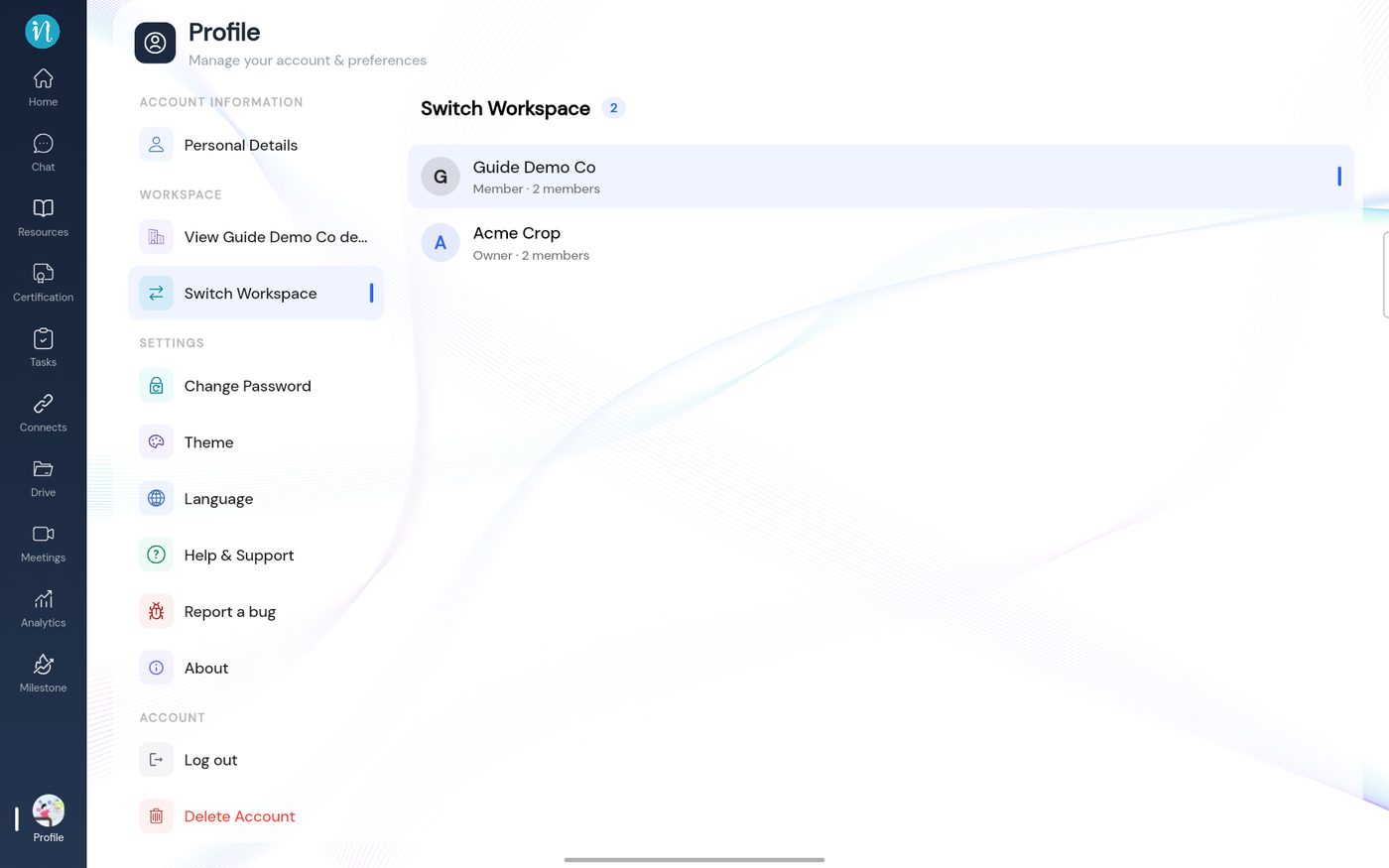
The new workspace is in your list under Profile → Switch Workspace.
Two workspaces
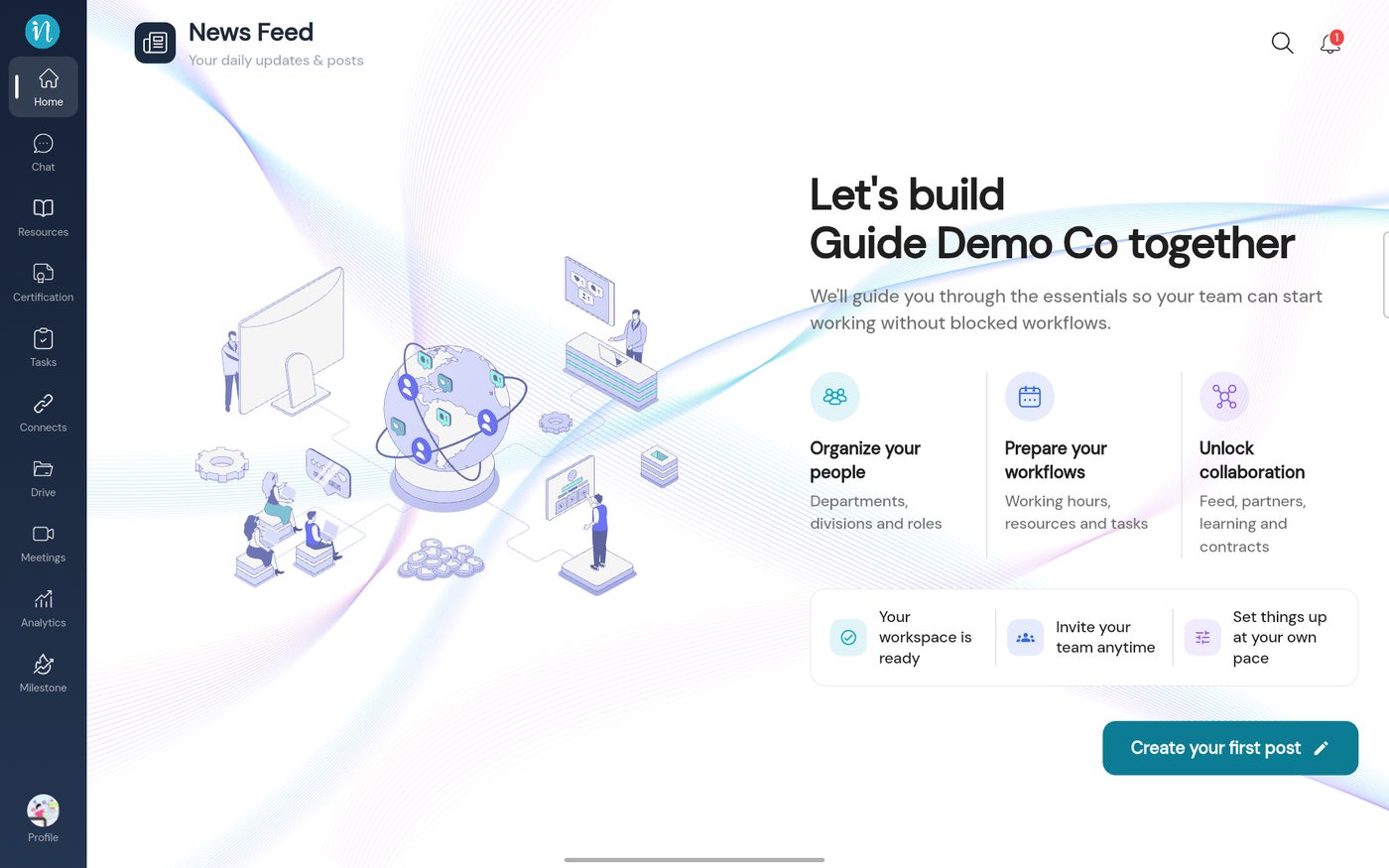
Open it. You land on that workspace's Home page as a Member.