This article is written for Member and Super Admin. Use the role switch at the top to change what the menus show.
If your administrator gave you a six-character code, you can use it while you sign up. You join without waiting for an administrator to approve you.
To get a code (administrator): open Profile → View … details. The code refreshes every 10 seconds and shows a countdown, so send it straight away. See Workspaces explained.
Fill in the sign-up form. On the How would you like to get started? screen, choose Join with Code.
How would you like to get started?
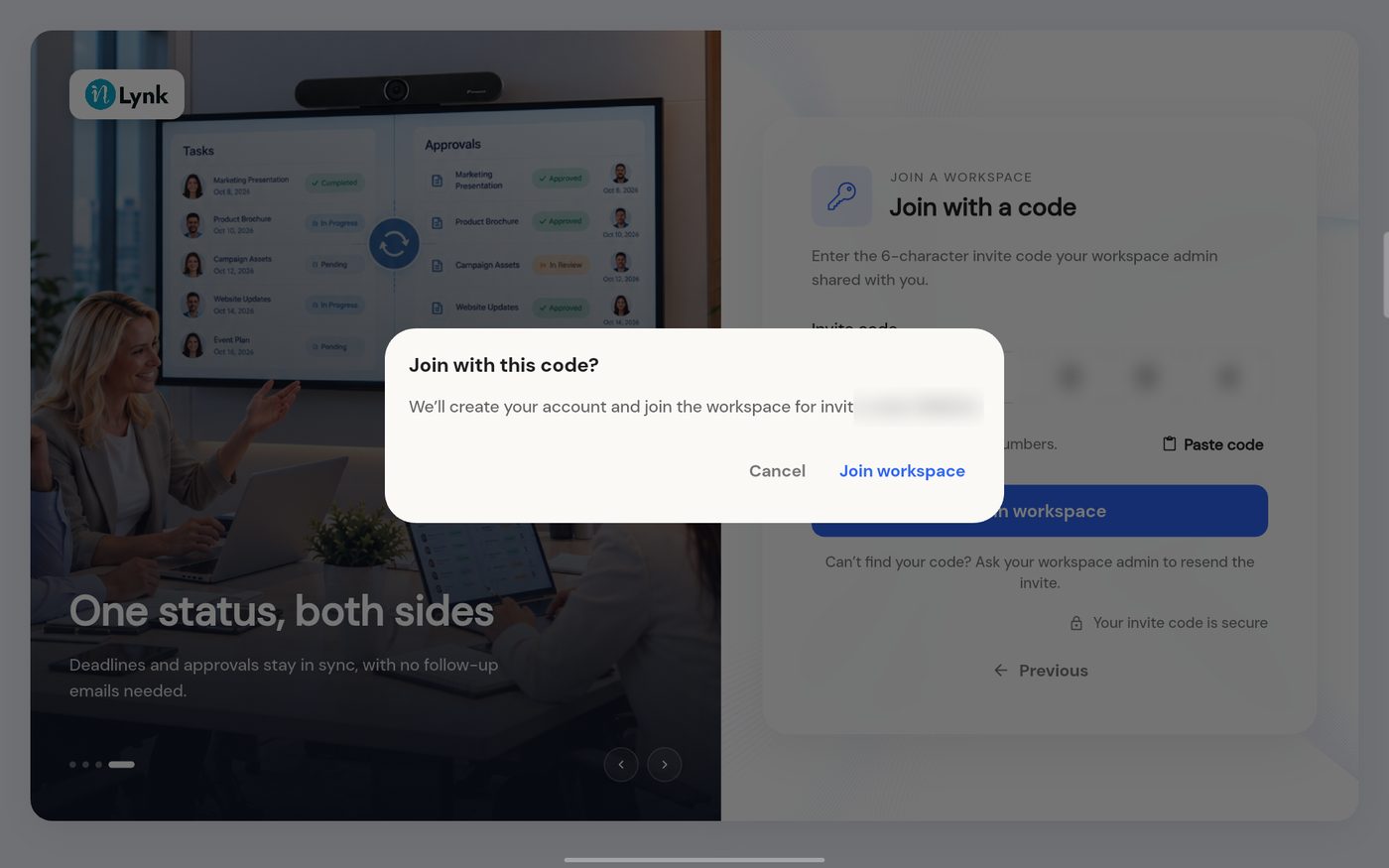
Type the six characters of the code. You can also tap Paste code.
Join with a code
Tap Join workspace. A last check asks you to confirm.
Join with this code?
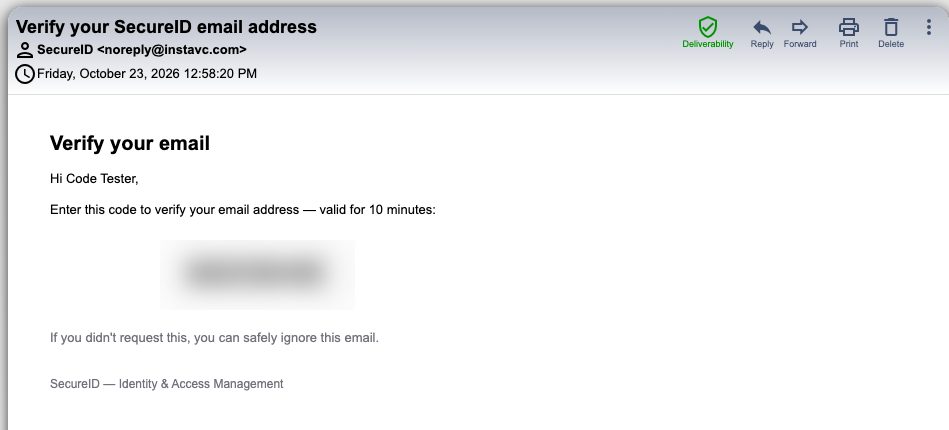
Verify your email with the code SecureID sends. See Verify your email.
The verification email
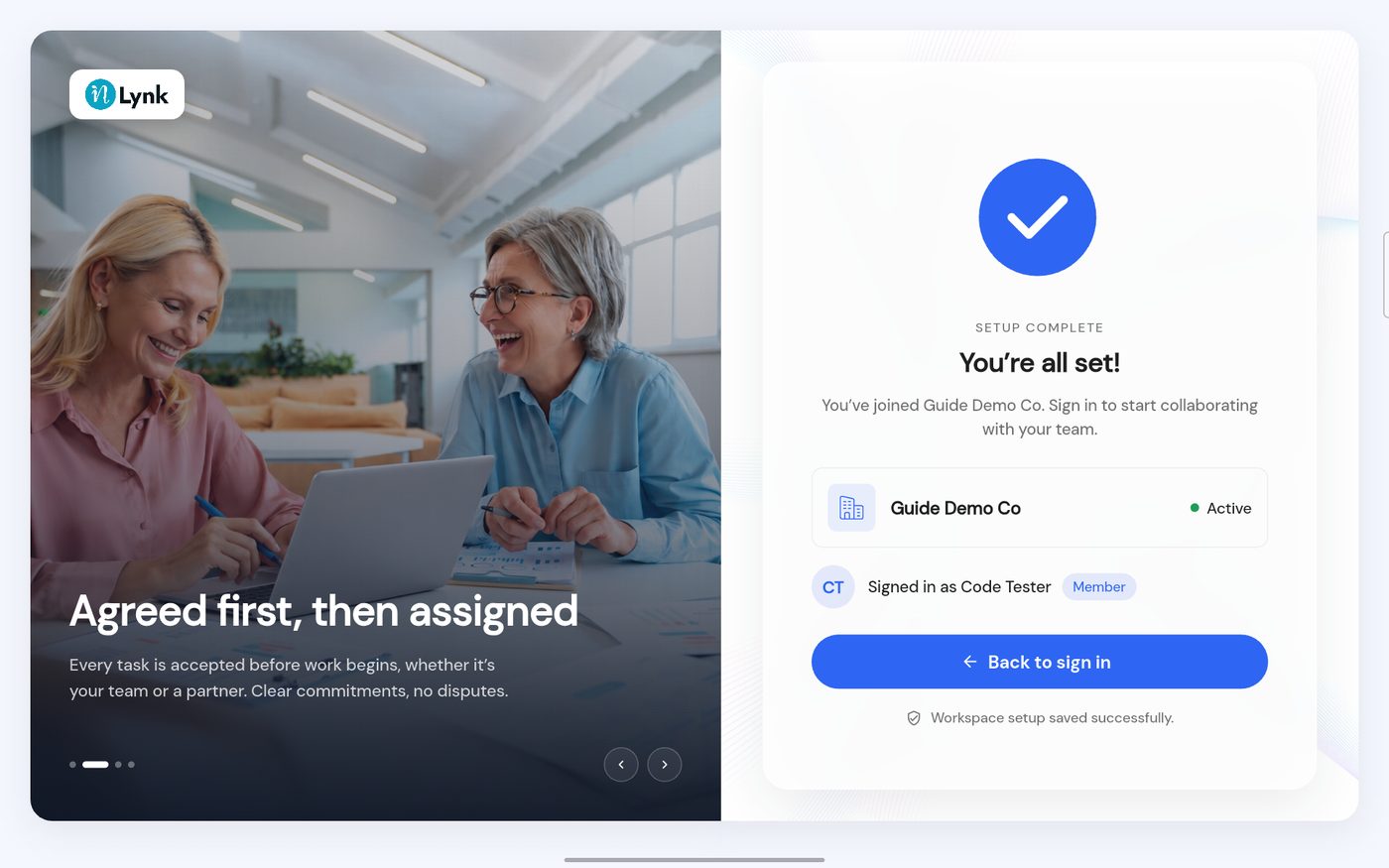
When the email is verified, the setup is complete. You are in.
You're all set
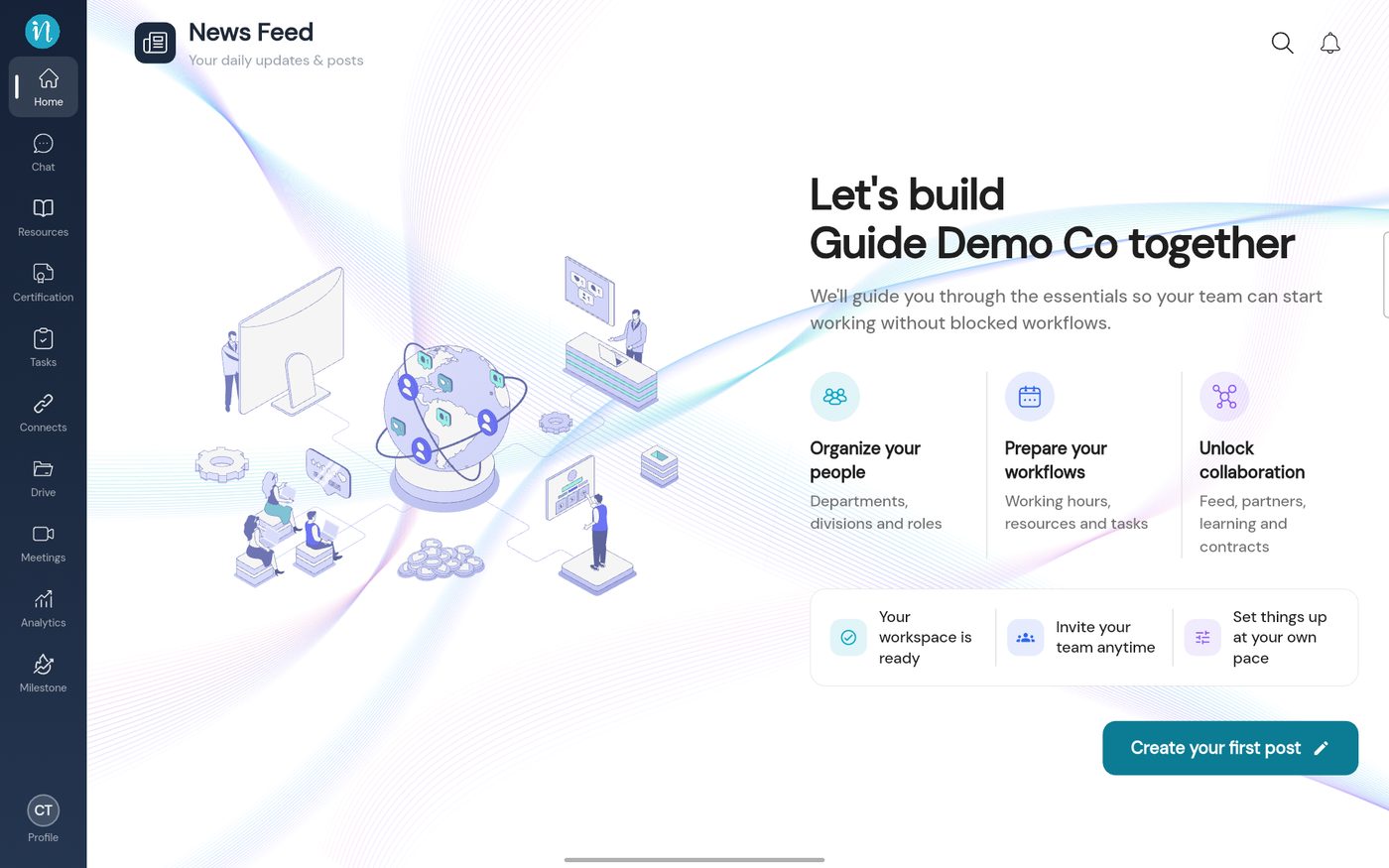
Sign in. You land on the workspace's Home page as a Member.
Home as a Member
Search or code: which is quicker?
With a code you are in as soon as you verify your email. There is no waiting for approval.