Join a workspace
How to search for a workspace and ask to join
Who can use thisMembers and Super Admins
This article is written for Member and Super Admin. Use the role switch at the top to change what the menus show.
If you do not have a code, you can look for a public workspace by name and ask to join it. An administrator then decides whether to let you in.
-
Fill in the sign-up form. On the How would you like to get started? screen, choose Search Workspace and tap Continue.
 Search Workspace chosen
-
Type part of the workspace's name.
 Search for a workspace
-
The matching workspaces appear.
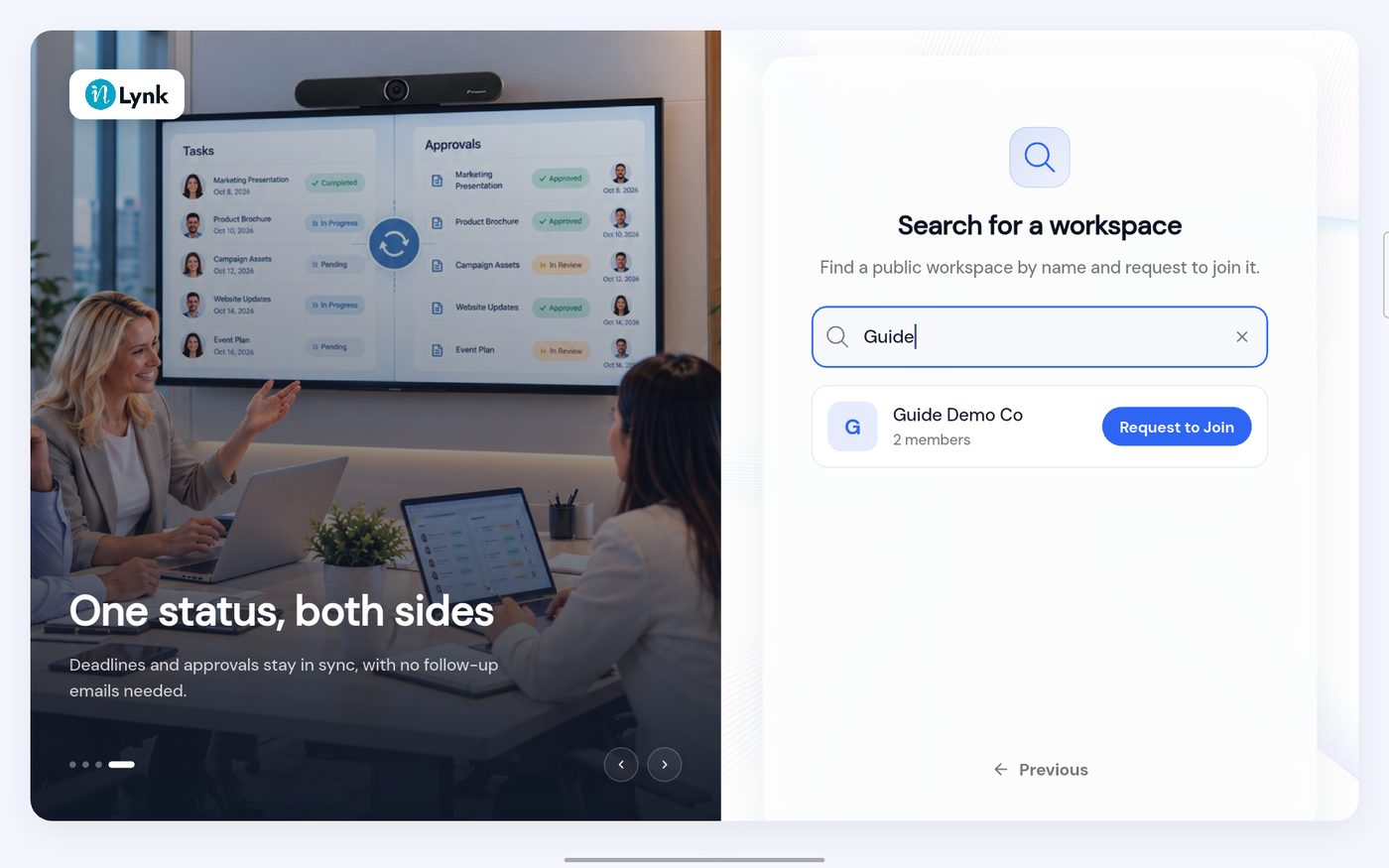 Search results
-
Tap Request to Join. The app asks you to confirm.
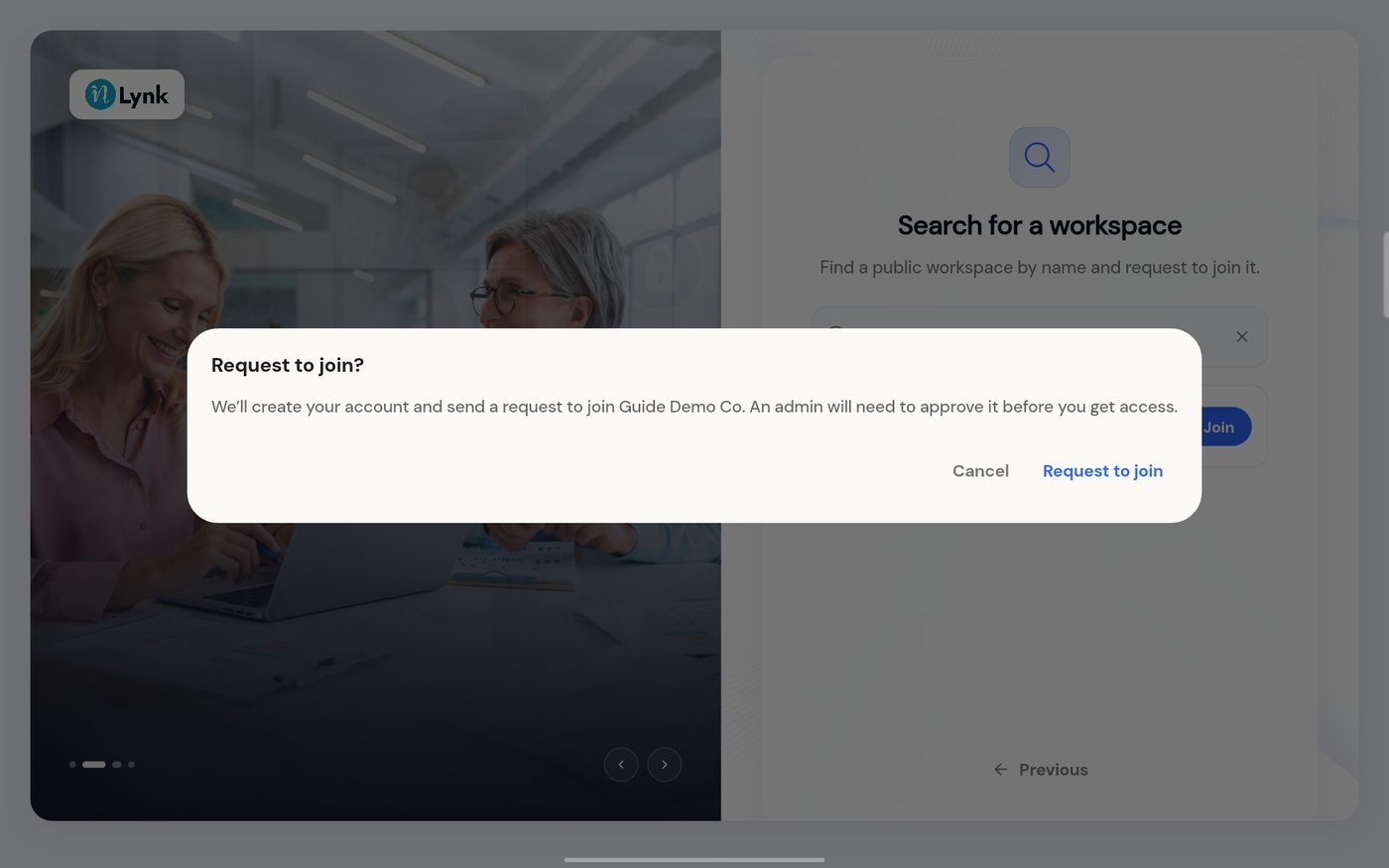 Confirm the request
-
Verify your email with the code SecureID sends you. The steps are the same as when you create a workspace; see Verify your email.
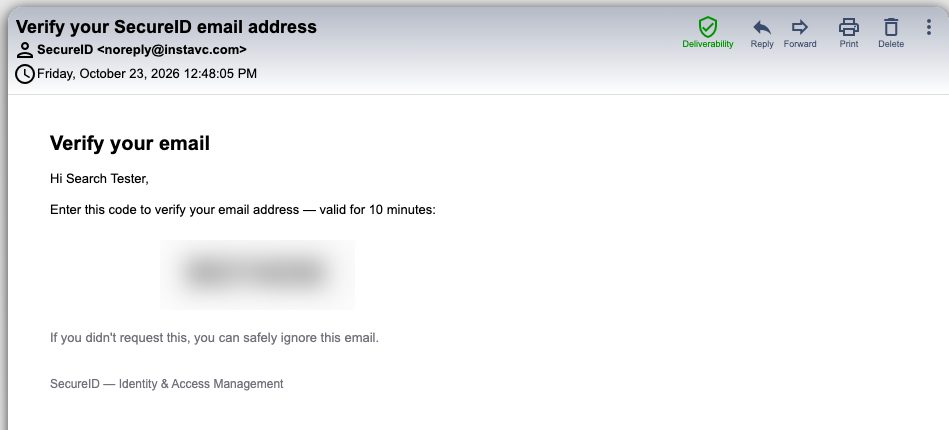 The verification email
-
When the email is verified, a waiting screen shows the state of your request.
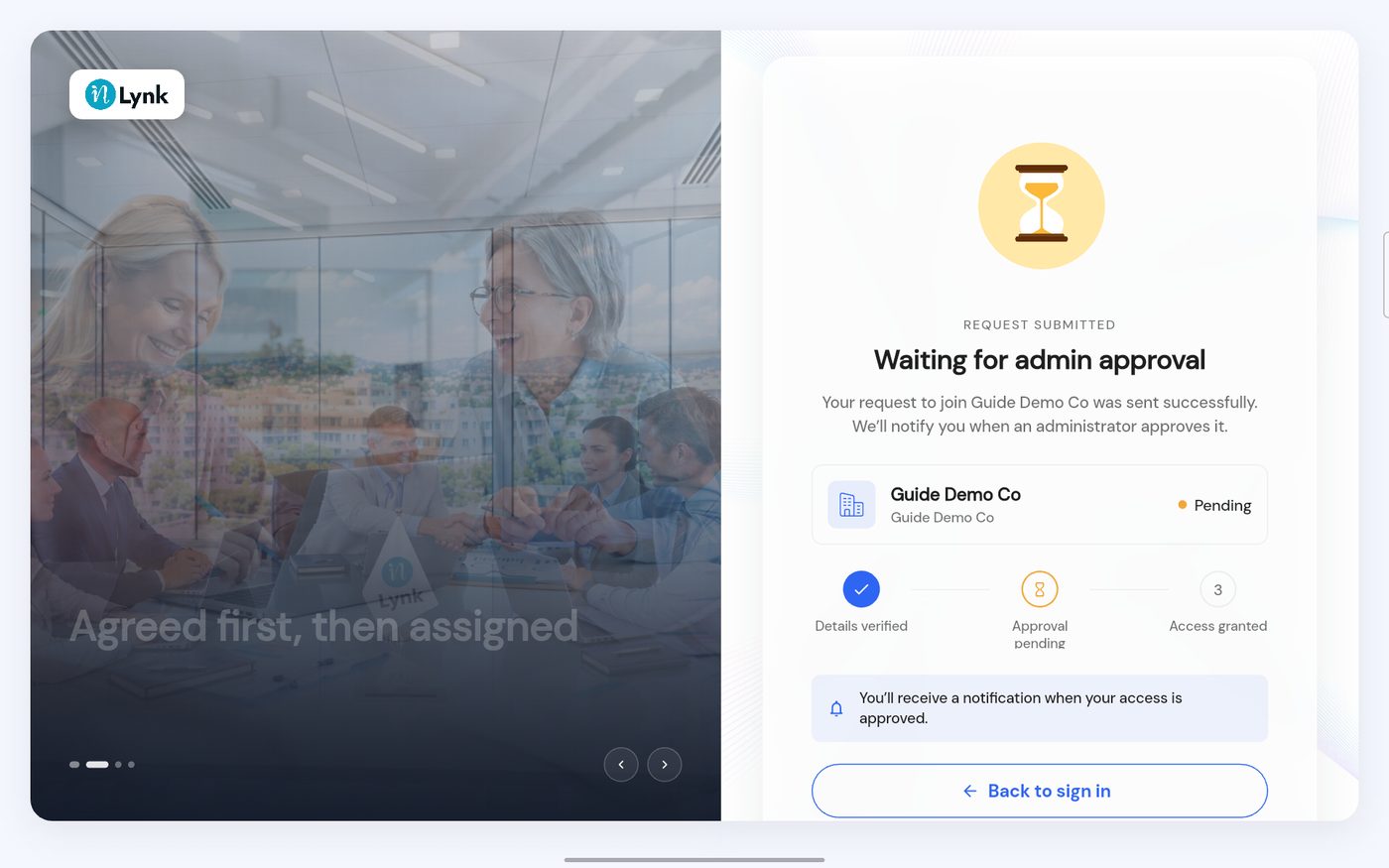 Waiting for admin approval
Until you are approved
If you sign in before the administrator has decided, you see the same waiting screen.
 Still pending after signing in
Approval (administrator)
The administrator sees the request in Approvals → Join Requests.
-
Open Approvals and tap Join Requests. A number on the tab shows how many are waiting.
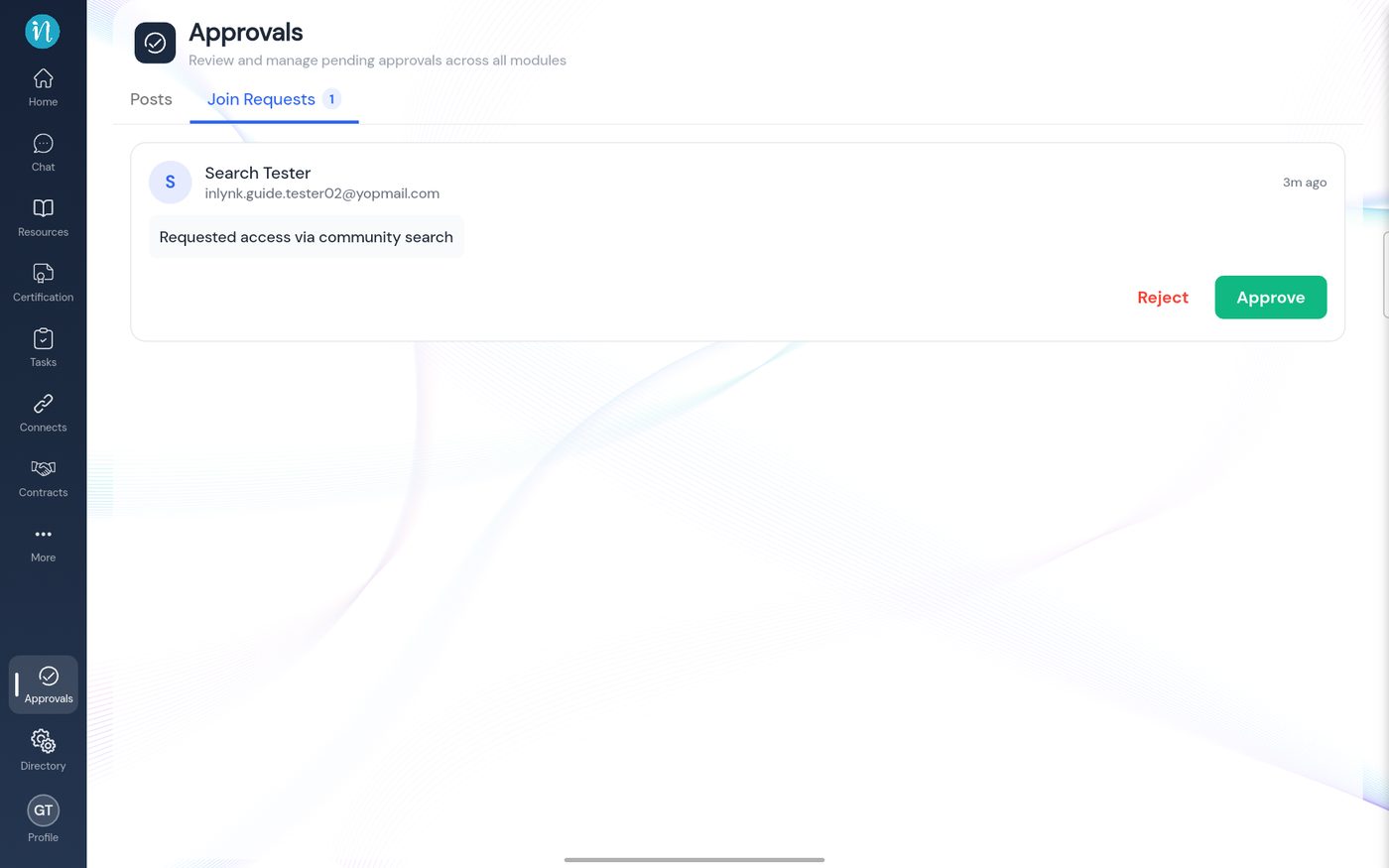 The request in Approvals
-
Tap Approve. The list is empty again.
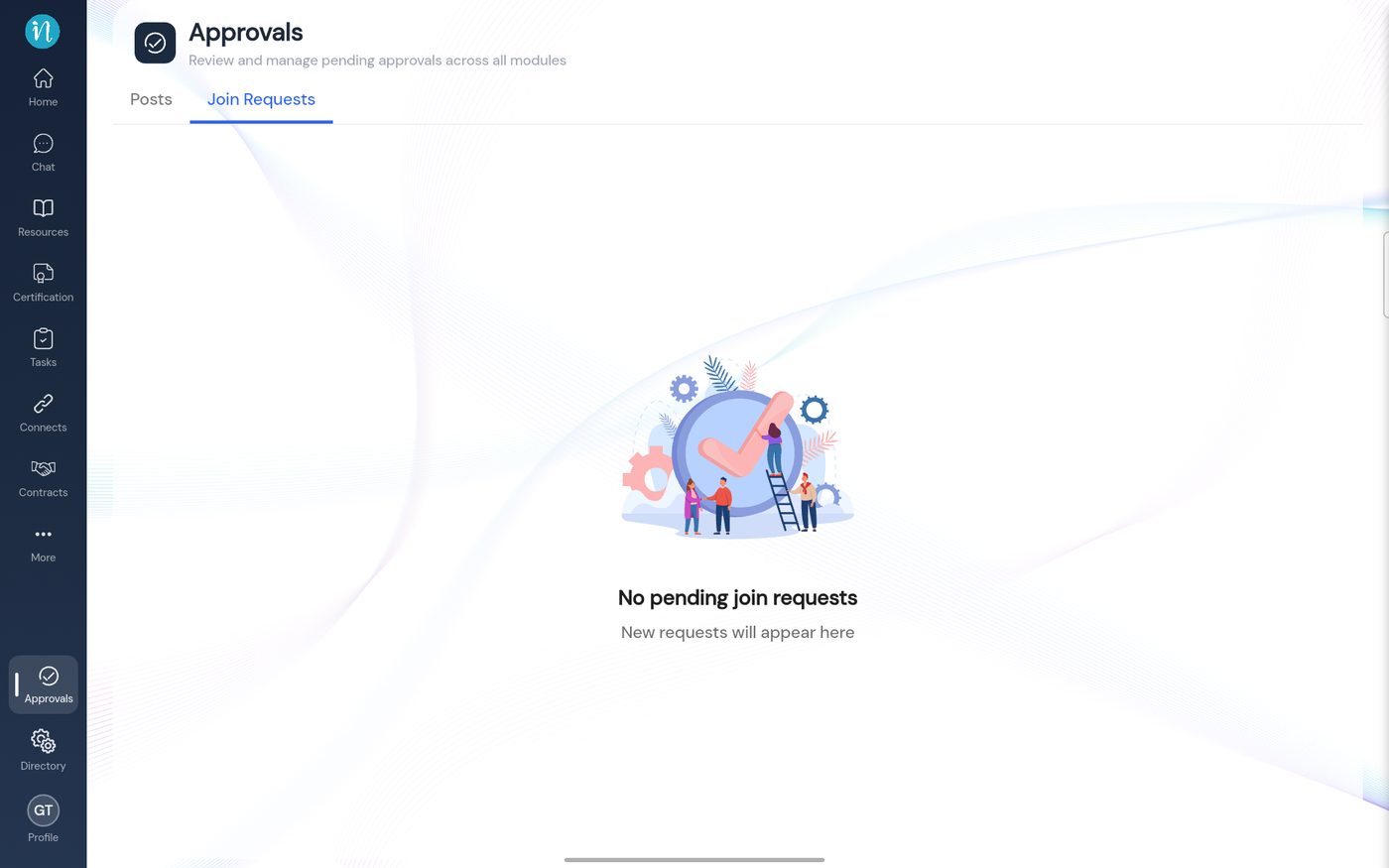 No pending requests
After you are approved
-
Sign in. The workspace is yours, and a notification waits in the bell.
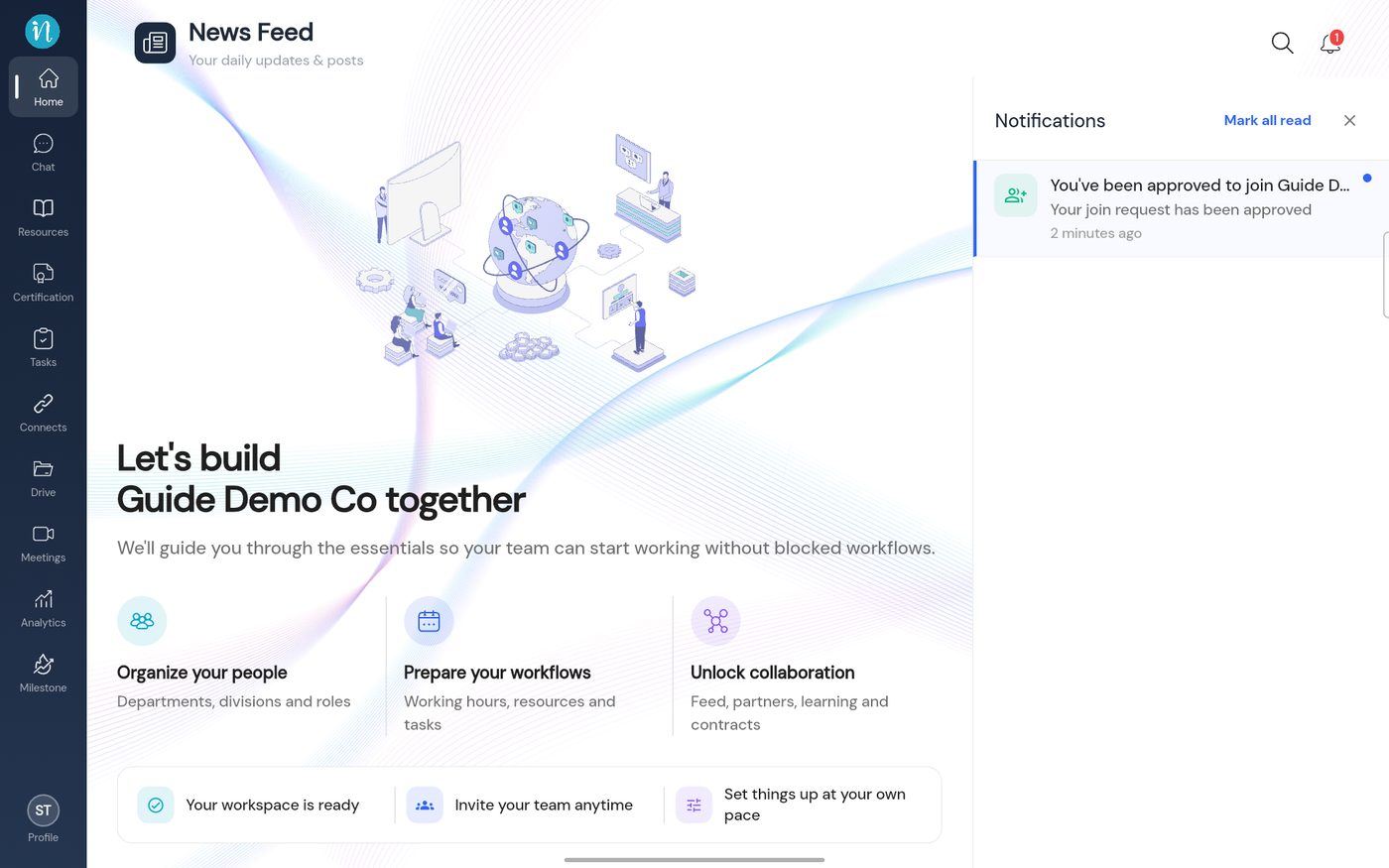 The approval notification
See Your first day in inLynk for what to do next.
Last updated 2026-10-23
