
Roles and permissions in plain words
Every person in a workspace has a role, and every role has a list of permissions. Permissions decide which buttons and menu entries you see. That is why a button can be missing for you and present for a colleague.
The roles
The roles are called profiles in the app. A workspace starts with three:
| Profile | What the app calls it |
|---|---|
| Super Admin | Full system access |
| Admin | Organization admin with management capabilities |
| Member | Standard user capabilities |
Administrators can also create their own profiles.
See what a role can do (administrators)
-
Open Directory and tap Profiles. Choose a profile on the left, then pick a module in the list.
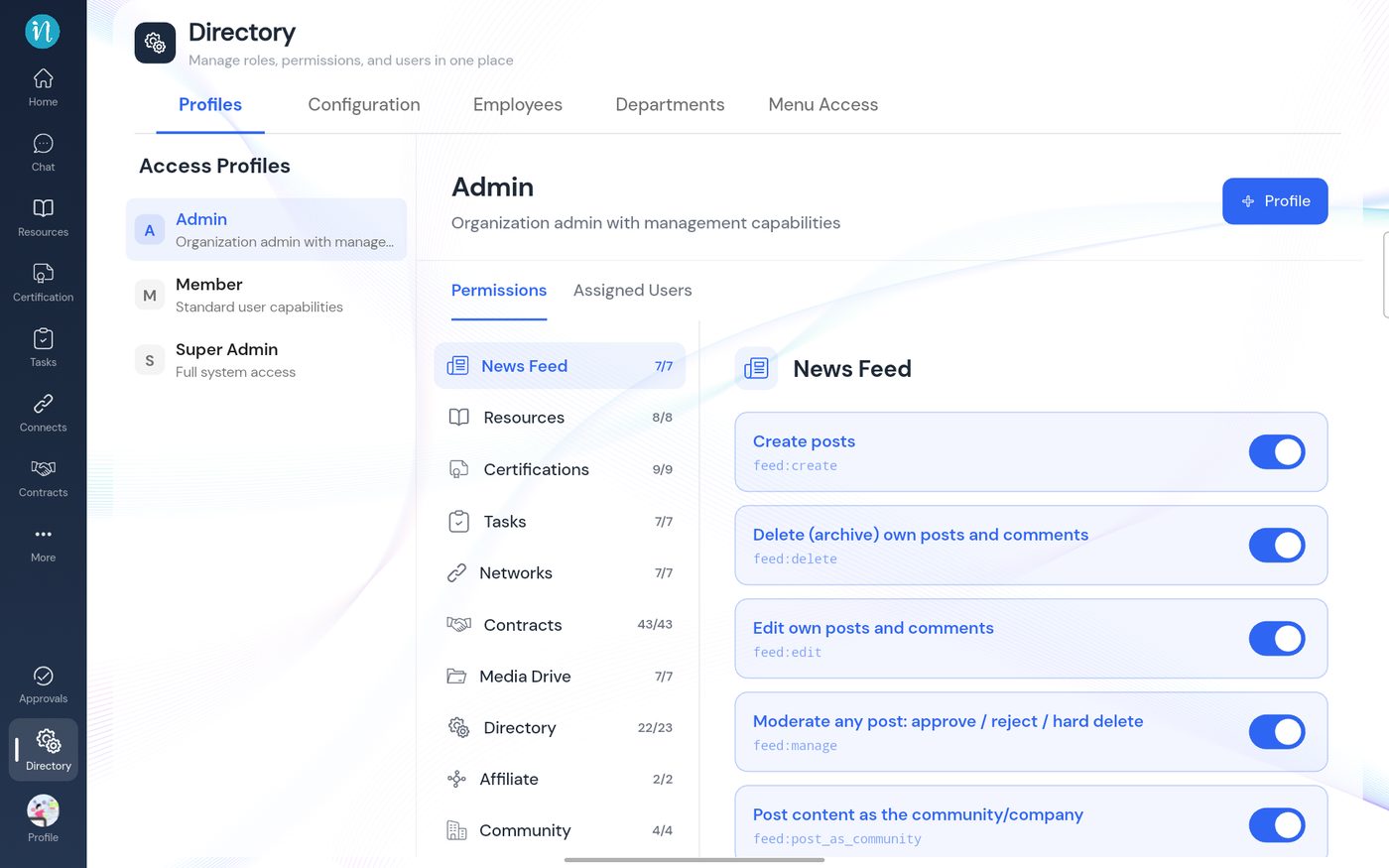
Directory, Profiles
What it looks like in practice
In this workspace, as checked, the Member profile holds 4 of 7 News Feed permissions, 5 of 7 Drive permissions and none of the Contracts or Directory permissions. The Admin profile holds all the Drive, Resources, Tasks and News Feed permissions. Defaults can differ between workspaces, so always check the counts in Directory → Profiles.
If you cannot do something
- Look for the button or menu entry. If it is missing or greyed out, you probably do not hold the permission.
- Ask your workspace administrator. Tell them what you were trying to do.
- For a worked example, read What you can do in Drive.
Last updated 2026-10-22