Help center / Modules / Resources / How to create a category
Organise
How to create a category
Who can use this Super Admins, and any role given this permission
Permission you need Add resources
Set by your workspace admin. If you cannot do this, ask them for access. This article is written for Super Admin. Use the role switch at the top to change what the menus show.
A category is a folder in the library. Everything else lives inside one, so create a category first. Categories can sit inside each other, up to five levels deep.
Before you start: you need the Add resources permission. See What you can do in Resources .
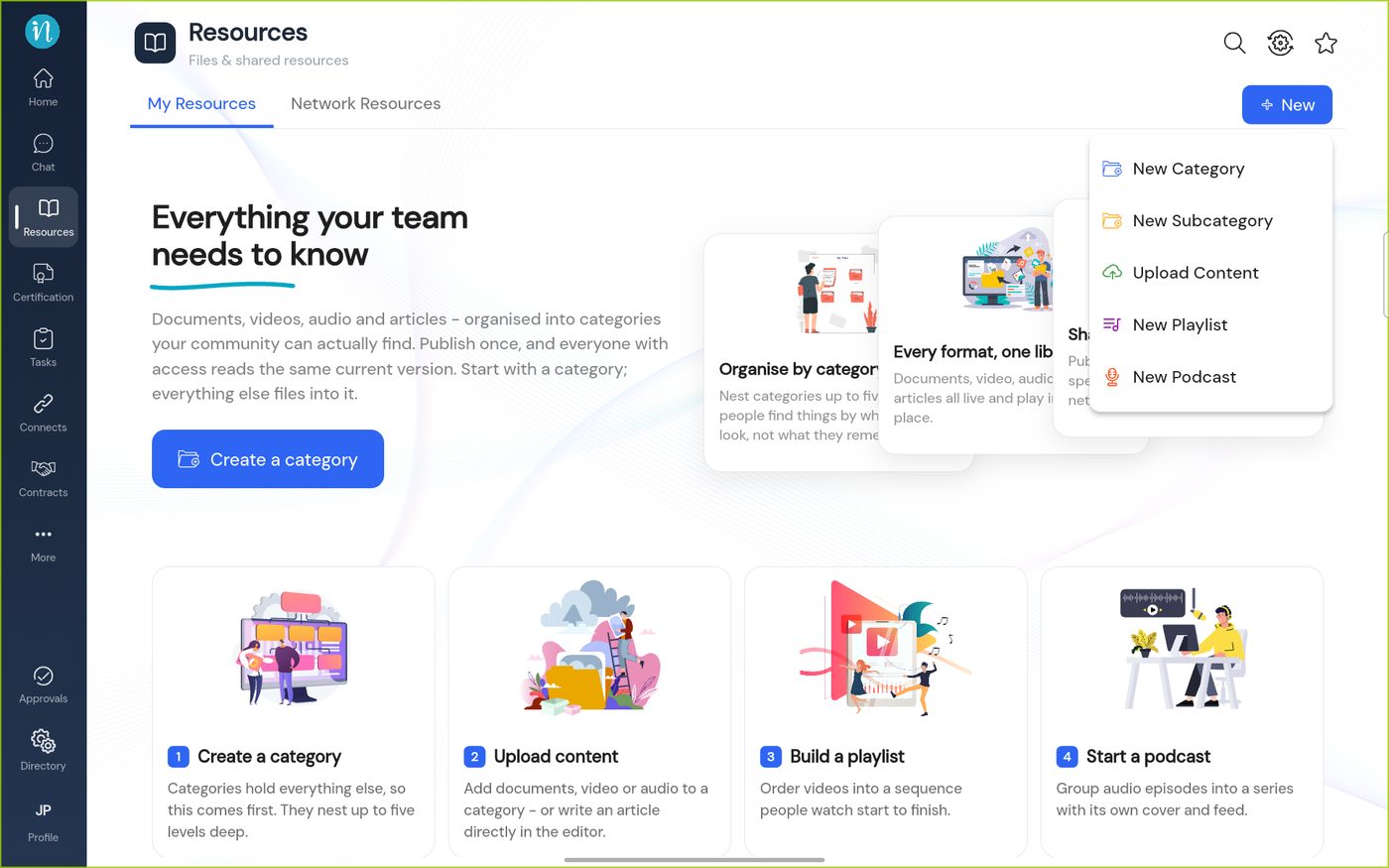
Tap + New , then New Category .
The New menu On this screen
New Category – a top-level folder.New Subcategory – a folder inside one you already have.Upload Content – add a file or media.New Playlist and New Podcast – see their own guides.
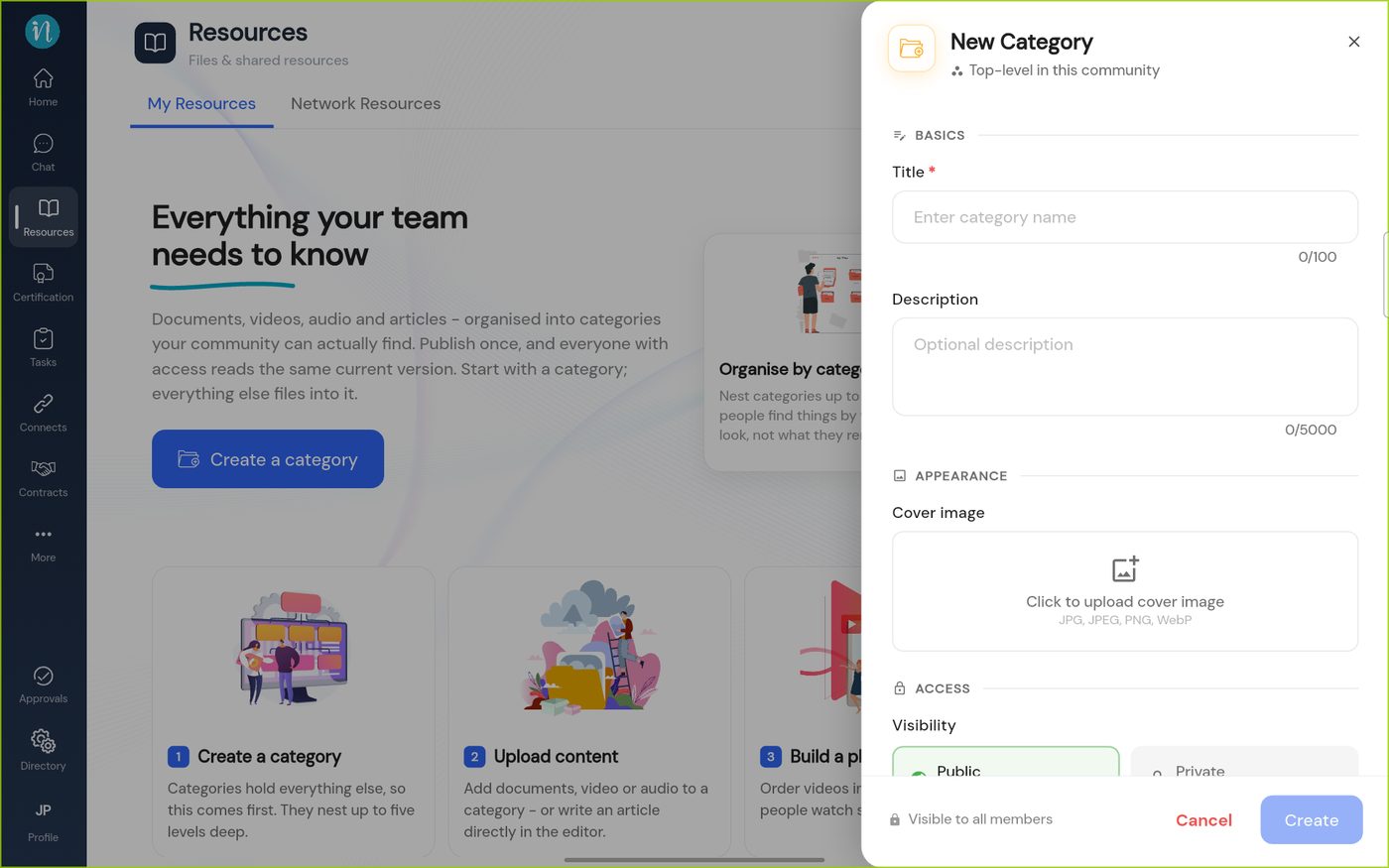
The New Category panel slides in from the right.
An empty New Category panel On this screen
Heading – New Category , with a line under it saying it is a top-level category.Title – required, up to 100 characters (0/100 ).Description – optional, up to 5,000 characters.Cover image – optional; Click to upload cover image (JPG, JPEG, PNG or WebP).Visibility – Public or Private ; see Who can see a category .Cancel and Create – Create stays pale until there is a title.
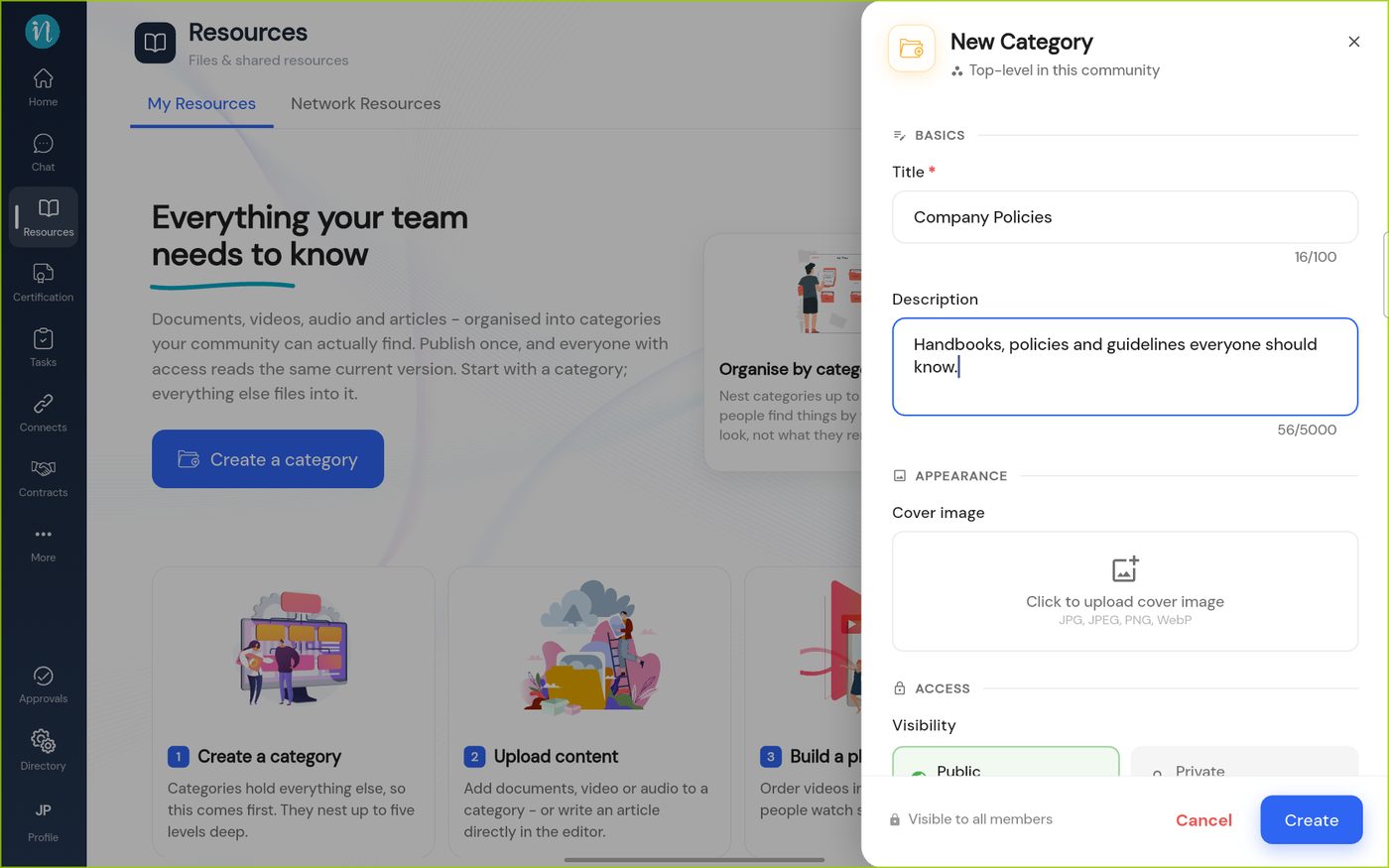
Type a title and, if you like, a description.
A category filled in On this screen
Title – Company Policies , with its counter (16/100 ).Description – Handbooks, policies and guidelines everyone should know. (56/5000 ).Create – blue now.
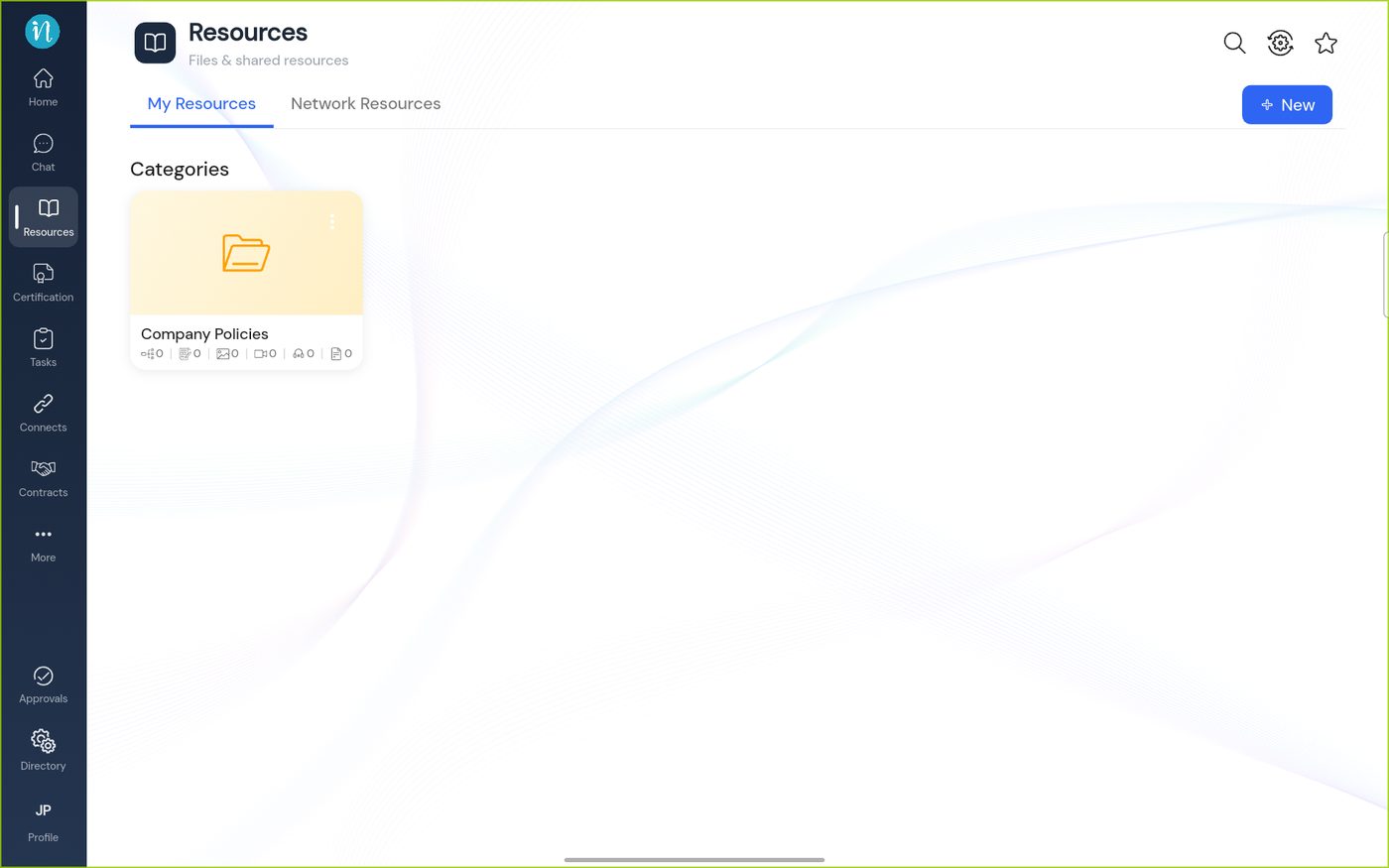
Tap Create . The category appears as a folder card.
The new category On this screen
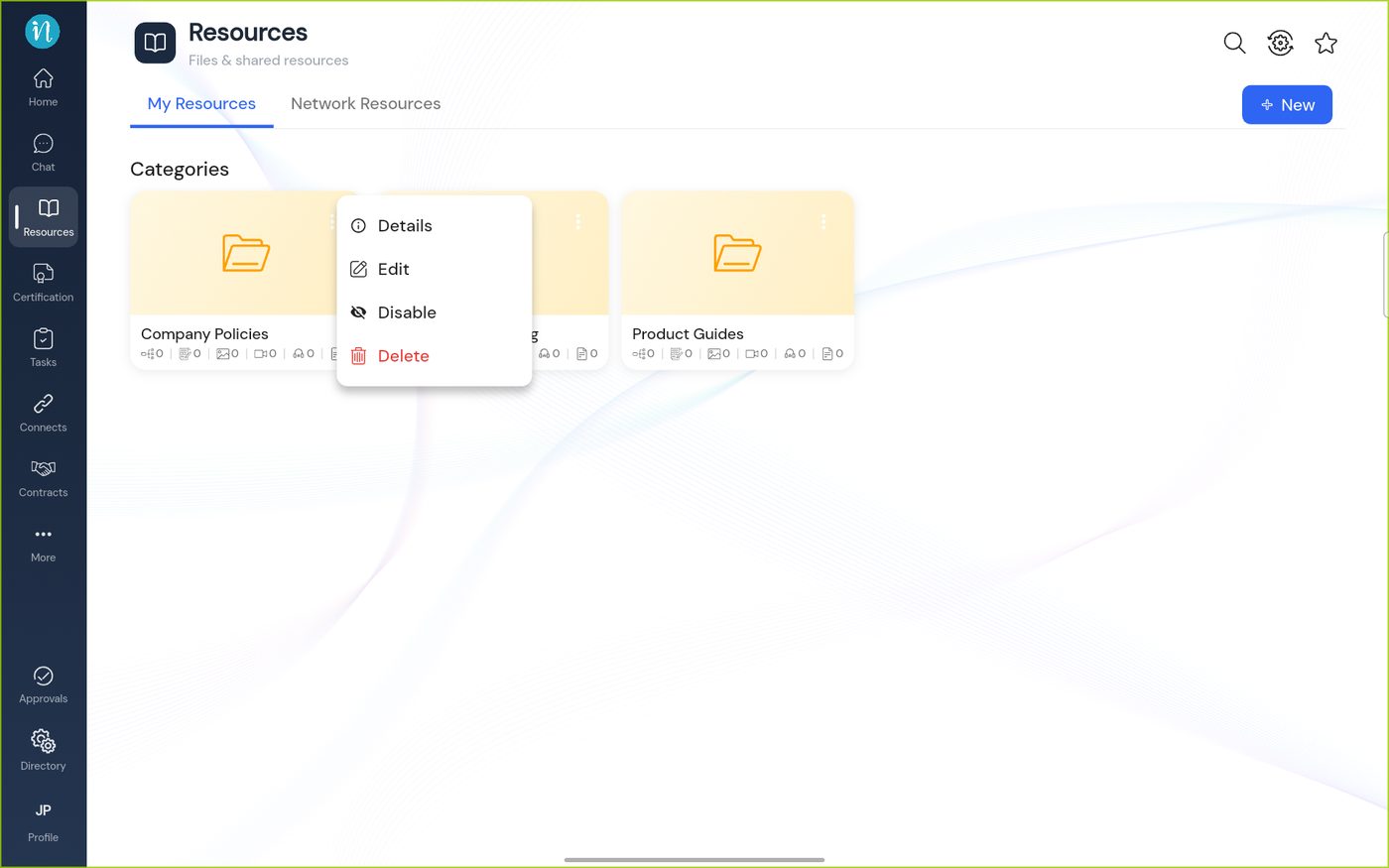
Folder card – with the title, and a row of small counters: sub-categories, articles, images, videos, audio and documents.⋮ – the category's menu; see below.
Tap ⋮ on a category.
The category menu On this screen
Details – read-only information about the category.Edit – change its title, description, cover or access.Disable – switches the category off. It is a separate choice from Delete.Delete – in red; removes the category.
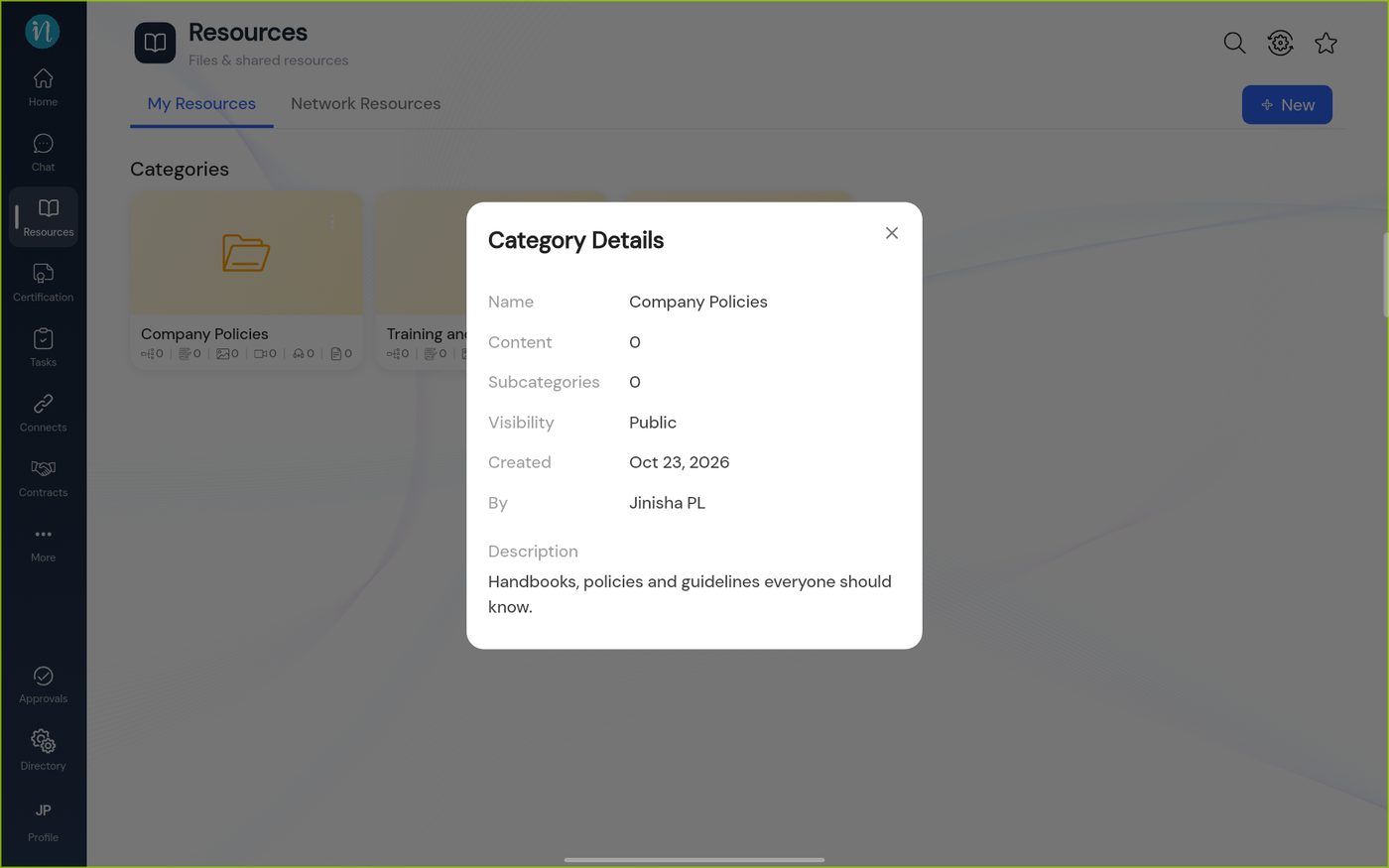
Tap Details to see the facts.
Category Details On this screen
Name, Content and Subcategories – the title, how many items are inside and how many sub-folders.Visibility – Public or Private .Created and By – the date and who made it.Description – the text you wrote.
A sub-category
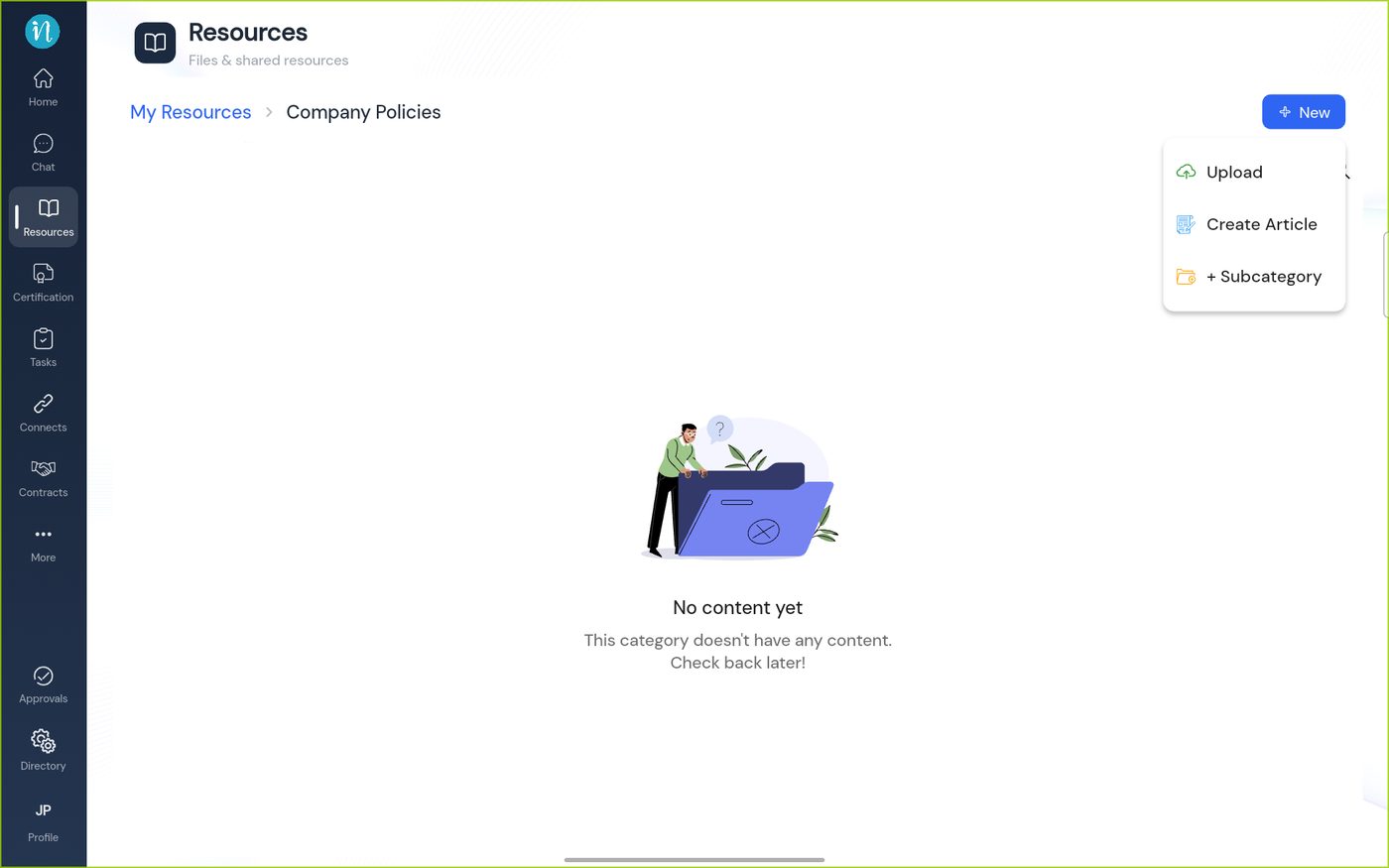
Open a category and tap + New → + Subcategory to add a folder inside it.
The New menu inside a category On this screen
Upload – add a file or media here.Create Article – write an article here.+ Subcategory – a folder inside this one. Last updated 2026-10-23