
Publish, unpublish and manage content
Who can use thisSuper Admins, and any role given this permission
Permissions you need
Publish/unpublish categories, playlists & podcastsEdit resourcesDelete resources
Set by your workspace admin. If you cannot do this, ask them for access.This article is written for Super Admin. Use the role switch at the top to change what the menus show.
New content can be published straight away or kept as a draft. Every item has a ⋮ menu to change it later.
-
Choose Save as Draft instead of Publish when you upload. The card shows an orange Draft badge.
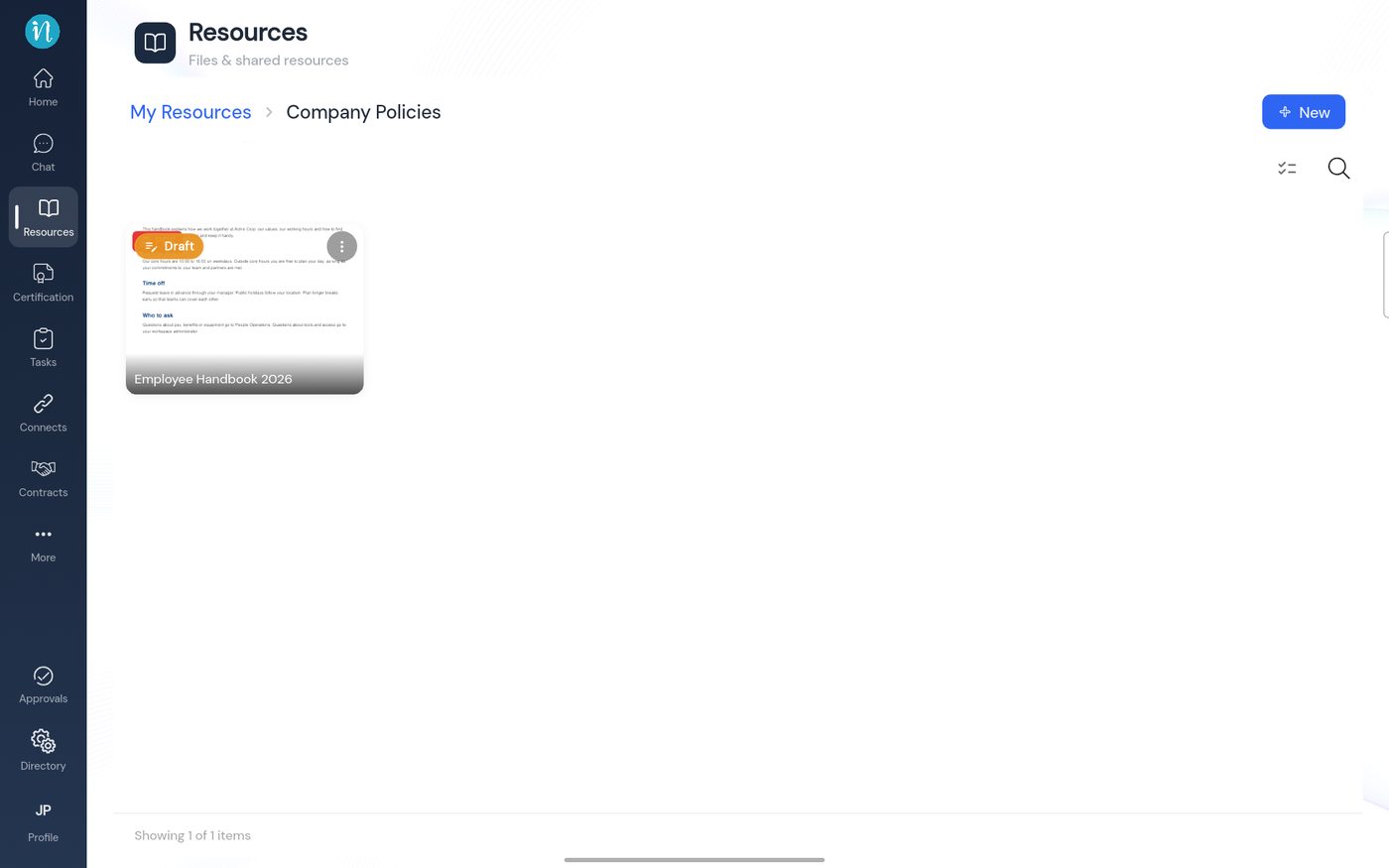
A draft document -
Tap ⋮ on the draft.
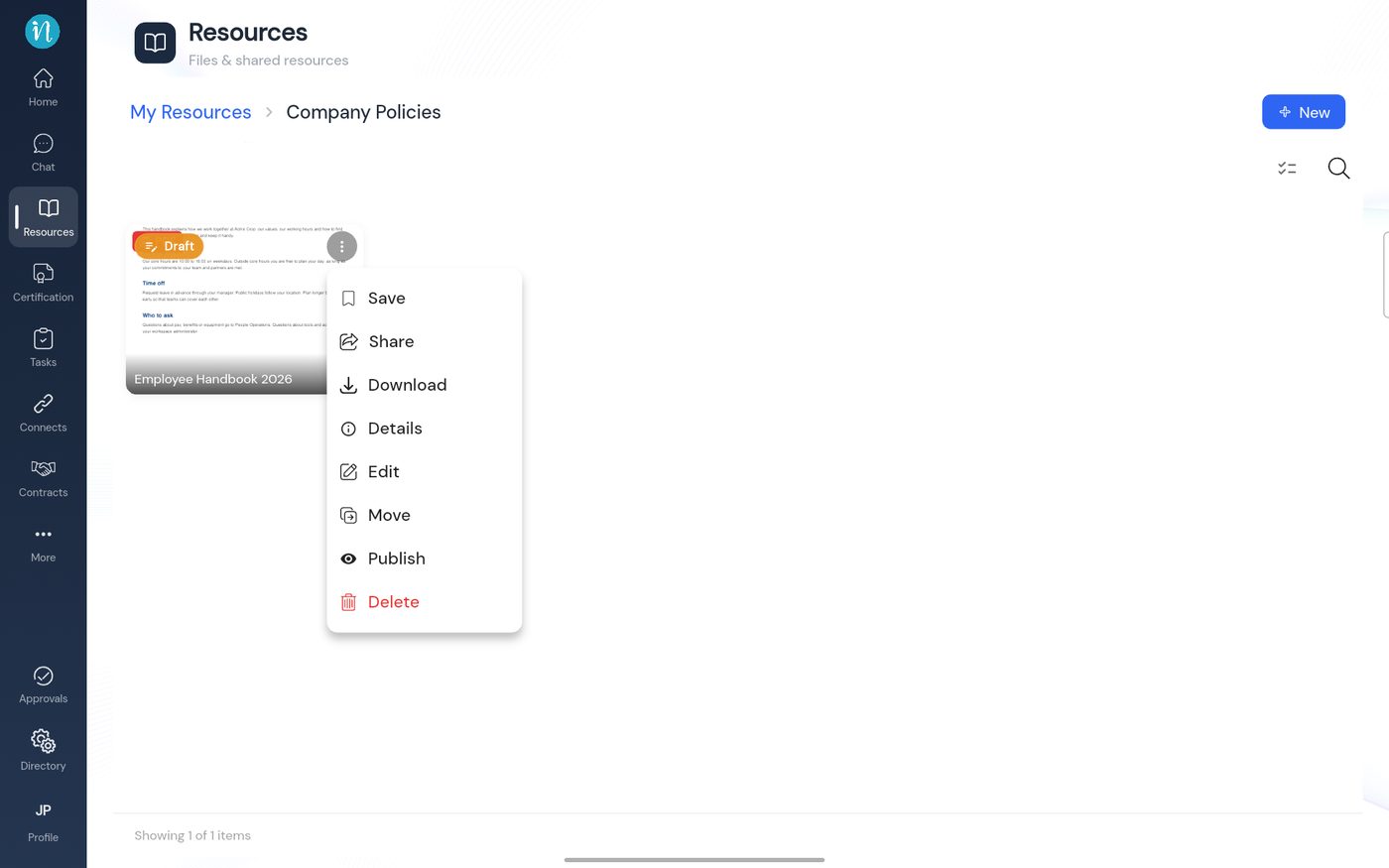
The menu for a draft -
Tap Publish. A message confirms it and the Draft badge turns into the file type.
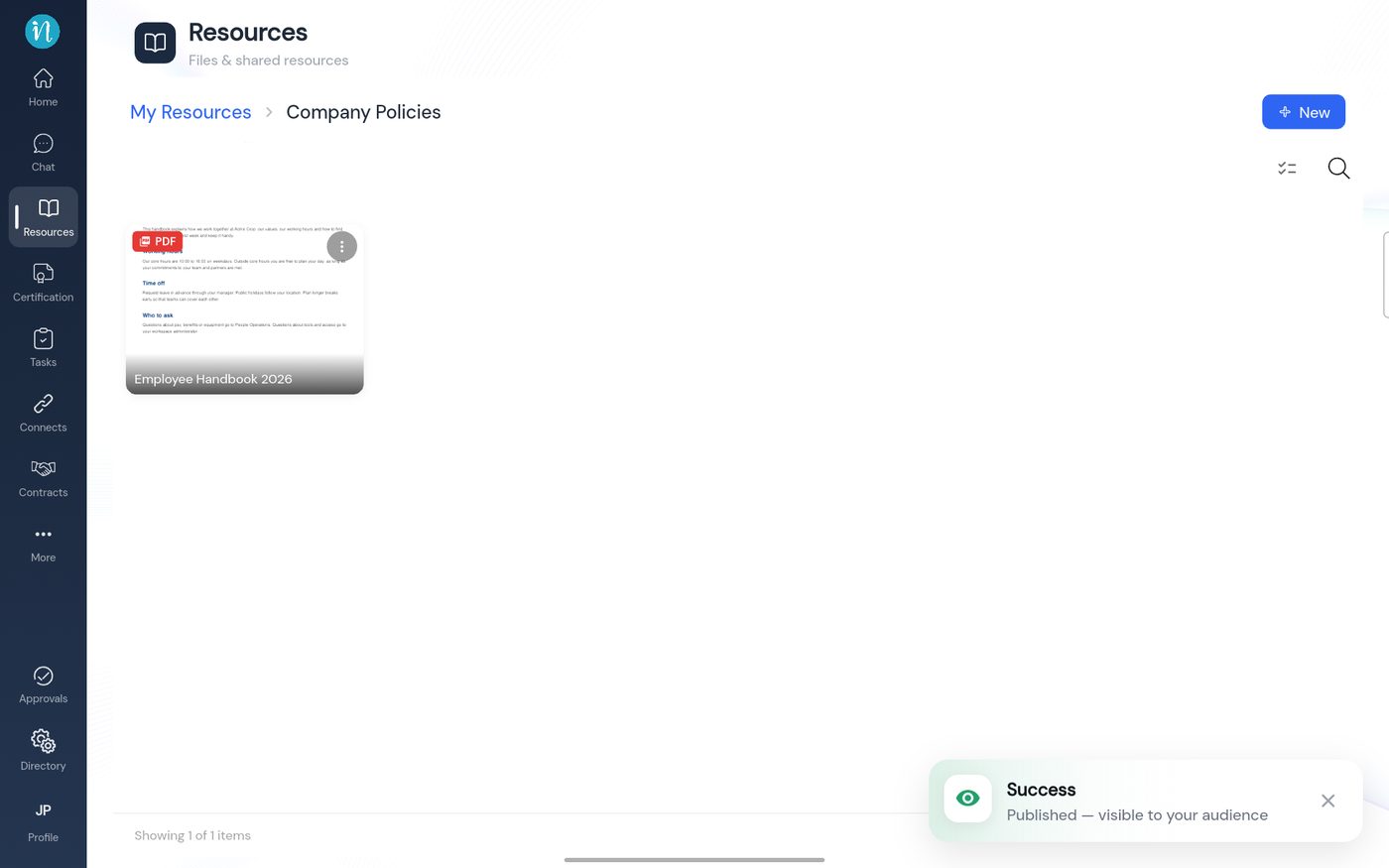
Published -
To take it down again, tap ⋮ and choose Unpublish.
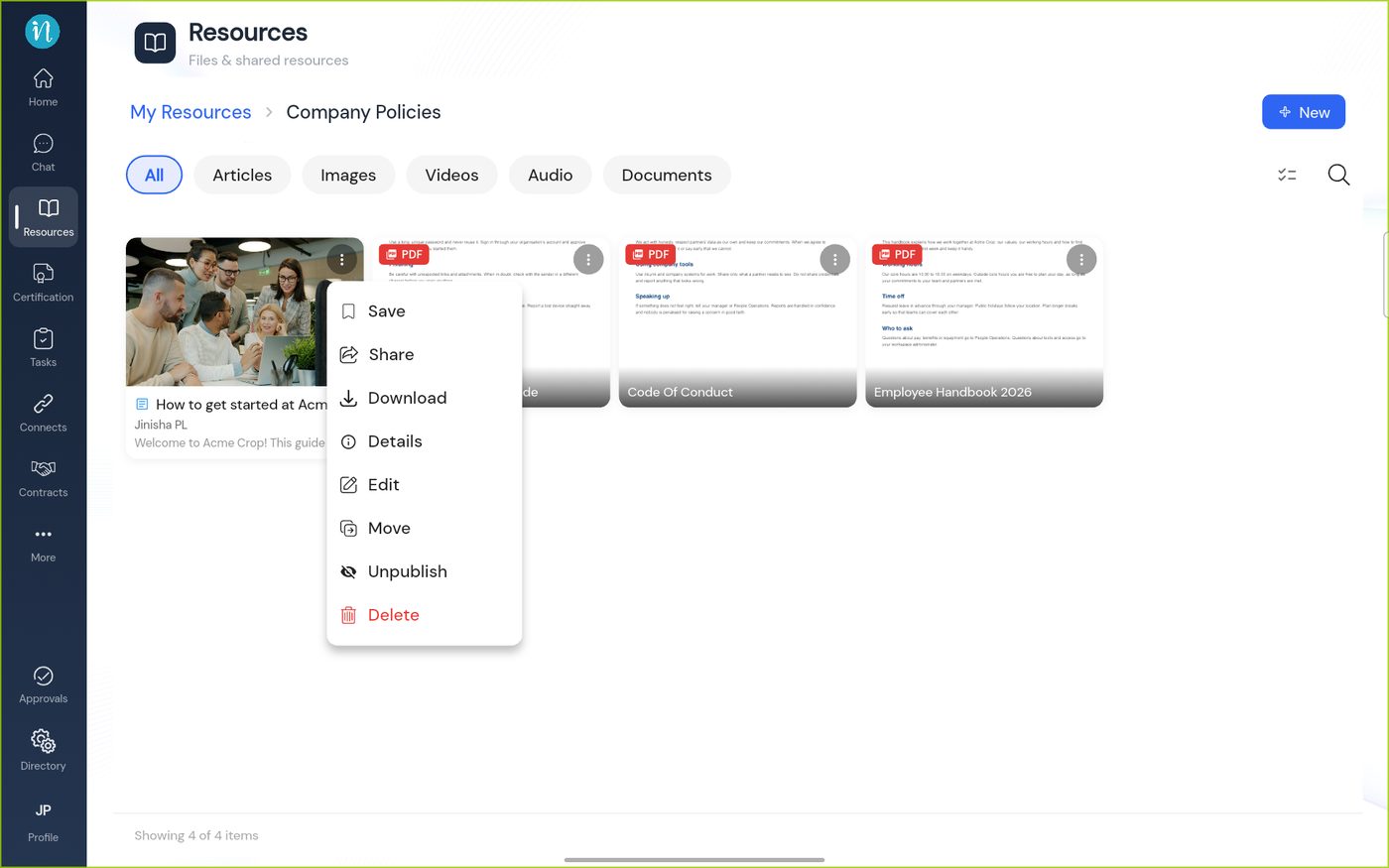
The menu for a published item
Permissions
- Edit and Move need Edit resources.
- Delete needs Delete resources.
- Publish and unpublish a category, playlist or podcast needs Publish/unpublish categories, playlists & podcasts. See What you can do in Resources.
Last updated 2026-10-23