Set by your workspace admin. If you cannot do this, ask them for access.
This article is written for Member and Super Admin. Use the role switch at the top to change what the menus show.
Assigning is a proposal. The person you pick sees the task, the hours and the deadline, and answers before it becomes binding.
Before you start: you need the Create and Assign permissions. If Assign to someone else is missing from the menu, see Troubleshooting.
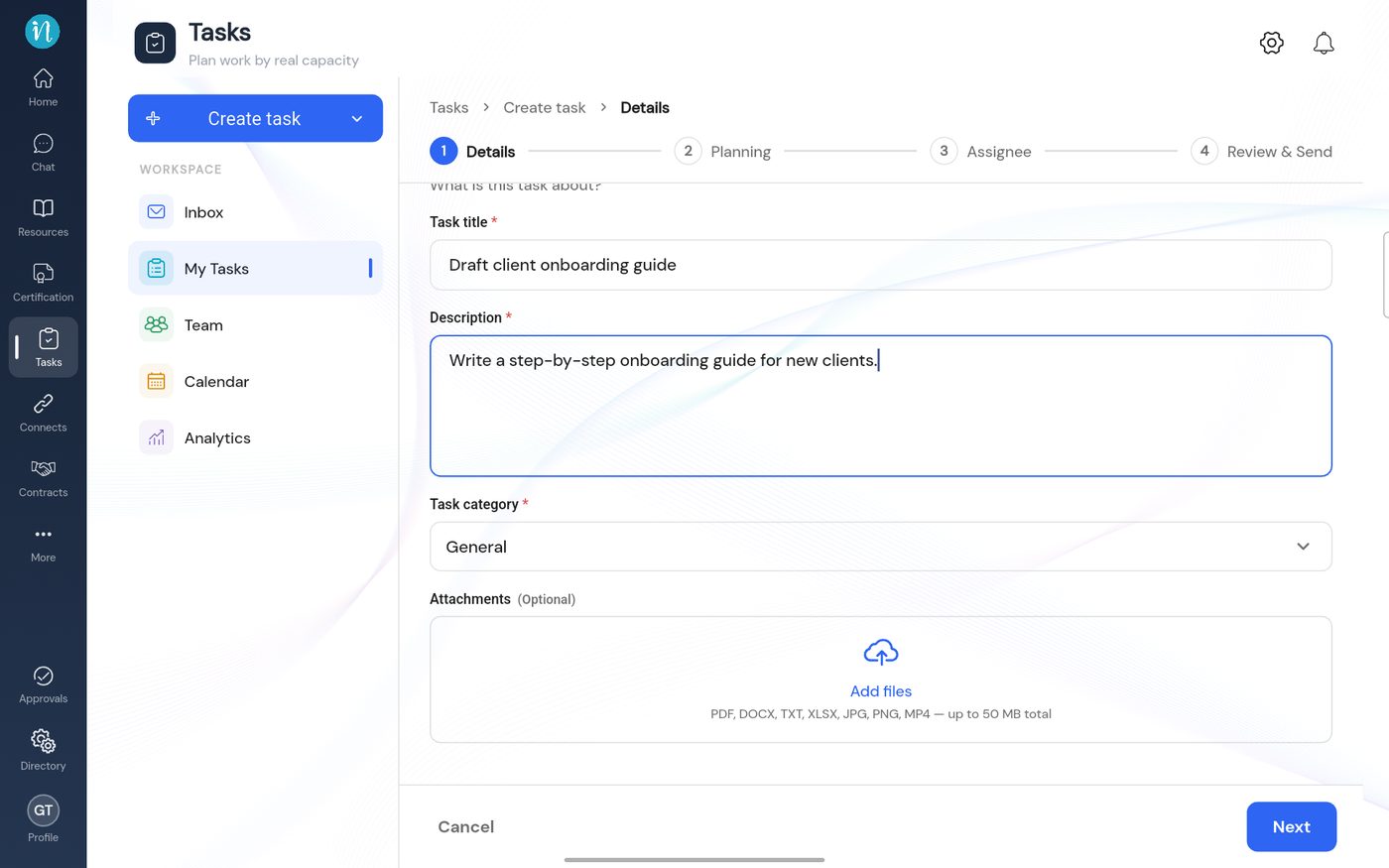
Tap Create task → Assign to someone else, and fill in the Details: title, description and category.
The Details step when assigning
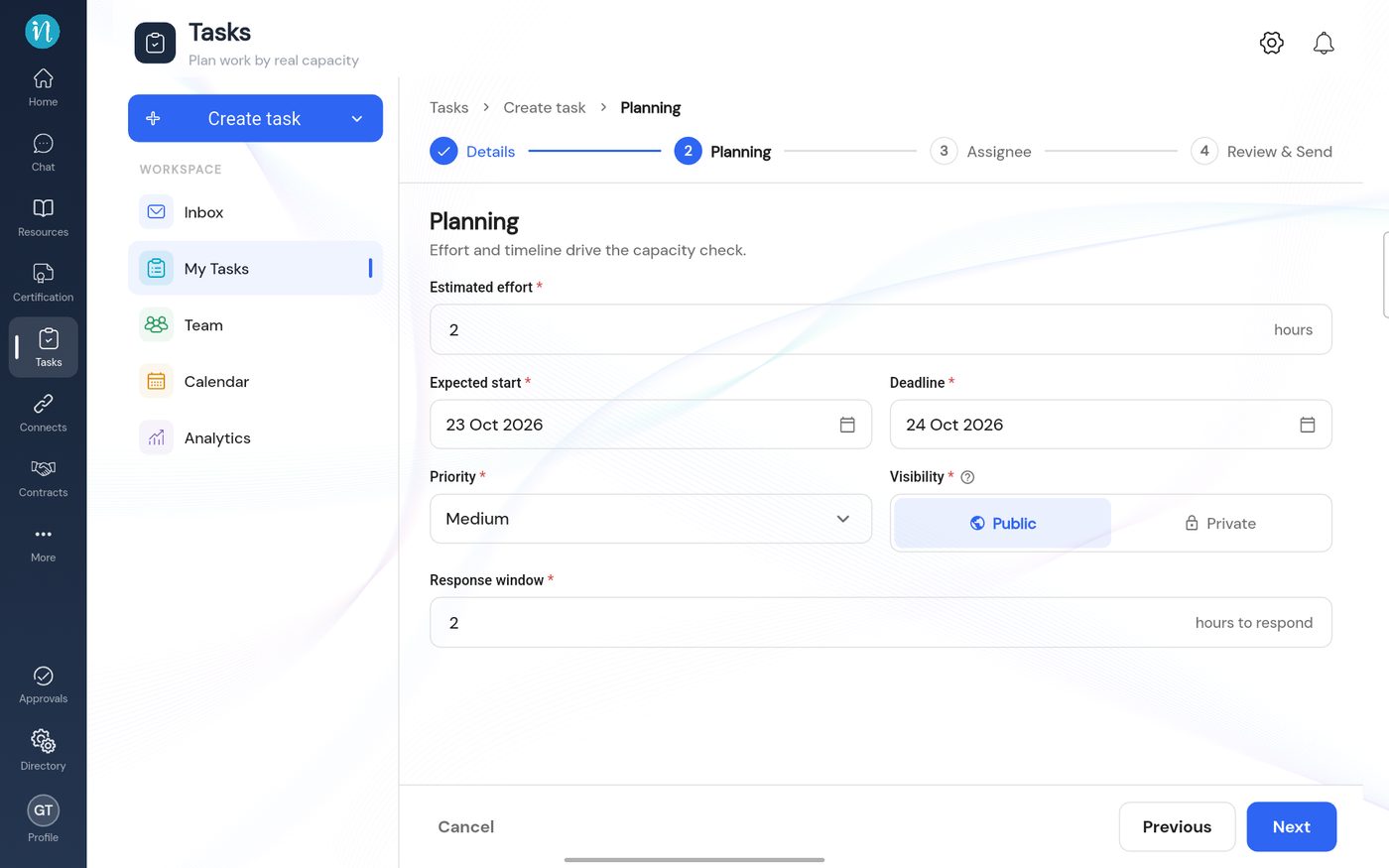
Tap Next and set the Planning: how long it will take, when it starts, the deadline and how long they have to answer.
The Planning step when assigning
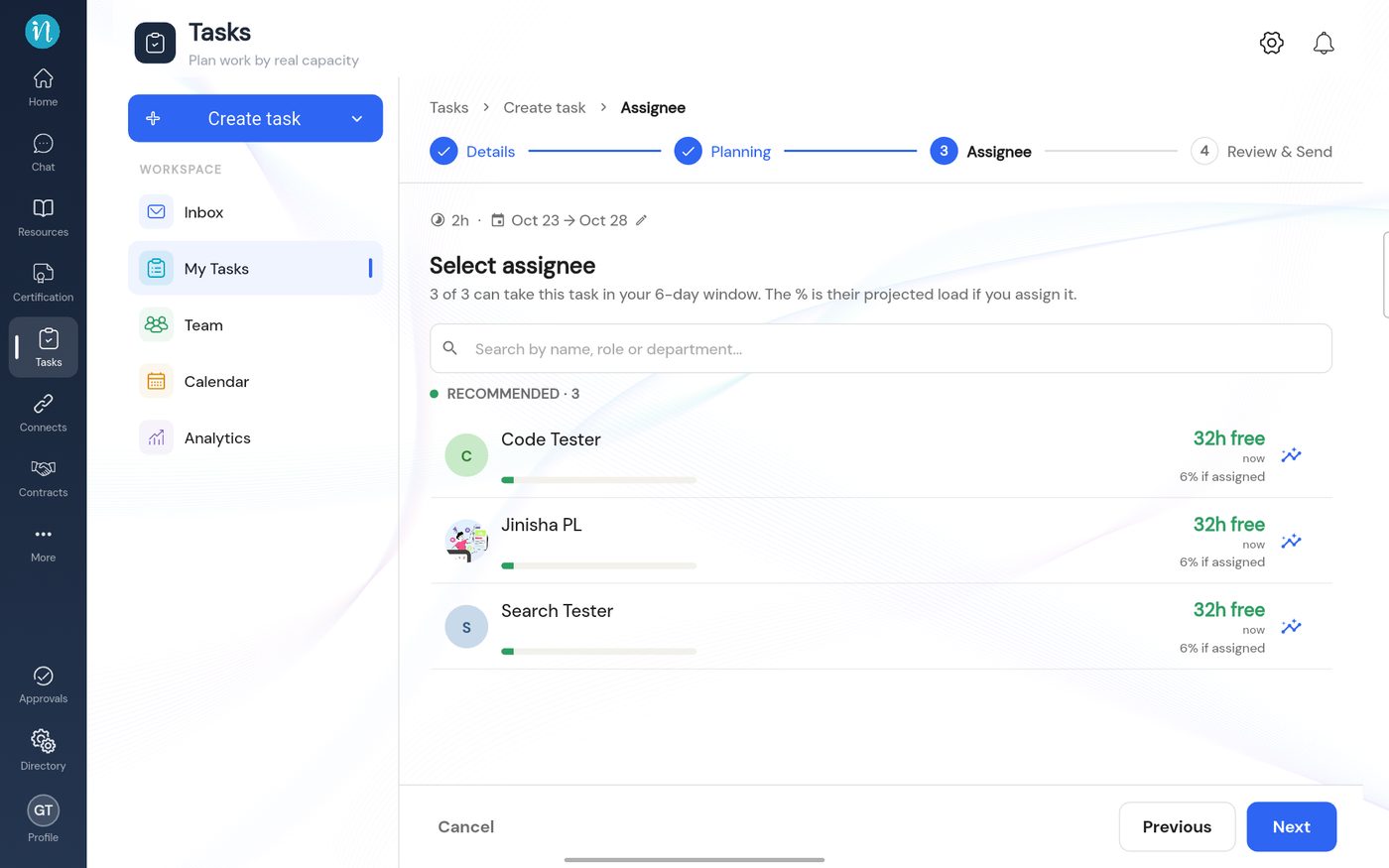
Tap Next and choose the person on the Assignee step. The list shows who has room.
Choosing the assignee
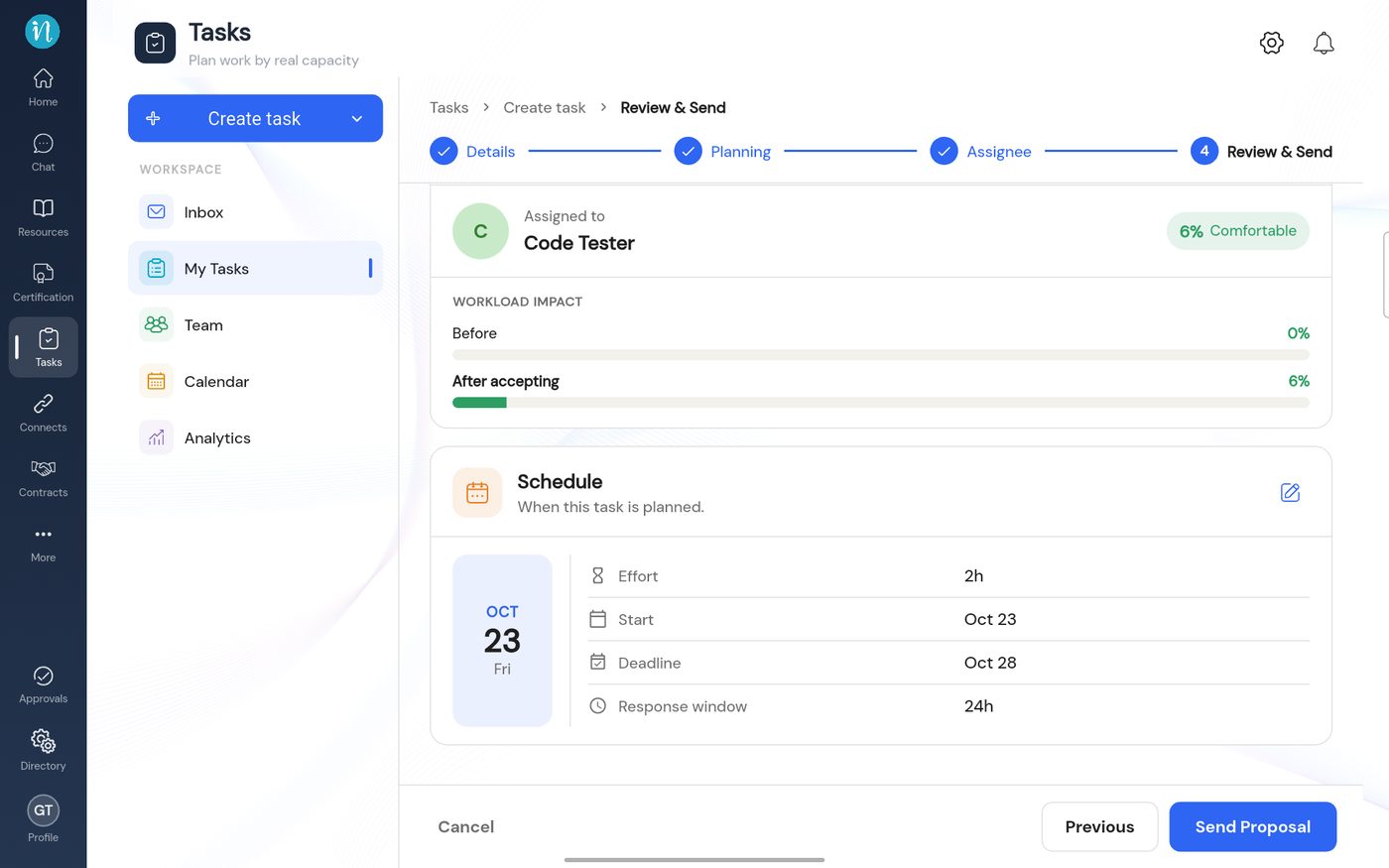
Tap Next and check the Review & send page. When it looks right, tap Send Proposal.
Reviewing the proposal
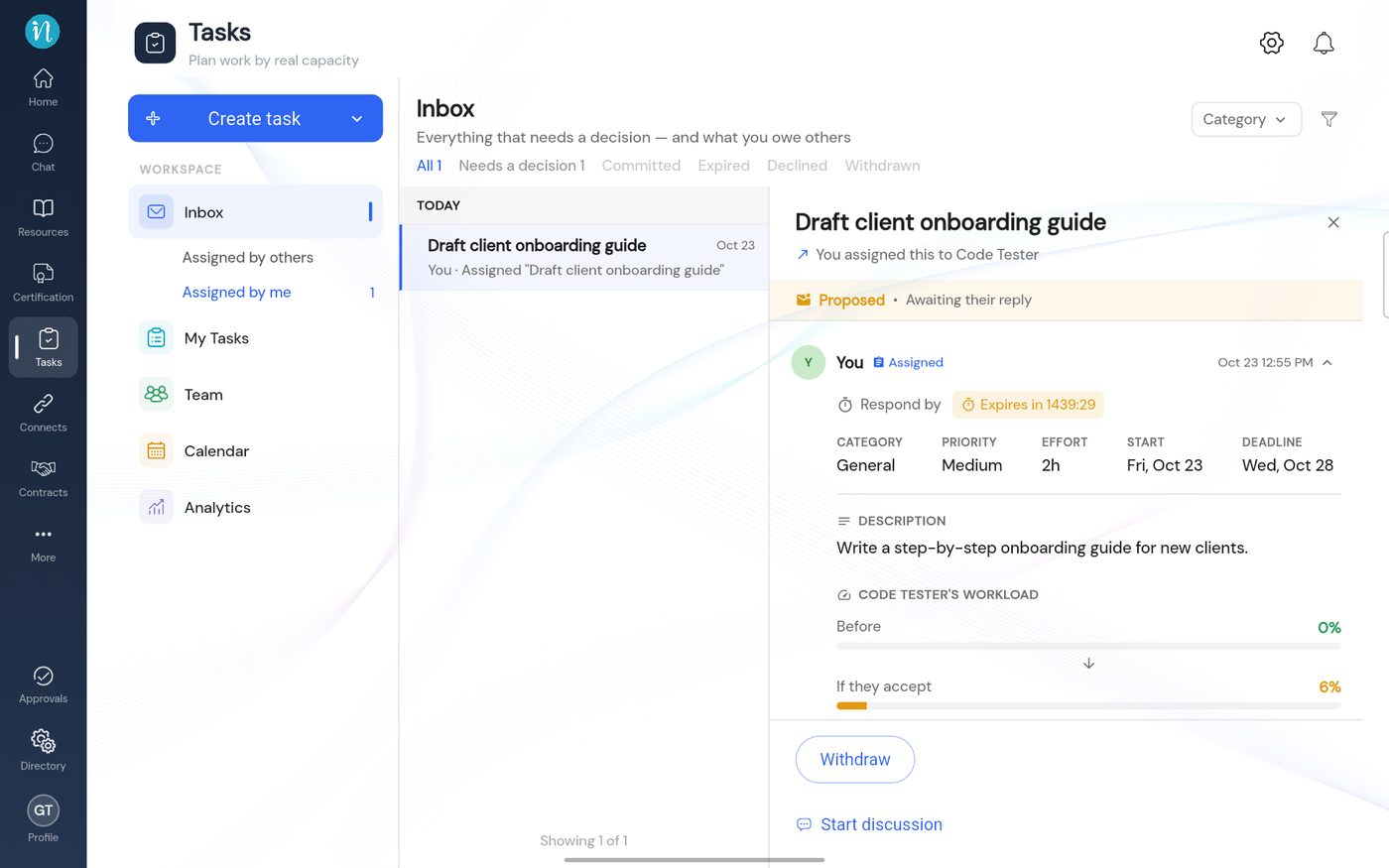
Open Inbox → Assigned by me. The proposal is there, marked Proposed · Awaiting their reply.
The proposal in your Inbox
What happens next
The person gets a notification. They accept, negotiate or decline. See Respond to a proposal. If nobody answers in the response window, the task expires and you can reassign it.