Create and assign
How to create a task for yourself
Who can use thisMembers and Super Admins
Permissions you needView tasksCreate tasks
Set by your workspace admin. If you cannot do this, ask them for access. This article is written for Member and Super Admin. Use the role switch at the top to change what the menus show.
A task you create for yourself needs no one's agreement. It is agreed the moment you create it, and the time is blocked on your calendar.
Before you start: you need the Create permission. Your workspace should also have working hours set, see Set working hours.
-
Open Tasks and tap Create task. Choose Create for myself.
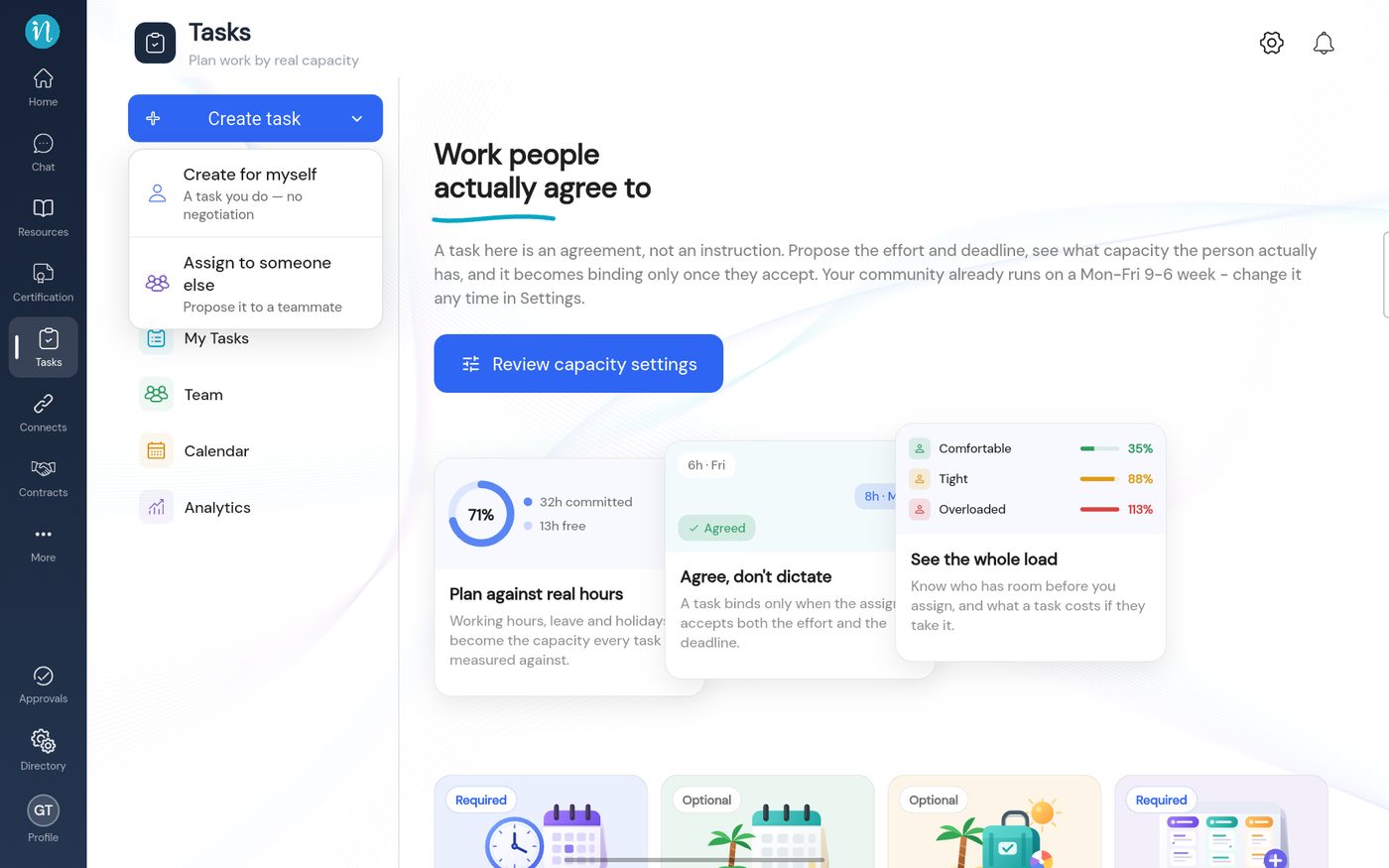 The Create task menu
-
Fill in the Details step: a title and a description. Both are required.
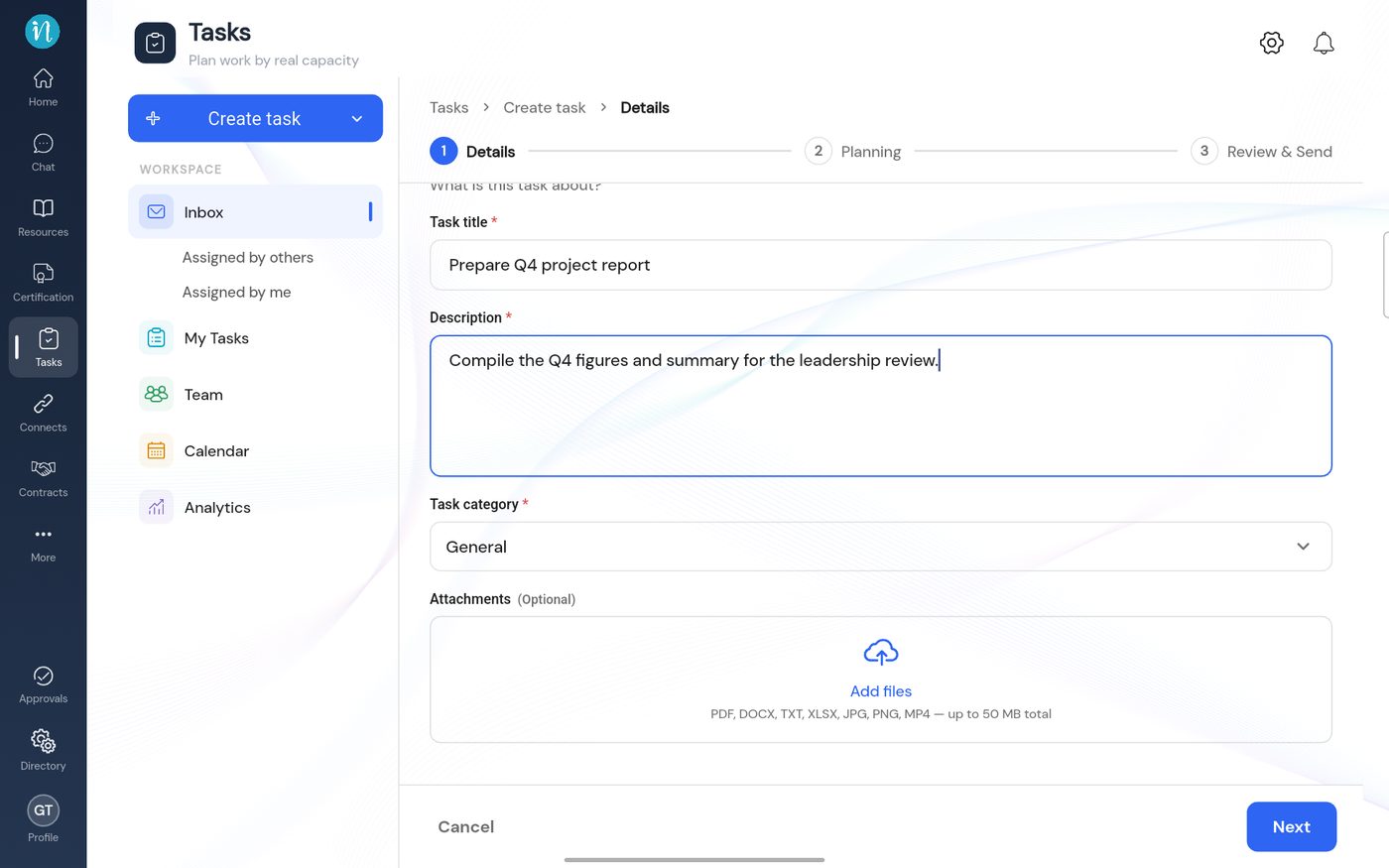 The Details step for your own task
-
Tap Next and choose when you will do it on the Planning step.
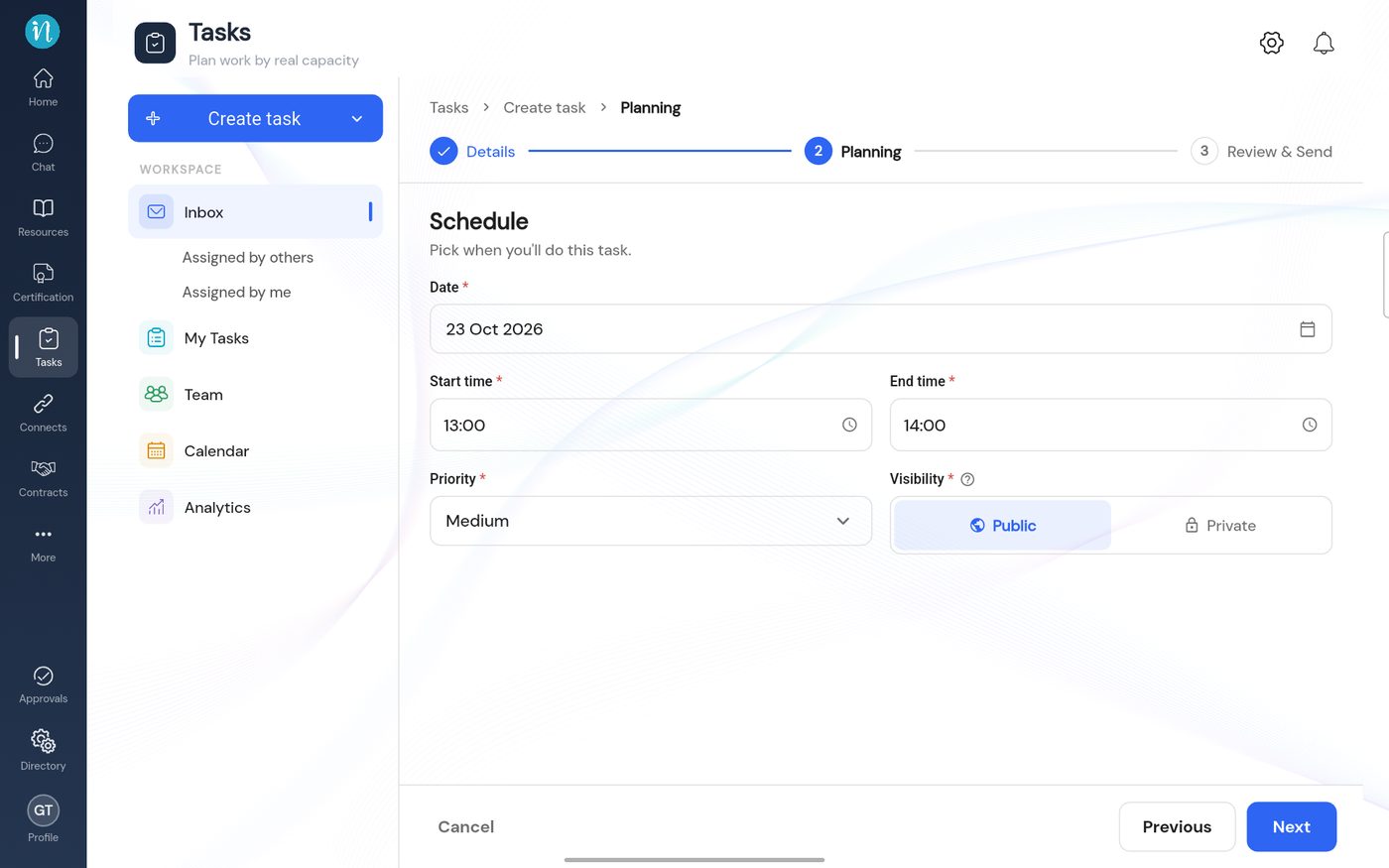 The Planning step for your own task
-
Tap Next, check the Review & send page, then tap Create Task.
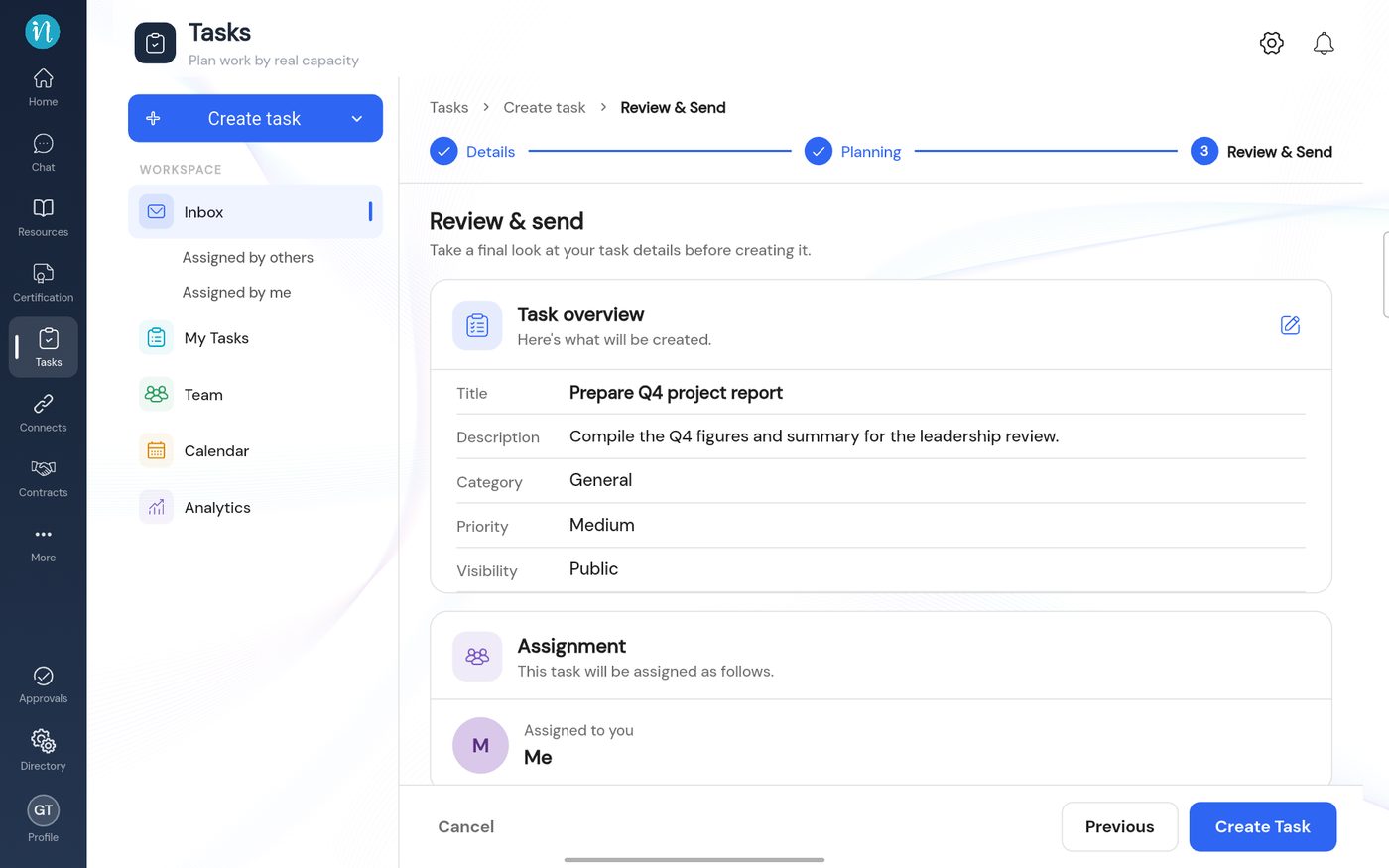 Review your own task
-
Open My Tasks. Your task is in the To Do column.
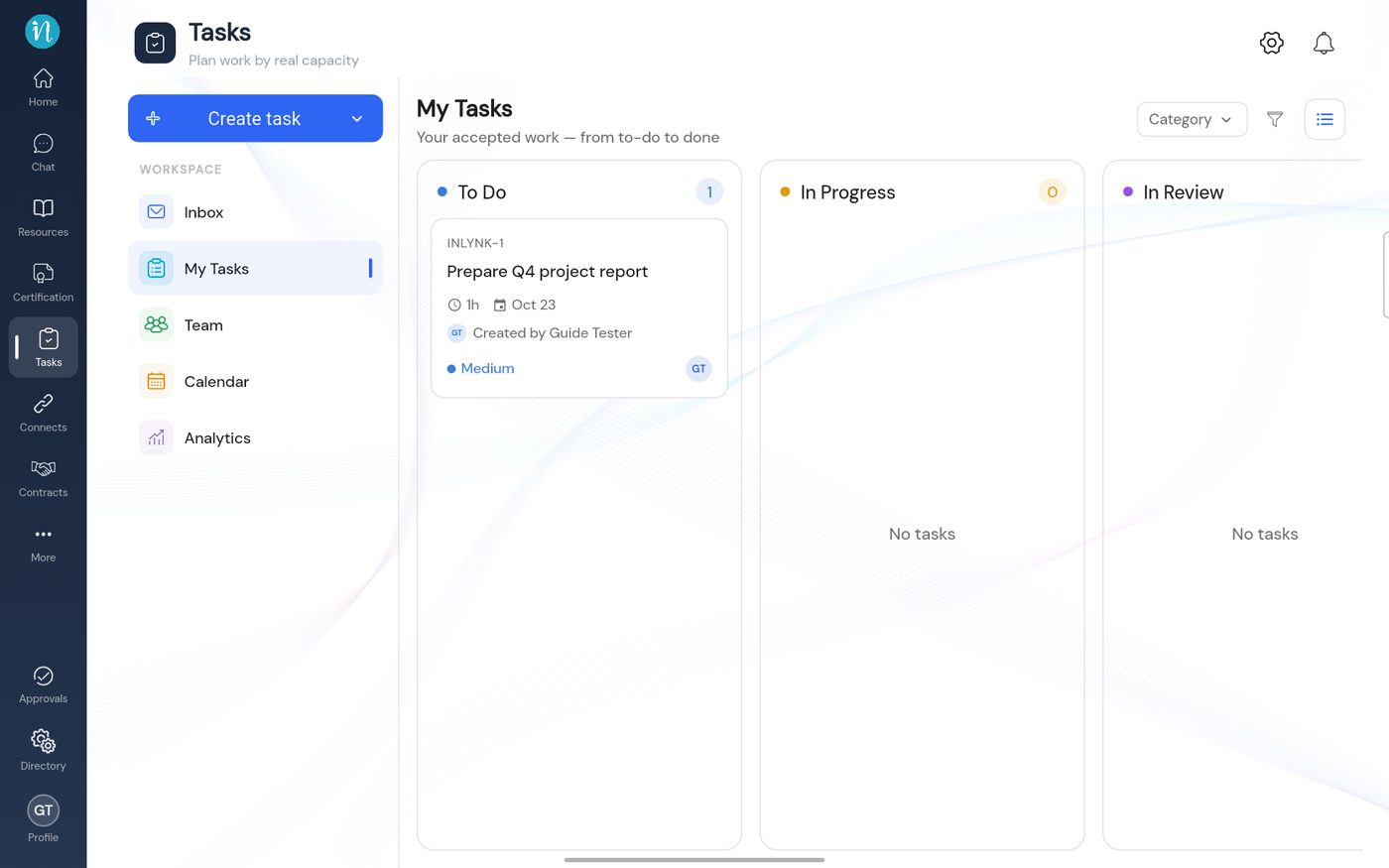 Your new task on the board
Good to know
- A task for yourself uses up your own free hours, so it shows in your capacity and on the Team view.
- A date in the past is not accepted for a new task.
Last updated 2026-10-23
