Who can use thisSuper Admins, and any role given this permission
Permissions you need
View tasksAssign tasks to others
Set by your workspace admin. If you cannot do this, ask them for access.
This article is written for Super Admin. Use the role switch at the top to change what the menus show.
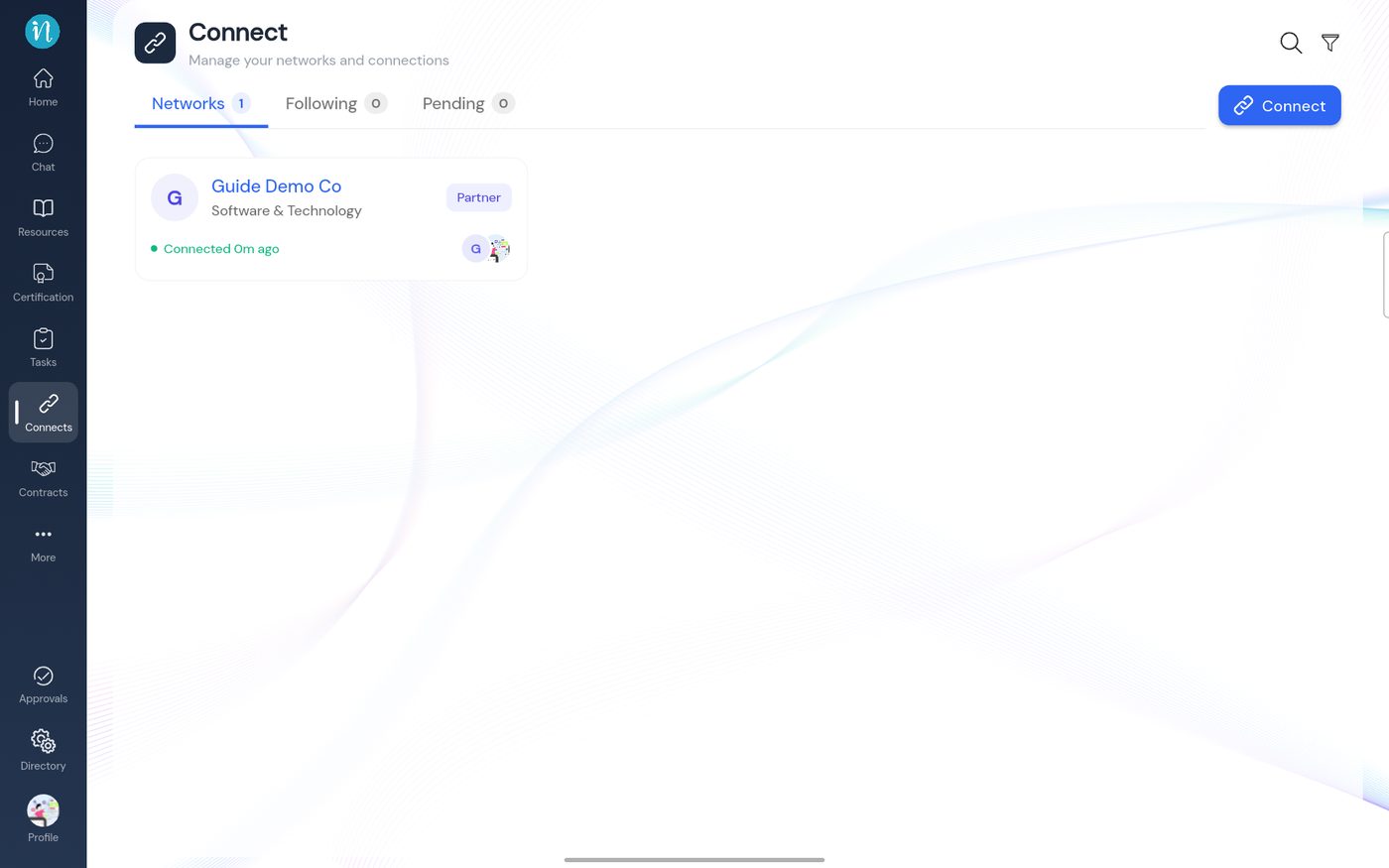
You can assign a task to someone in another workspace only when the two workspaces are connected as partners. Connecting is done in the Connects module. This page shows the steps.
Before you start: your own workspace profile must be complete, and the other workspace must accept your request.
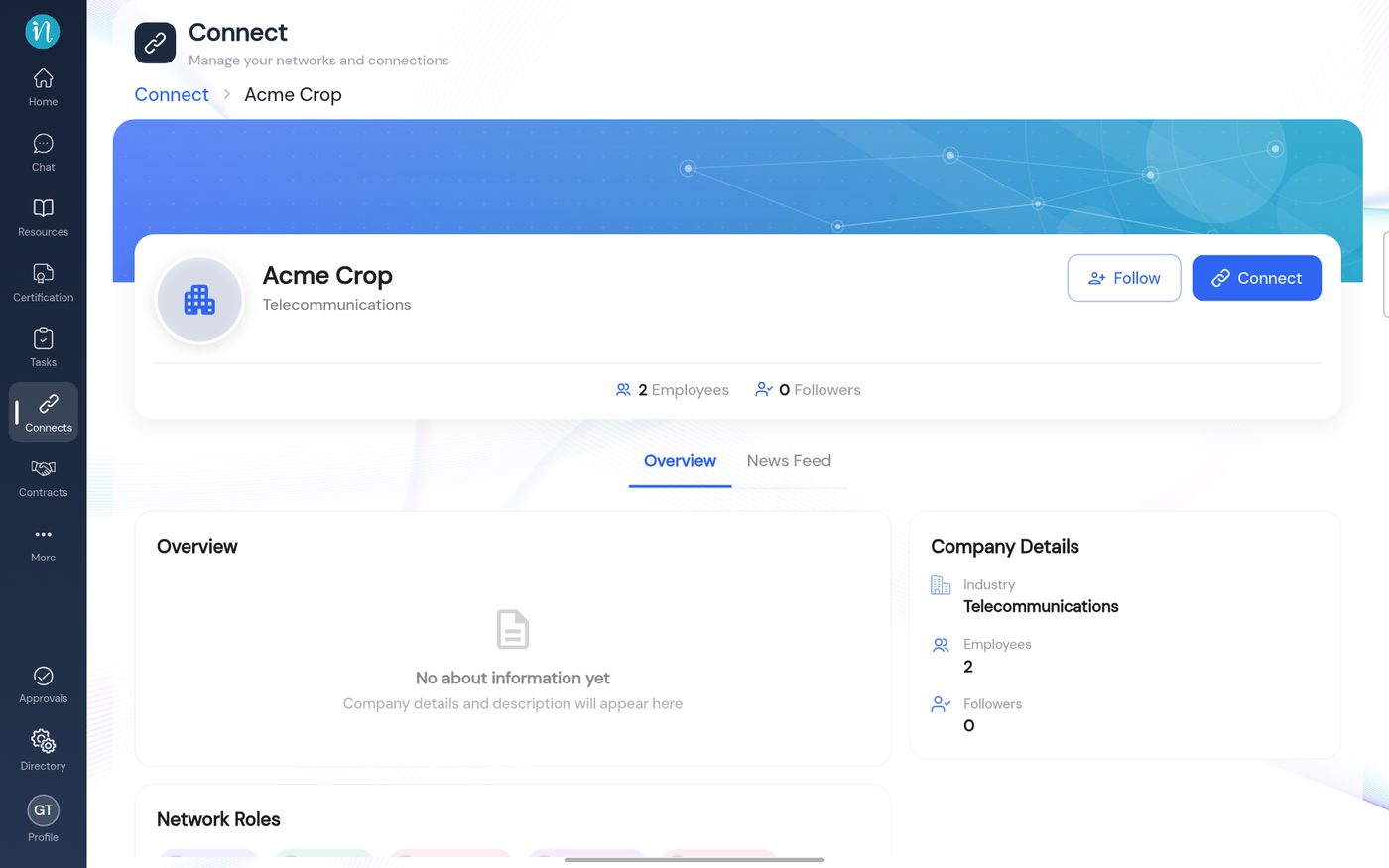
Open Connects, find the other workspace and open its page. Tap Connect.
A workspace's page in Connects
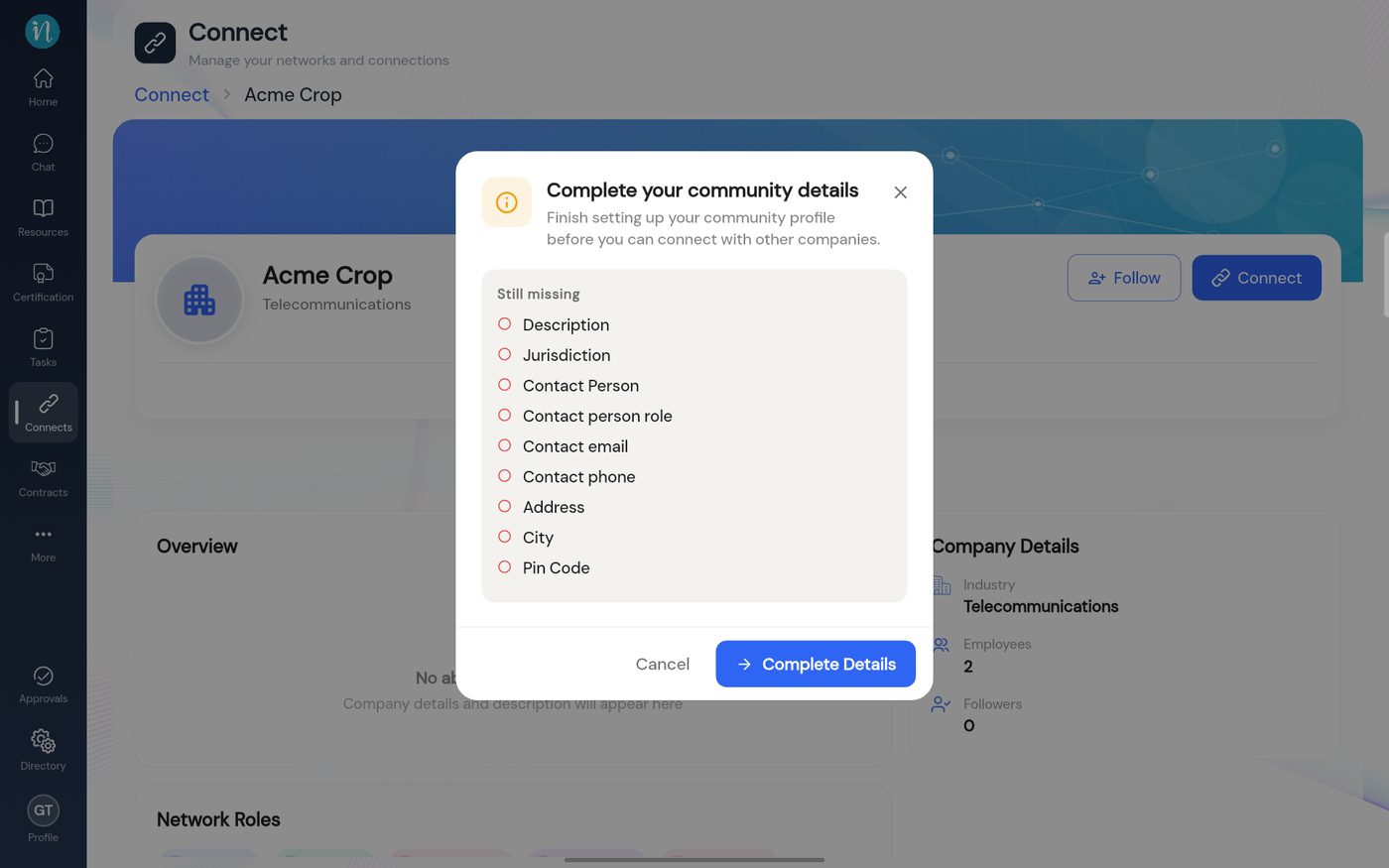
If your own profile is incomplete, a list of missing details appears first.
Complete your workspace details
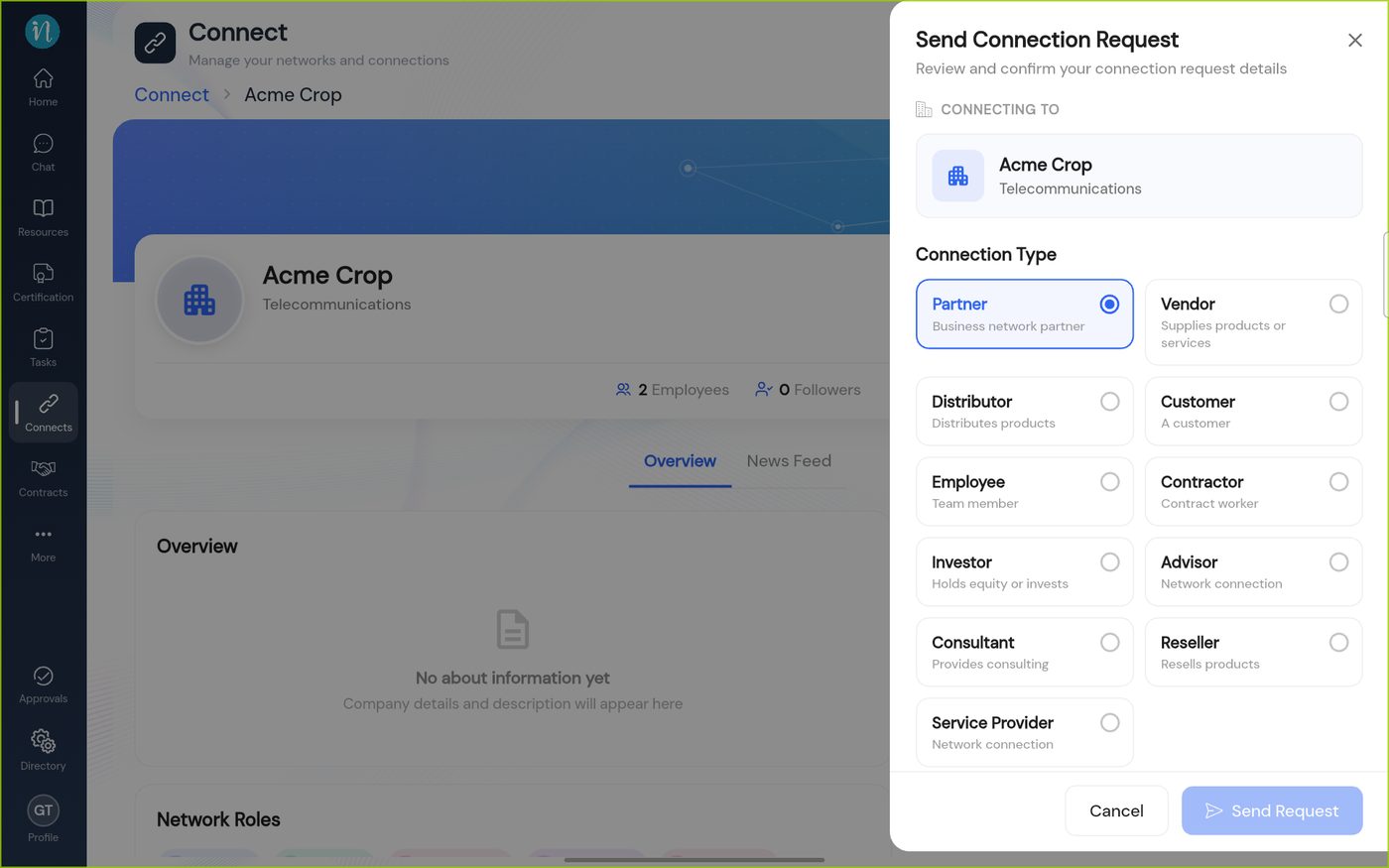
Pick the connection type and fill in the request. Choose Partner.
Send Connection Request
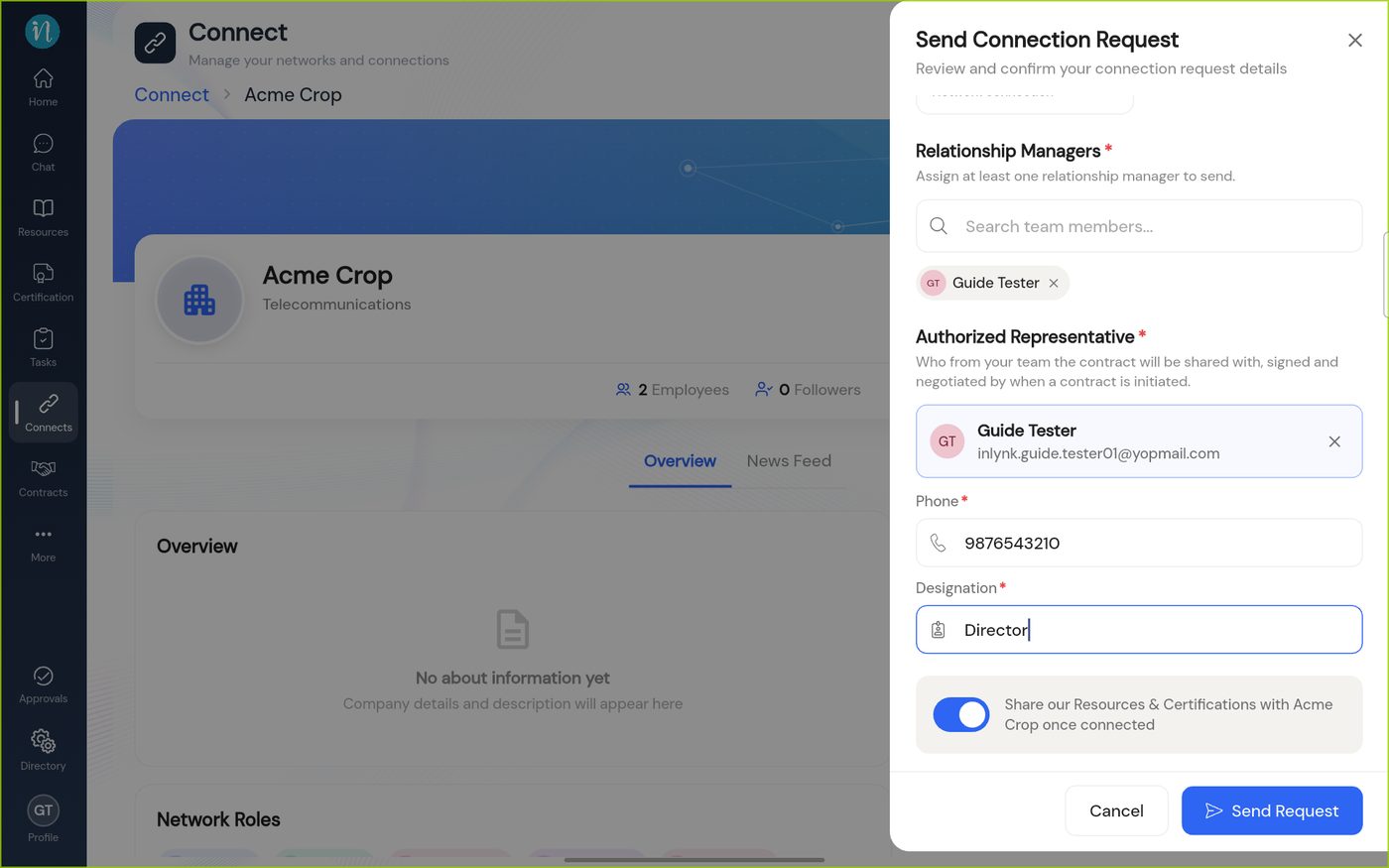
Scroll down and add your Relationship Manager and Authorized Representative, with phone and designation.
The request filled in
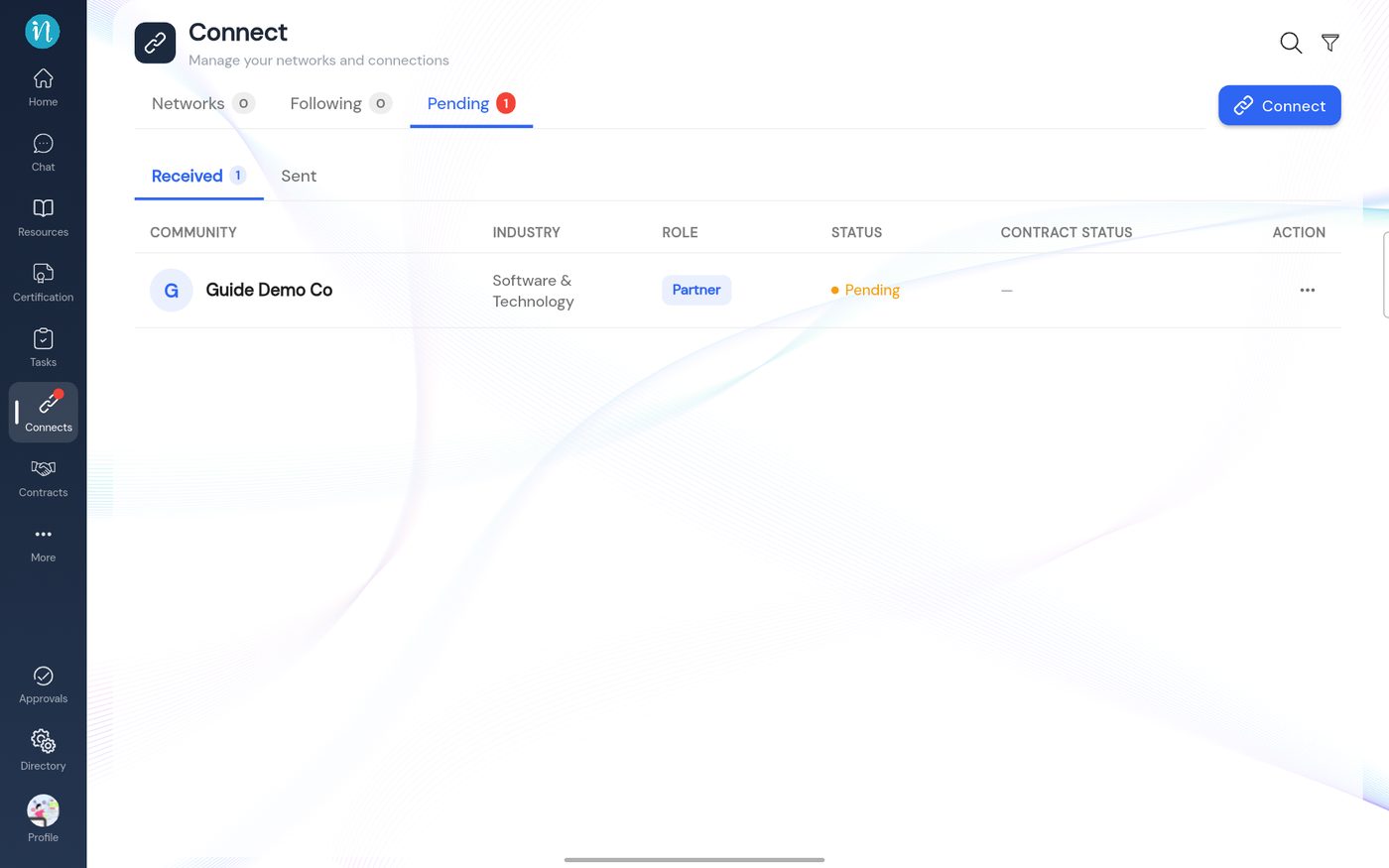
On the other workspace, a Super Admin opens Connects → Pending → Received.
A request received
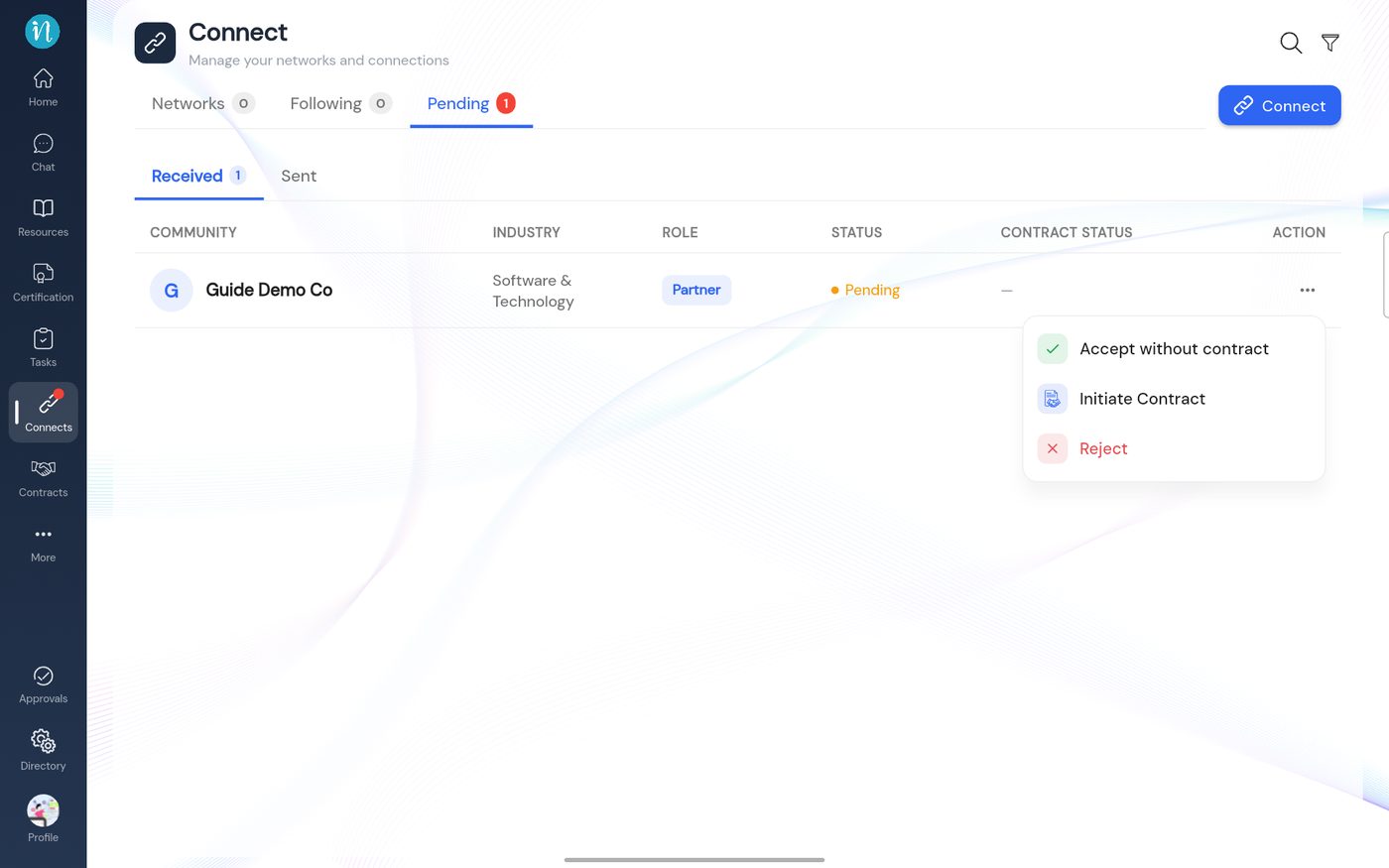
Open ⋯ and choose Accept without contract, then add a relationship manager and tap Accept Request.