
How to negotiate a task
Who can use thisMembers and Super Admins
Permission you need
View tasks
Set by your workspace admin. If you cannot do this, ask them for access.This article is written for Member and Super Admin. Use the role switch at the top to change what the menus show.
If the hours or the deadline do not work, do not decline. Negotiate: you tell the assigner what you can do, and they decide.
-
Open the proposal and tap Negotiate. The Request a change panel slides in.
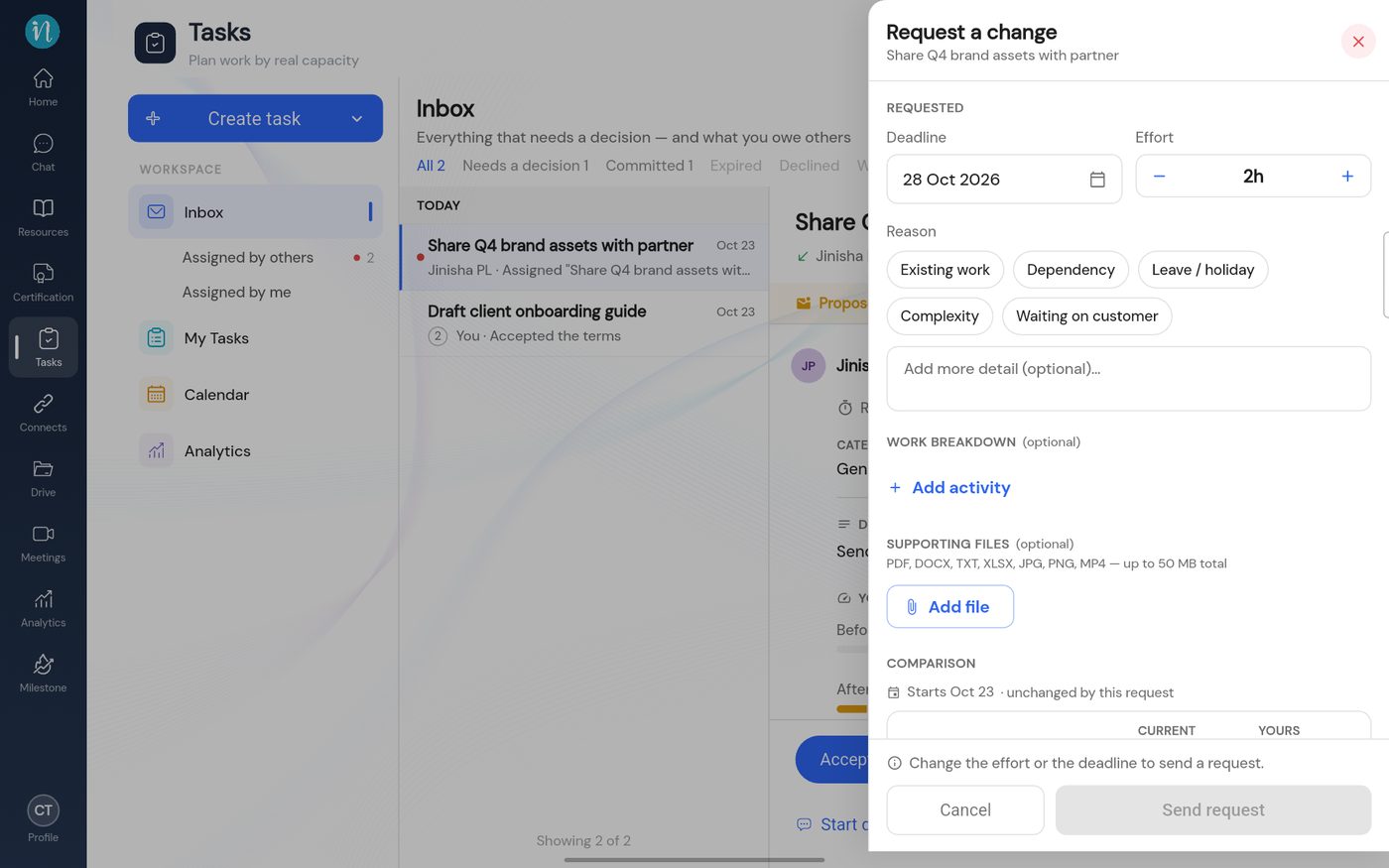
The Request a change panel -
Change the effort or the deadline, pick a reason, then tap Send request.
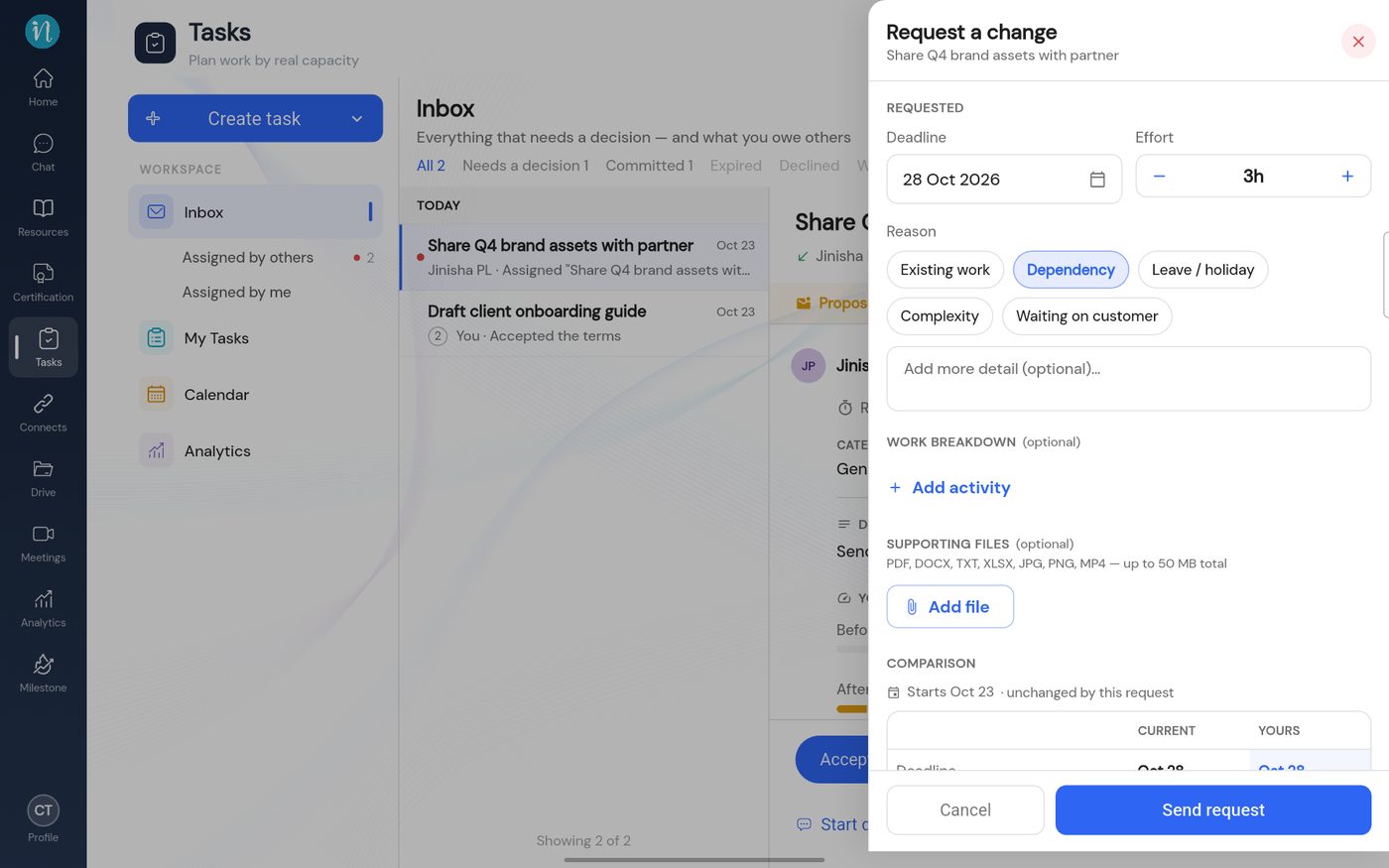
A request ready to send -
The task becomes Negotiating, and you wait for the assigner.
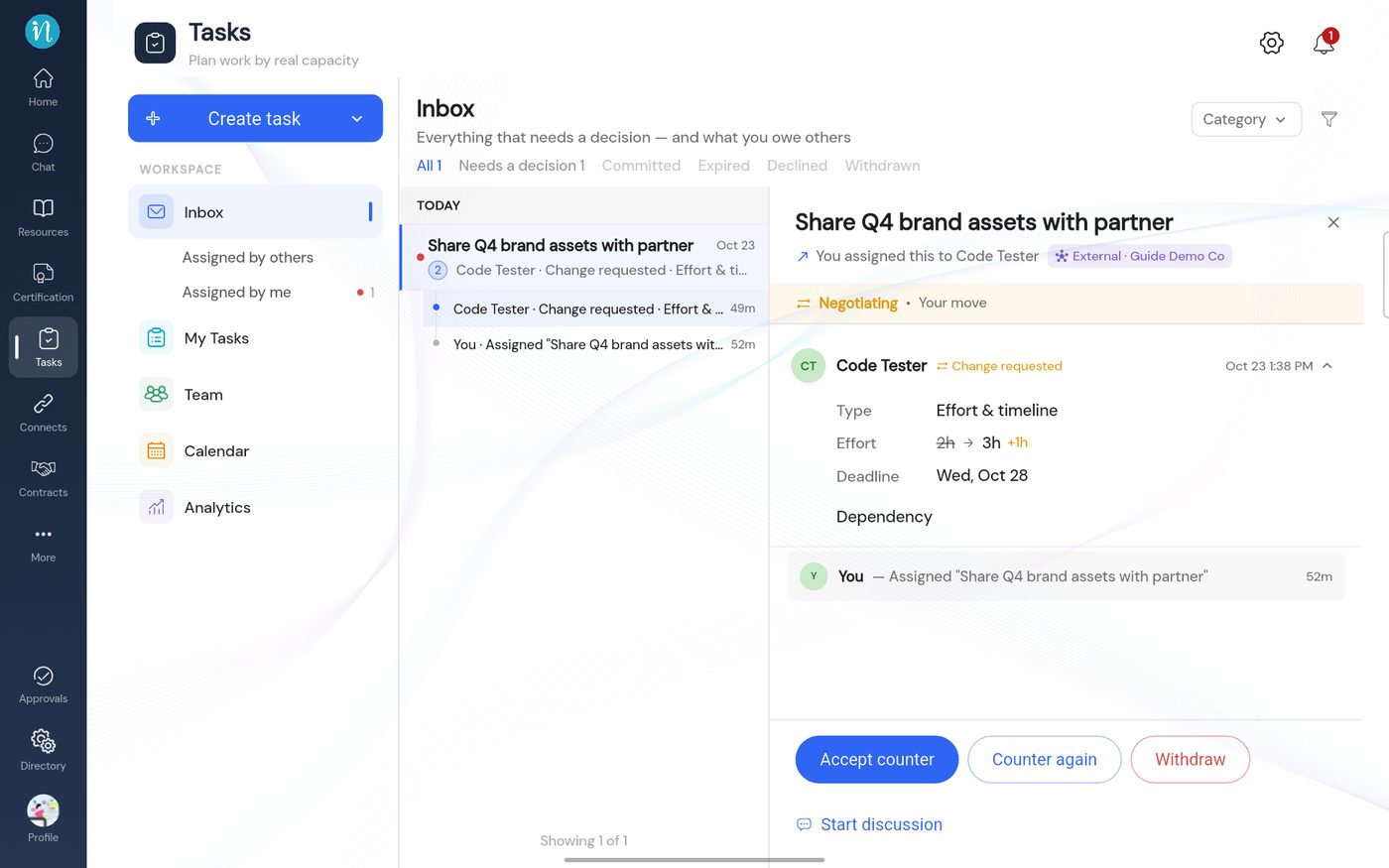
The negotiation as the assigner sees it
On your own screen the same item reads Negotiating · Awaiting their reply, with Waiting for the assigner to respond to your counter-proposal.
Good to know
- You can negotiate more than once. Each round is kept in the thread as a record.
- Nothing is binding while it is being negotiated. The task is only agreed when you accept it.
Last updated 2026-10-23