
How to withdraw a task and reassign it
Who can use thisMembers and Super Admins
Permissions you need
View tasksCreate tasksAssign tasks to others
Set by your workspace admin. If you cannot do this, ask them for access.This article is written for Member and Super Admin. Use the role switch at the top to change what the menus show.
If you assigned a task and want to take it back, withdraw it. A withdrawn, declined or expired task can be reassigned to someone else.
-
Open Inbox → Assigned by me, open the task, and tap Withdraw. A confirmation appears.
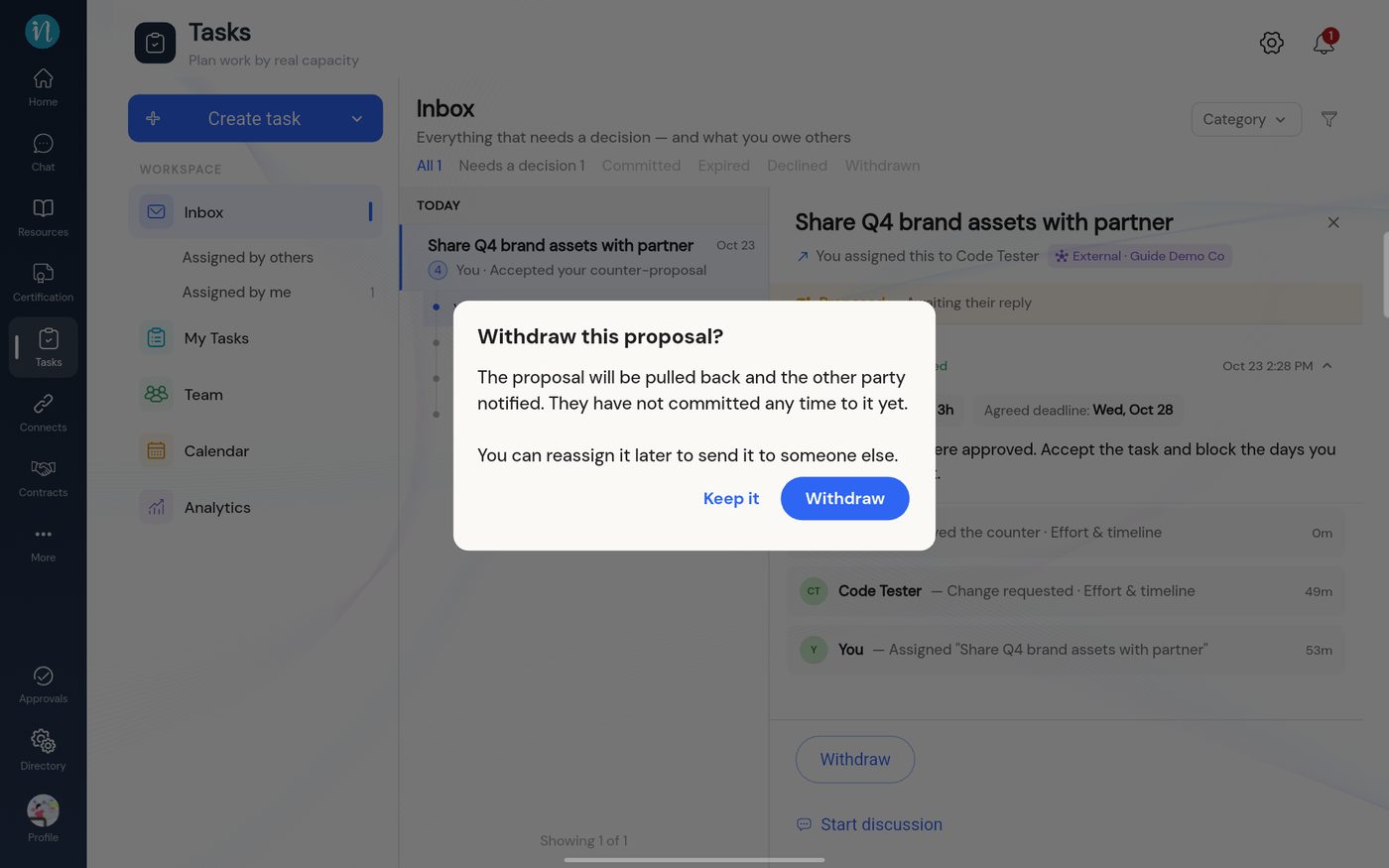
Withdraw this proposal? -
Confirm. The task is Withdrawn, and a Reassign button appears.
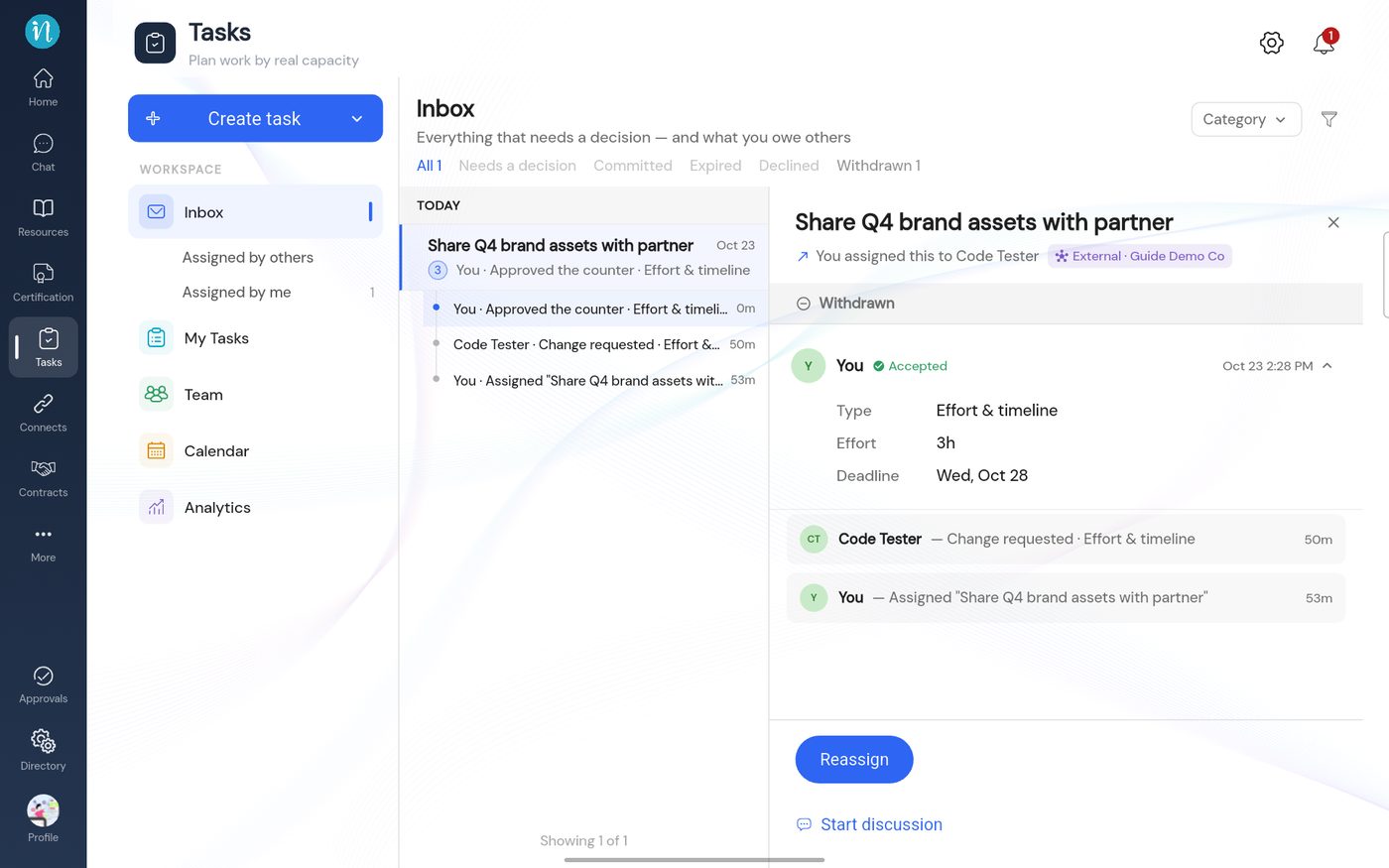
A withdrawn task -
Tap Reassign. A confirmation explains what it does.
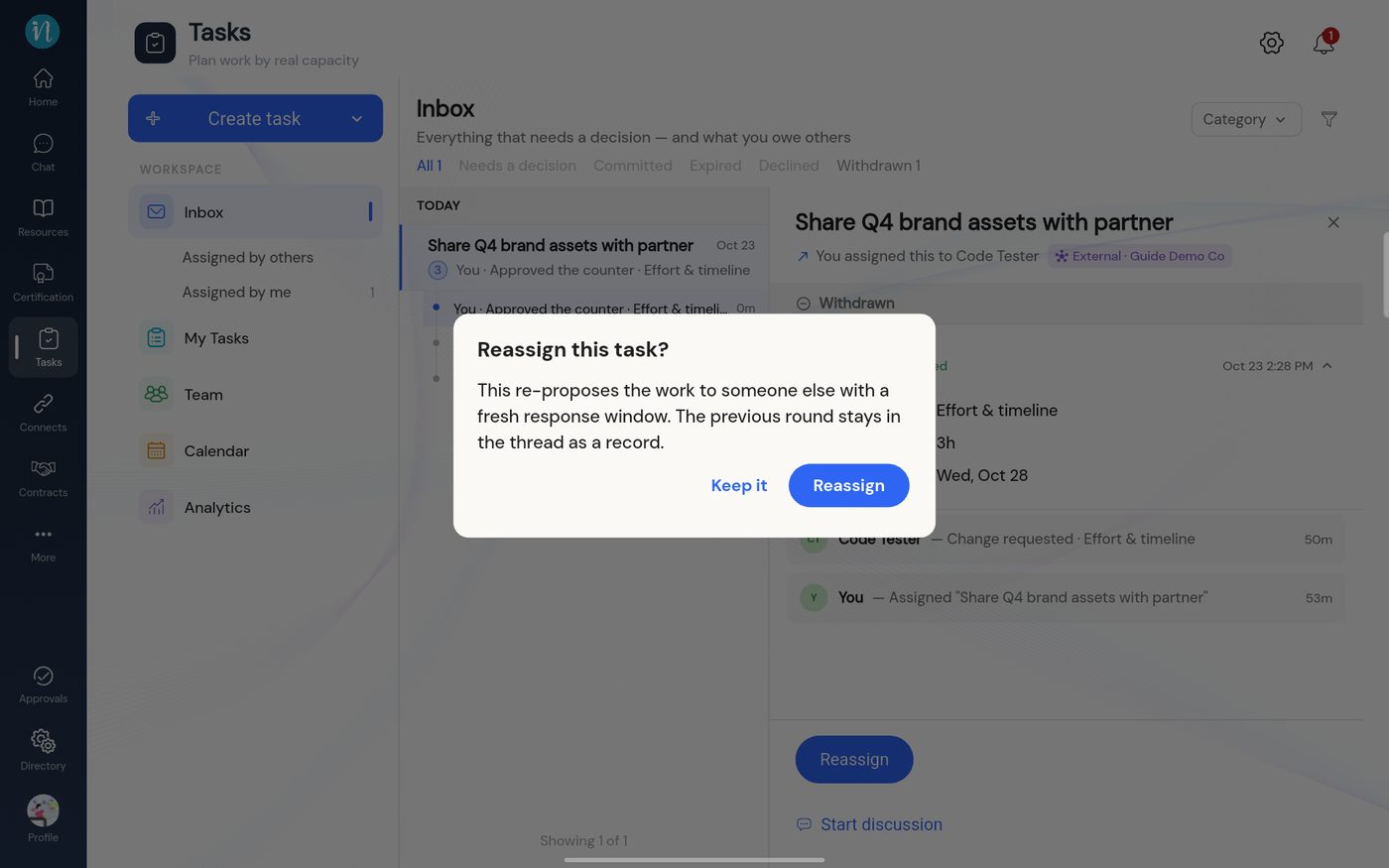
Reassign this task? -
The create wizard opens with the task's details filled in. Check them, choose a person, and send.
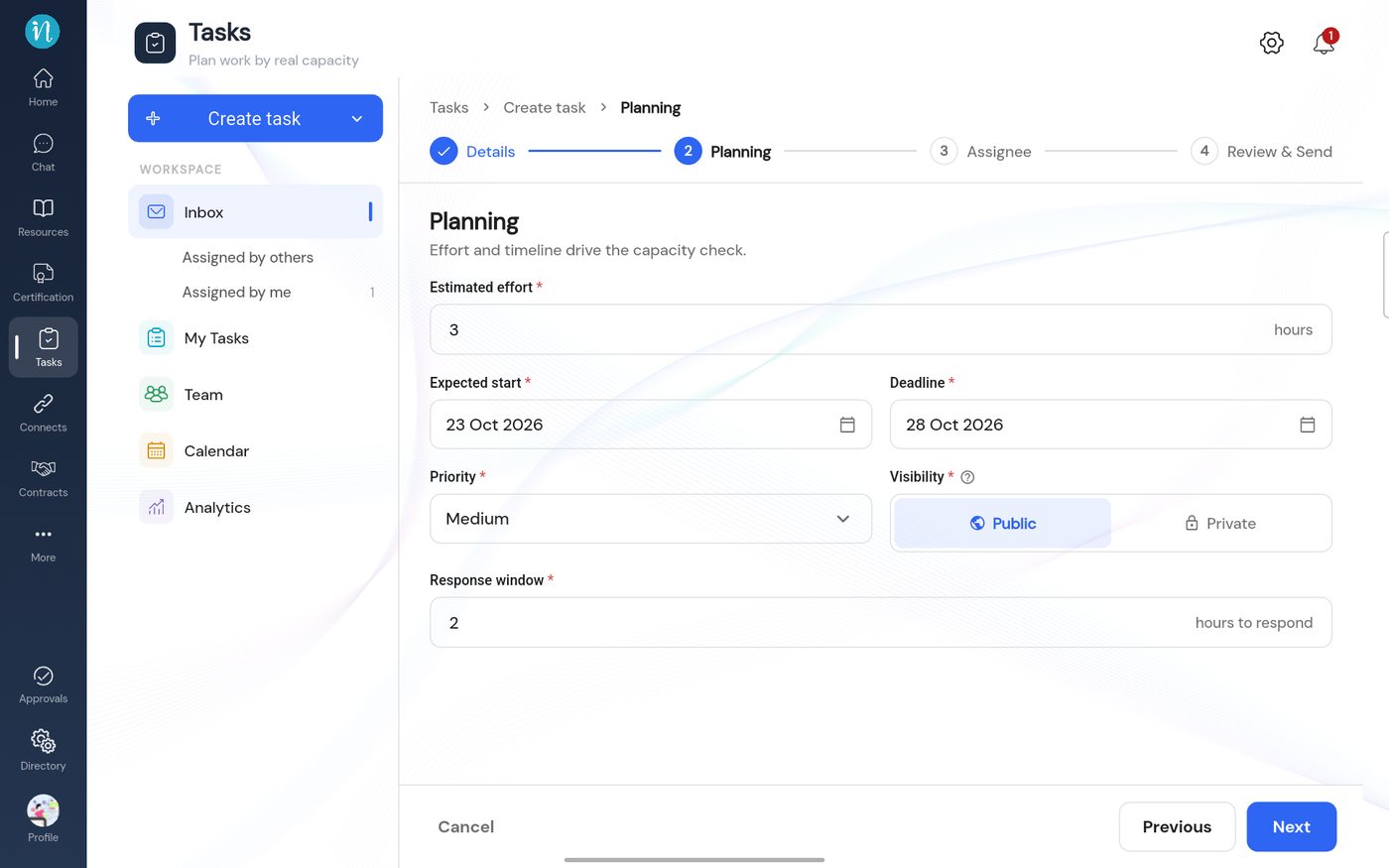
The wizard on Planning, pre-filled
Good to know
- Reassigning to yourself makes the task agreed straight away.
- A task nobody answered also expires and can be reassigned the same way.
Last updated 2026-10-23