
How to respond to a task sent to you
Who can use thisMembers and Super Admins
Permission you need
View tasks
Set by your workspace admin. If you cannot do this, ask them for access.This article is written for Member and Super Admin. Use the role switch at the top to change what the menus show.
When someone assigns you a task, you get a notification and the task appears in Inbox → Assigned by others. You have until the response deadline to answer.
-
Open Tasks → Inbox and tap the task. Rows with a red dot need an answer.
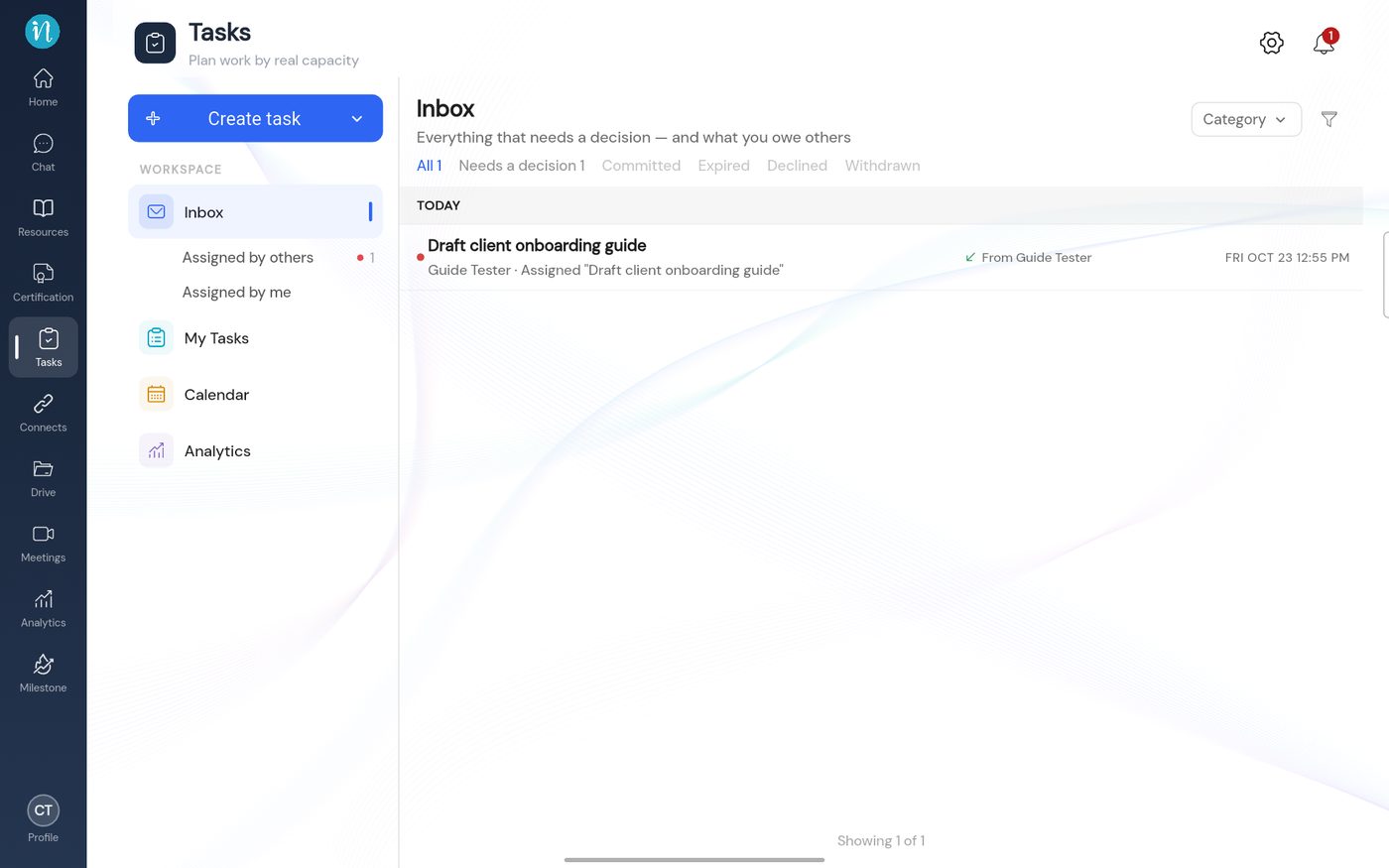
A task waiting in the Inbox -
Read the proposal. It shows the terms and the effect on your week.
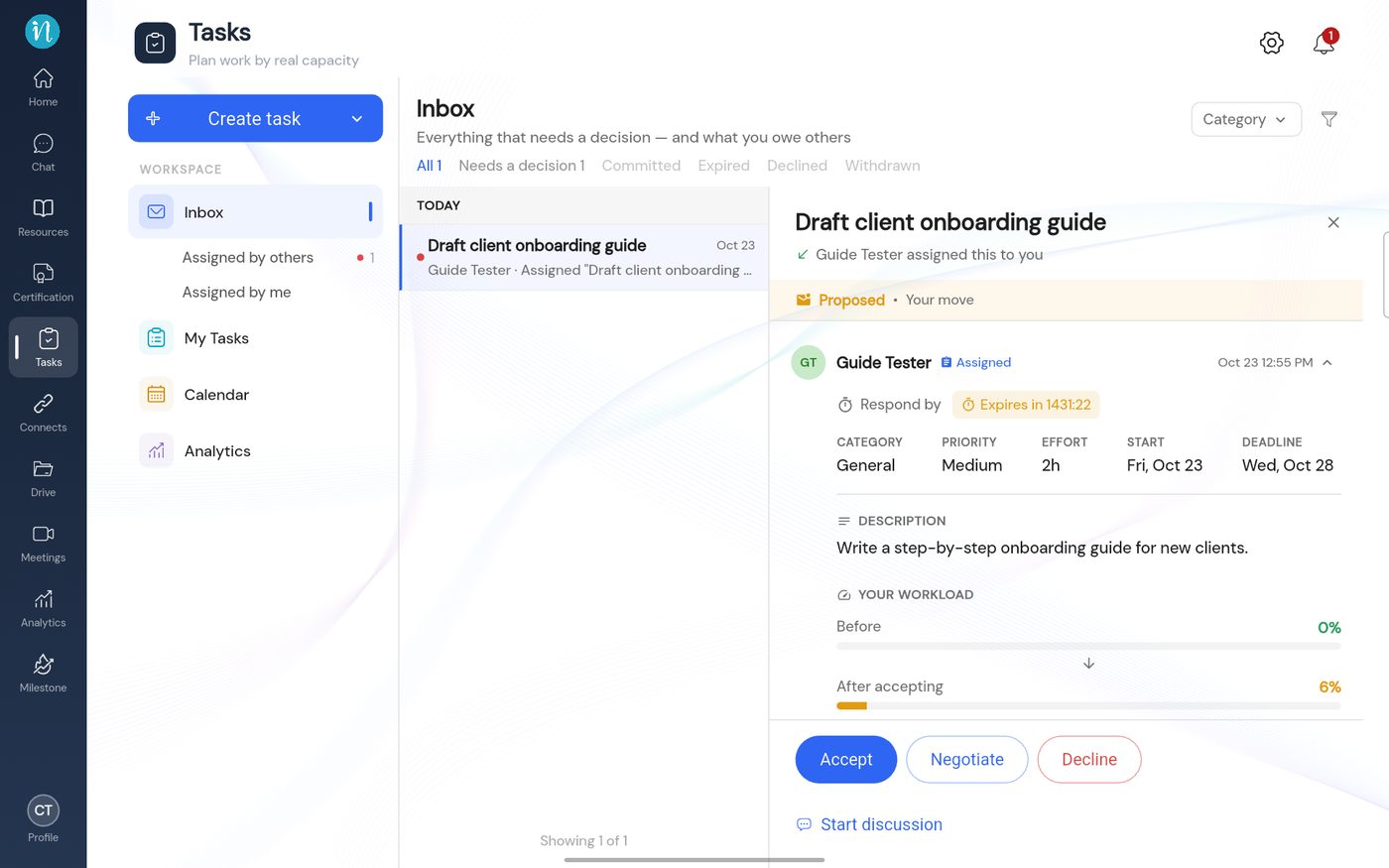
A proposal as the person doing the task sees it
Your three choices
- Accept – you agree to the hours and the deadline, and block the days you will work. See Accept and schedule your work.
- Negotiate – you ask for different hours or a different deadline. See Negotiate a task.
- Decline – you refuse and give a reason. See Decline a task.
If you do nothing, the task expires when the response window ends, and the assigner is told.
Last updated 2026-10-23