
Who can do what in Tasks
Who can use thisMembers and Super Admins
Permissions you need
View tasksCreate tasksAssign tasks to othersSee the whole workspace's capacity (Team)Set working hours and holidays
Set by your workspace admin. If you cannot do this, ask them for access.This article is written for Member and Super Admin. Use the role switch at the top to change what the menus show.
What you see in Tasks depends on the permissions your role holds. A Super Admin sets these in Directory → Profiles.
Important: a new workspace's Member profile holds only Create for Tasks. Until a Super Admin switches on View, a Member who opens Tasks sees "No access to Tasks". Most workspaces also switch on Assign so people can give each other work.
-
Open Directory → Profiles, choose Member, then Tasks in the list.
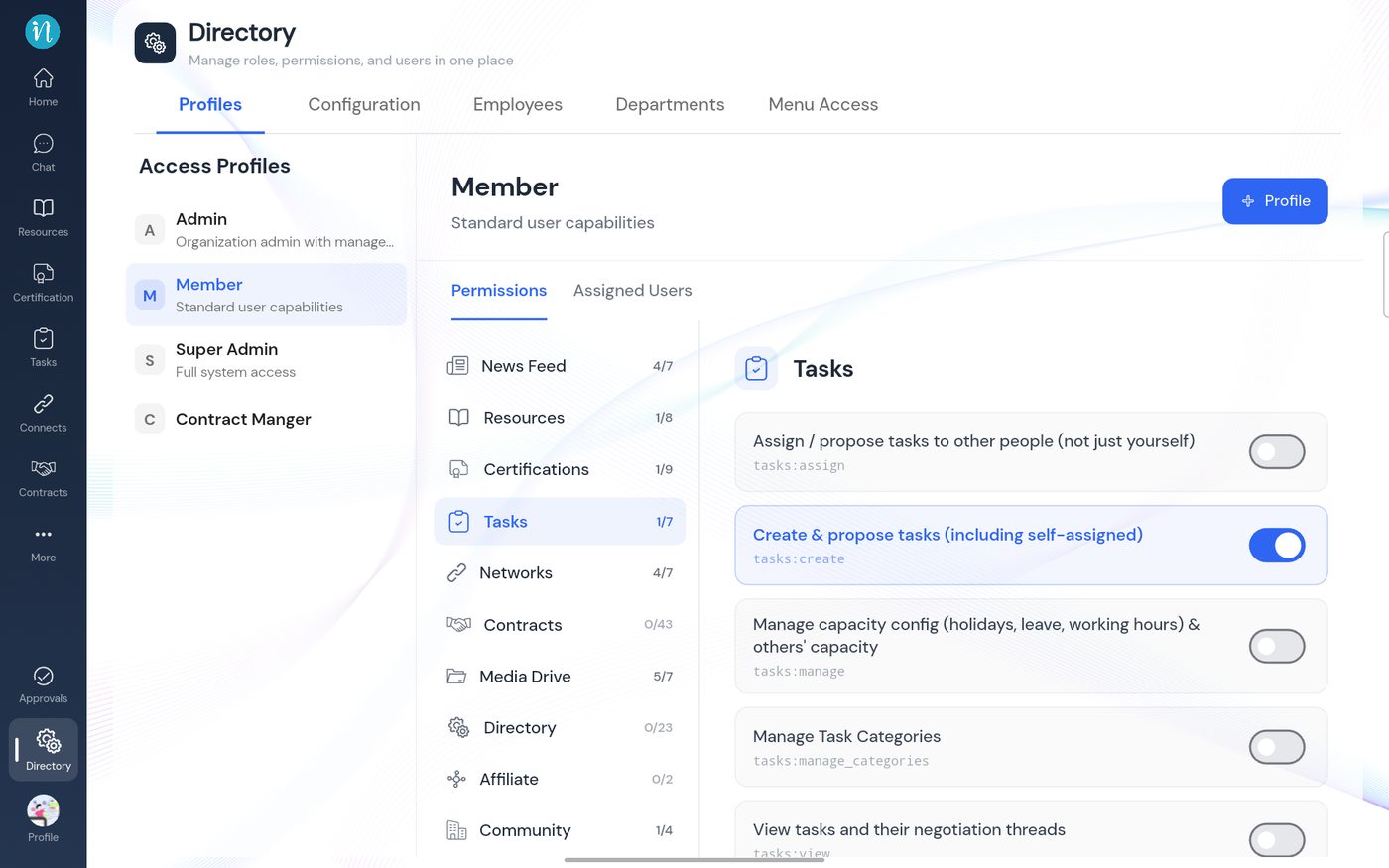
The Member profile's Tasks permissions -
Scroll down to see the rest.
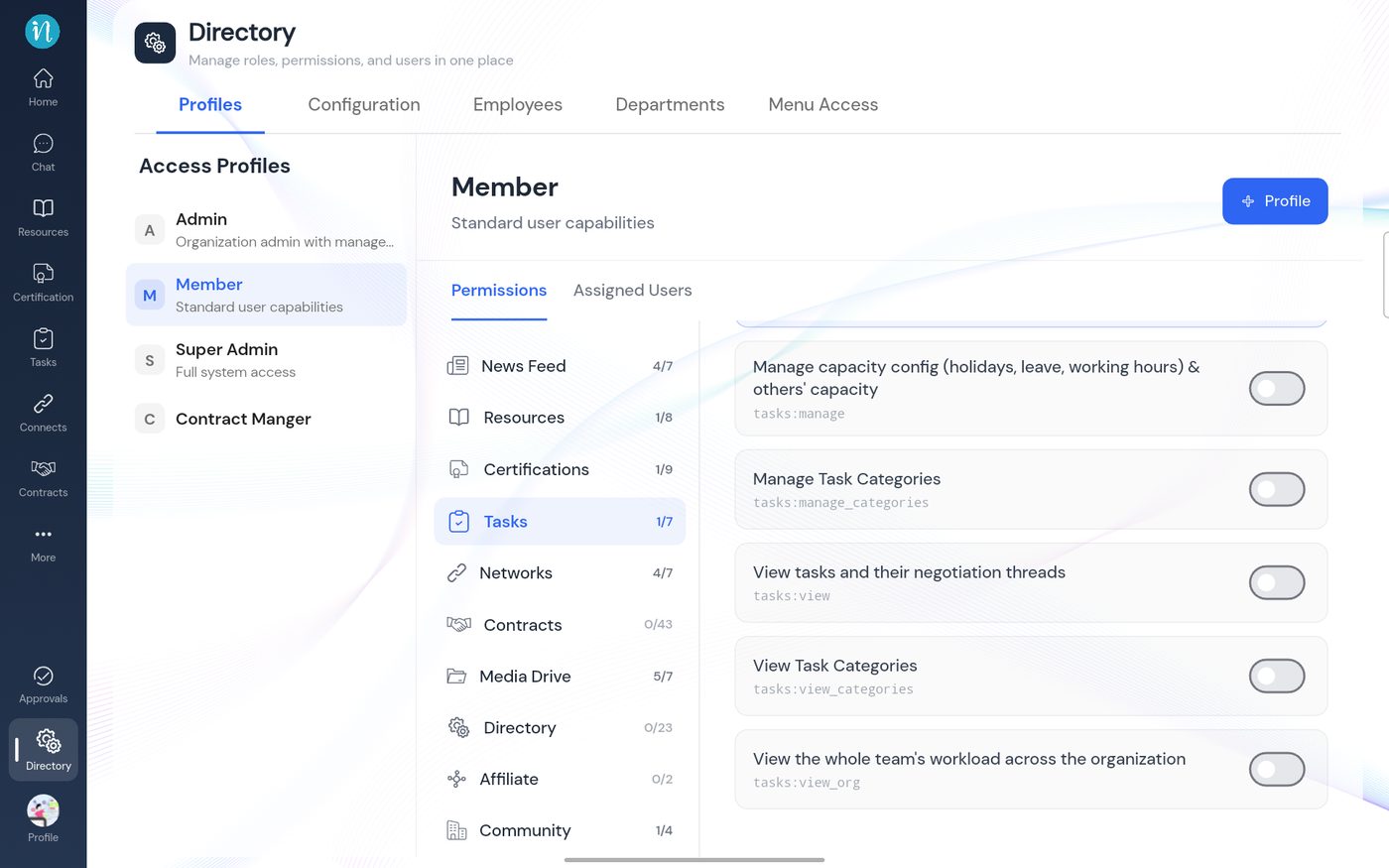
The rest of the Tasks permissions
| Permission | What it allows | Member by default |
|---|---|---|
| View | Open Tasks, read your Inbox, My Tasks, Calendar and Analytics, and answer tasks sent to you. | No |
| Create | Create tasks, including ones for yourself, and attach files. | Yes |
| Assign | Give a task to someone else. | No |
| View Task Categories | See the category list when creating a task. | No |
| View org | See the Team view and workspace-wide analytics. | No |
| Manage | Set working hours and holidays. | No |
| Manage Task Categories | Add, rename and delete task categories. | No |
Everyone involved in a task, the person who assigned it and the person doing it, can act on that task. But View is what lets you open Tasks to see it.
If a person opens Tasks and sees "No access to Tasks", their role is missing View. See I cannot open Tasks.
Last updated 2026-10-23