Set by your workspace admin. If you cannot do this, ask them for access.
This article is written for Member and Super Admin. Use the role switch at the top to change what the menus show.
Copy To… makes a second copy of a file in another folder and leaves the original where it is. Use Move instead if you want the item to leave its current folder; see How to move an item.
Before you start: you need the Create permission, because a copy is a new file.
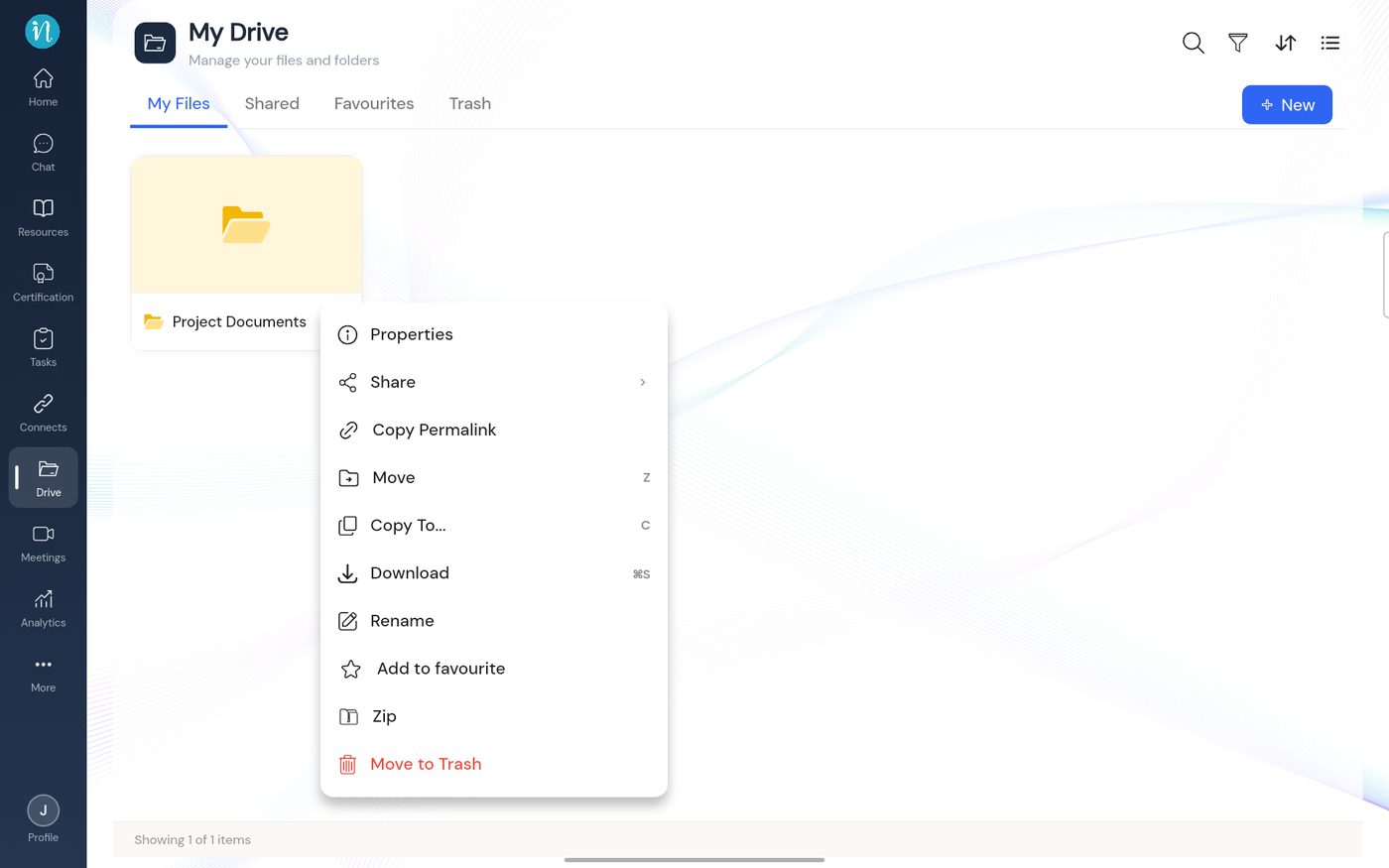
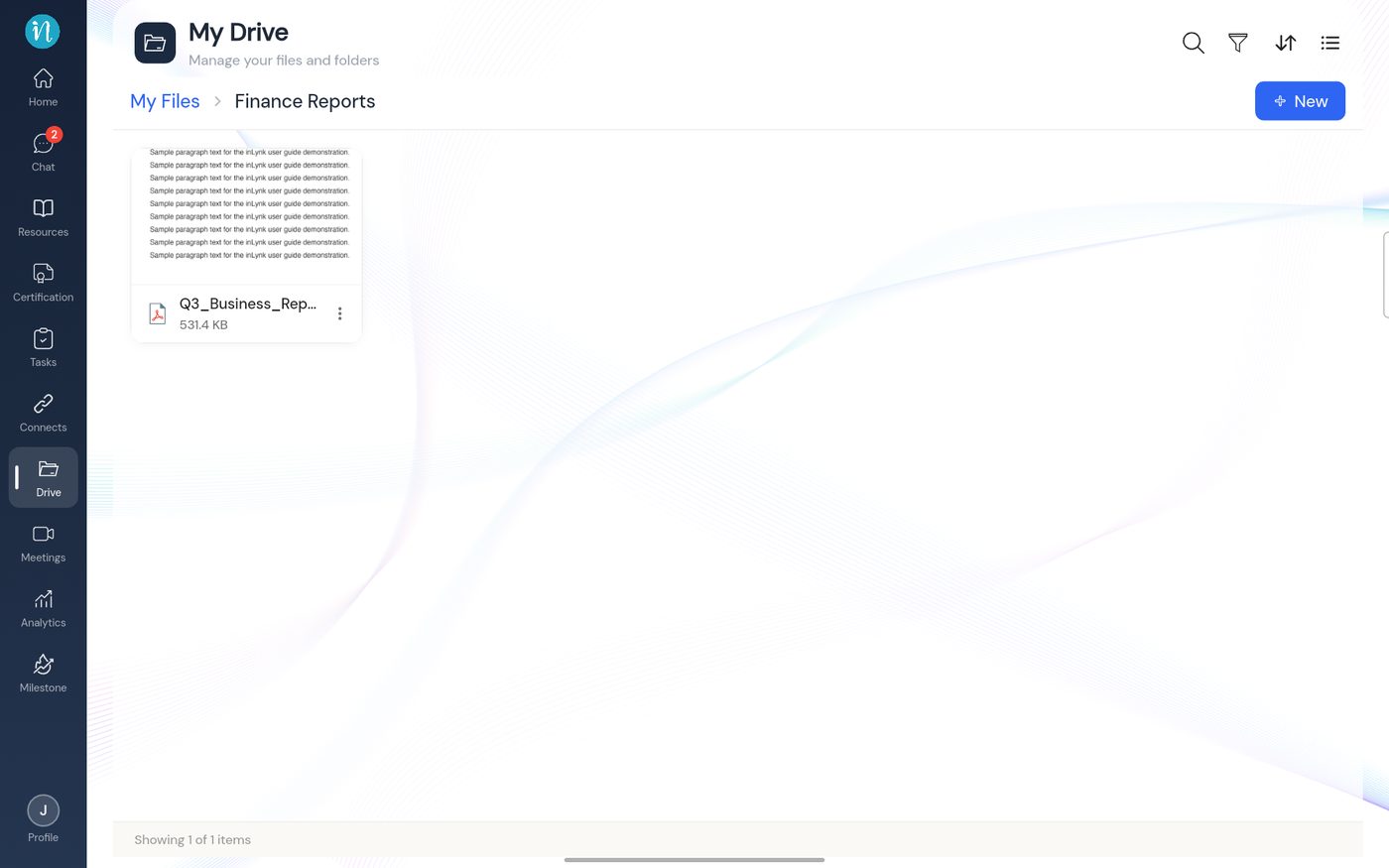
Tap the ⋮ on the file and choose Copy To….
Item menu with Copy To
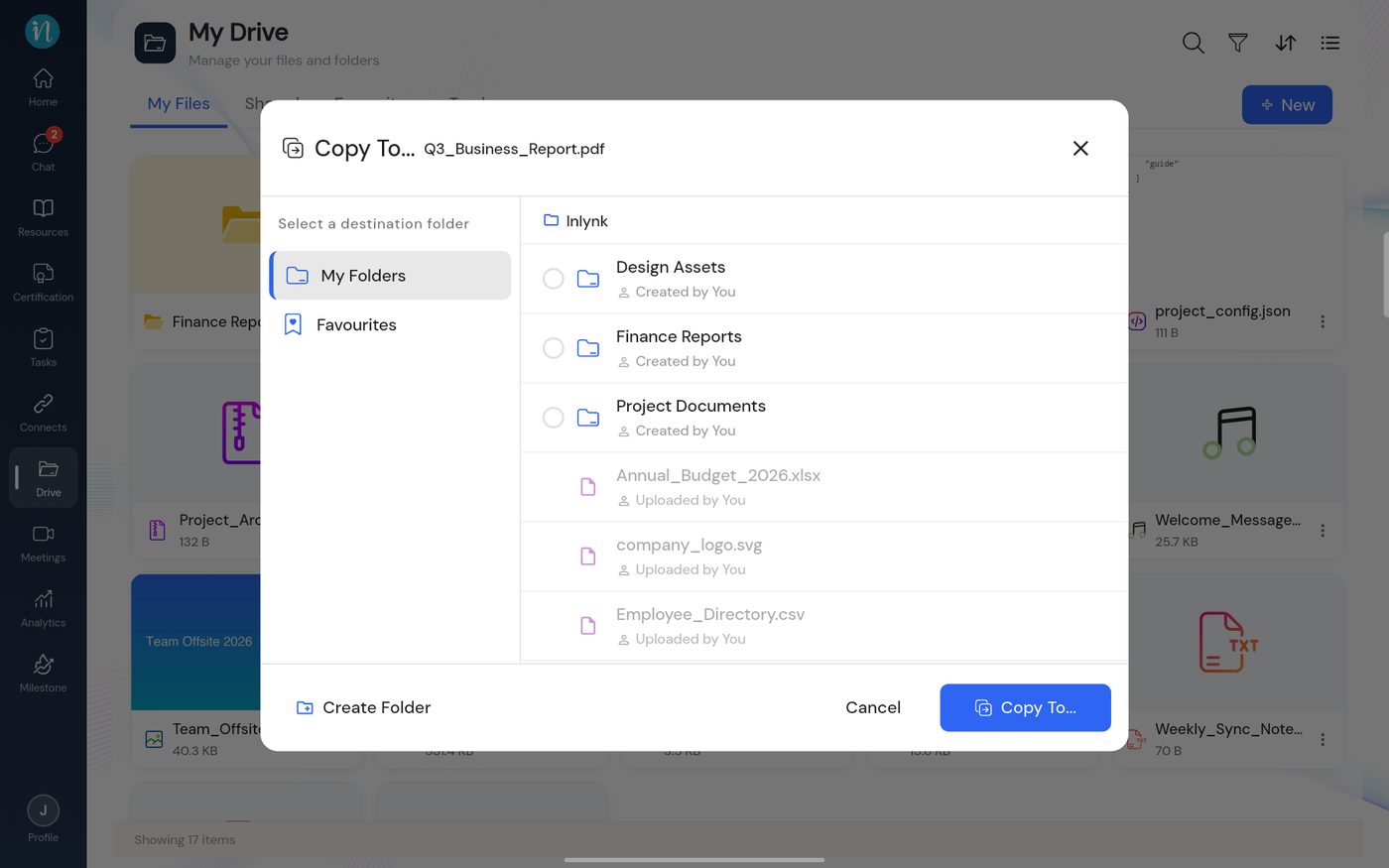
In the Copy To… dialog, look for the destination folder.
Copy To dialog
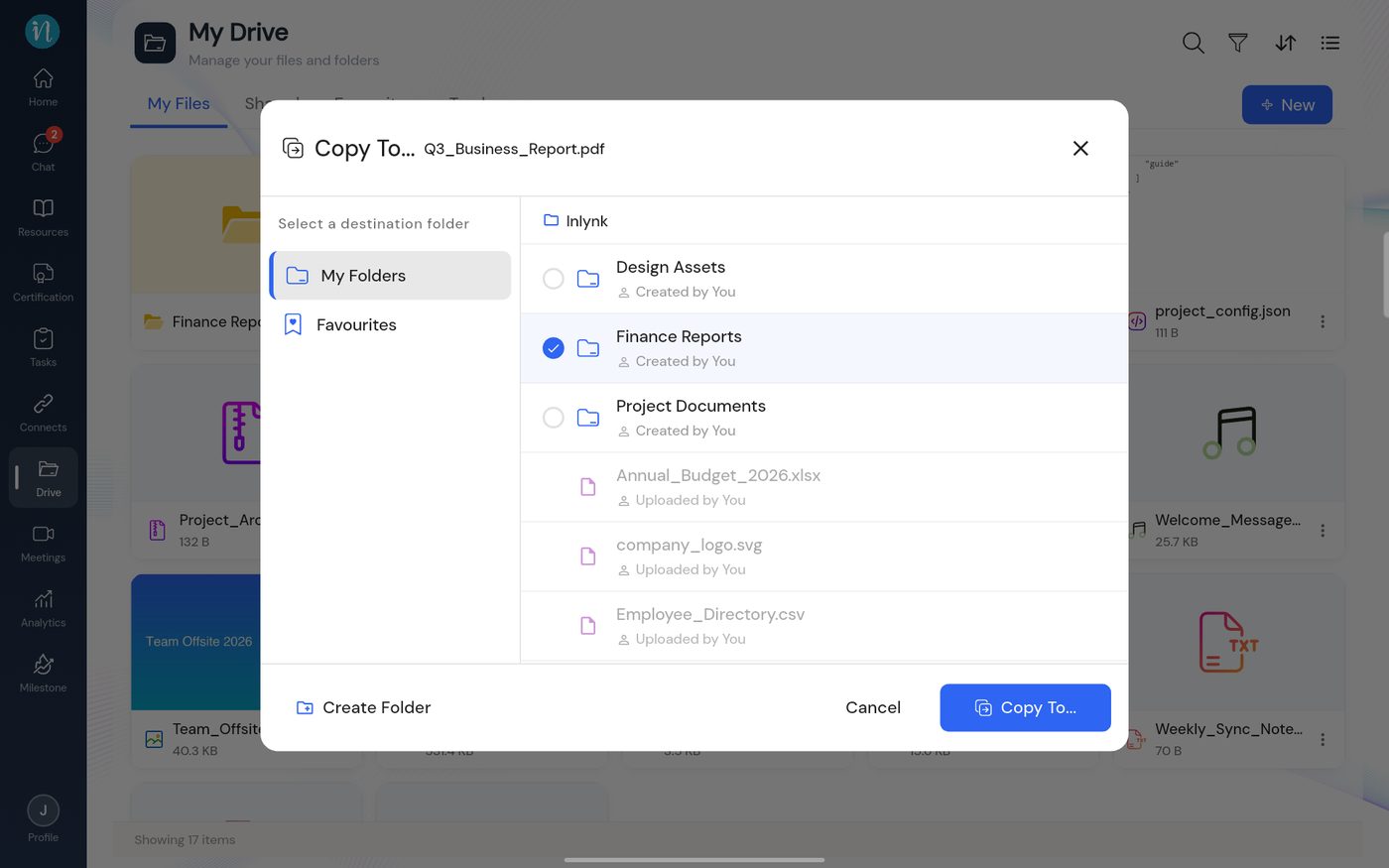
Tap the circle next to the destination folder.
Destination chosen
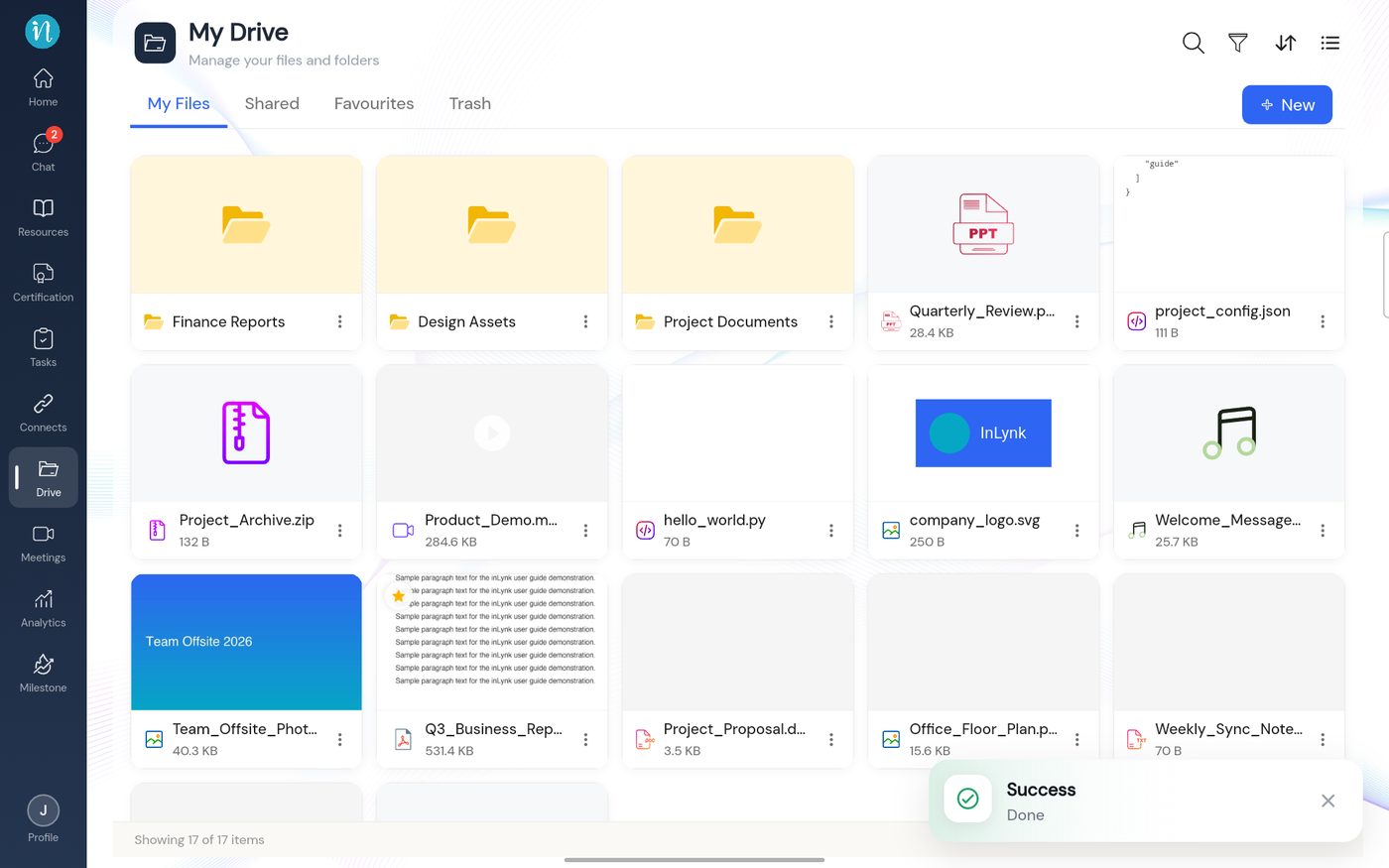
Tap Copy To…. A confirmation appears and the original stays where it is.