Set by your workspace admin. If you cannot do this, ask them for access.
This article is written for Member and Super Admin. Use the role switch at the top to change what the menus show.
Upload puts files from your device into Drive. You can upload several files at once, or a whole folder.
Before you start: you need the Create permission, and enough free storage. Any file type can be uploaded; see Supported file types for how each is previewed.
Upload files
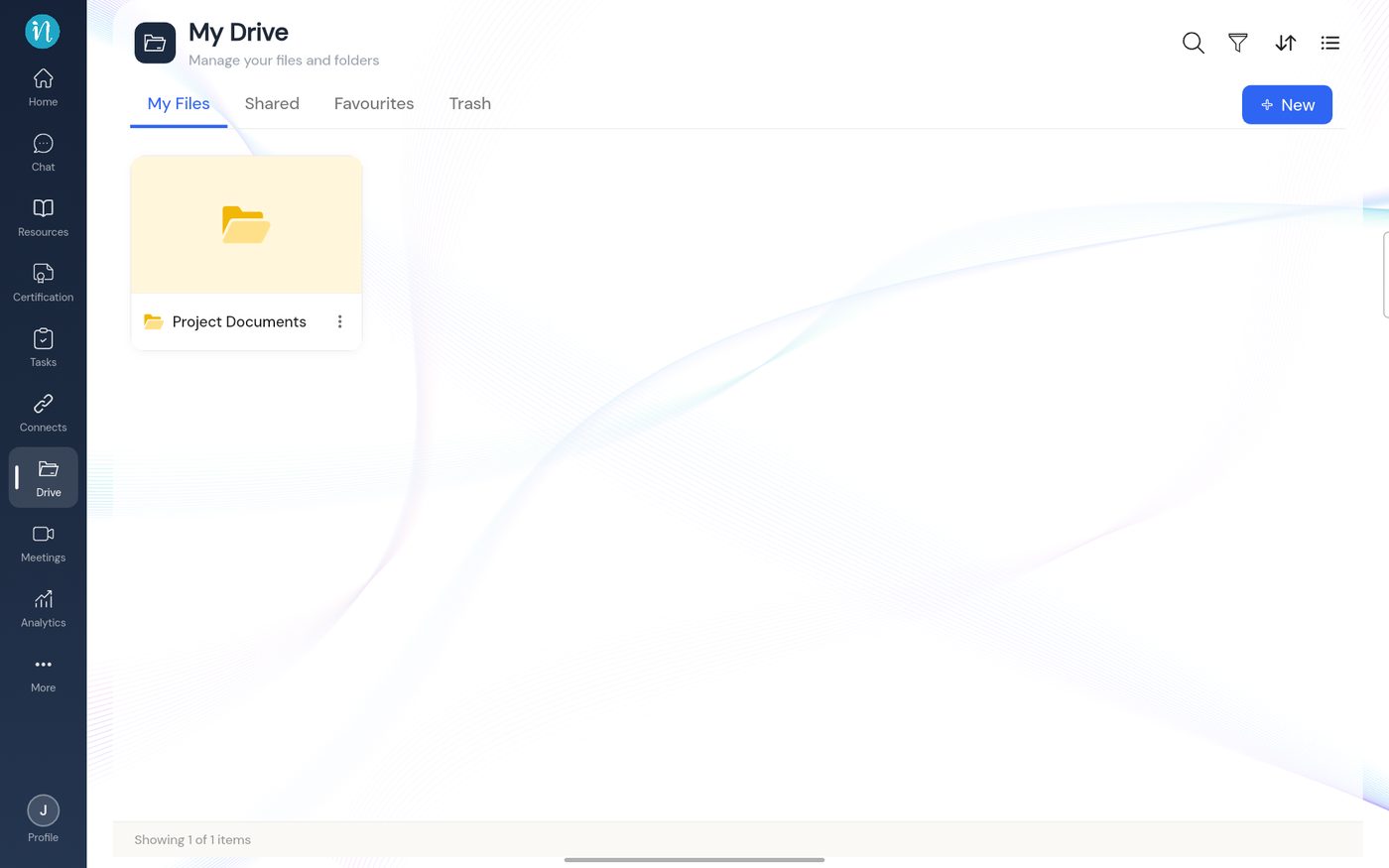
Open Drive. To upload into a folder, open that folder first; otherwise stay on My Files.
My Files before uploading
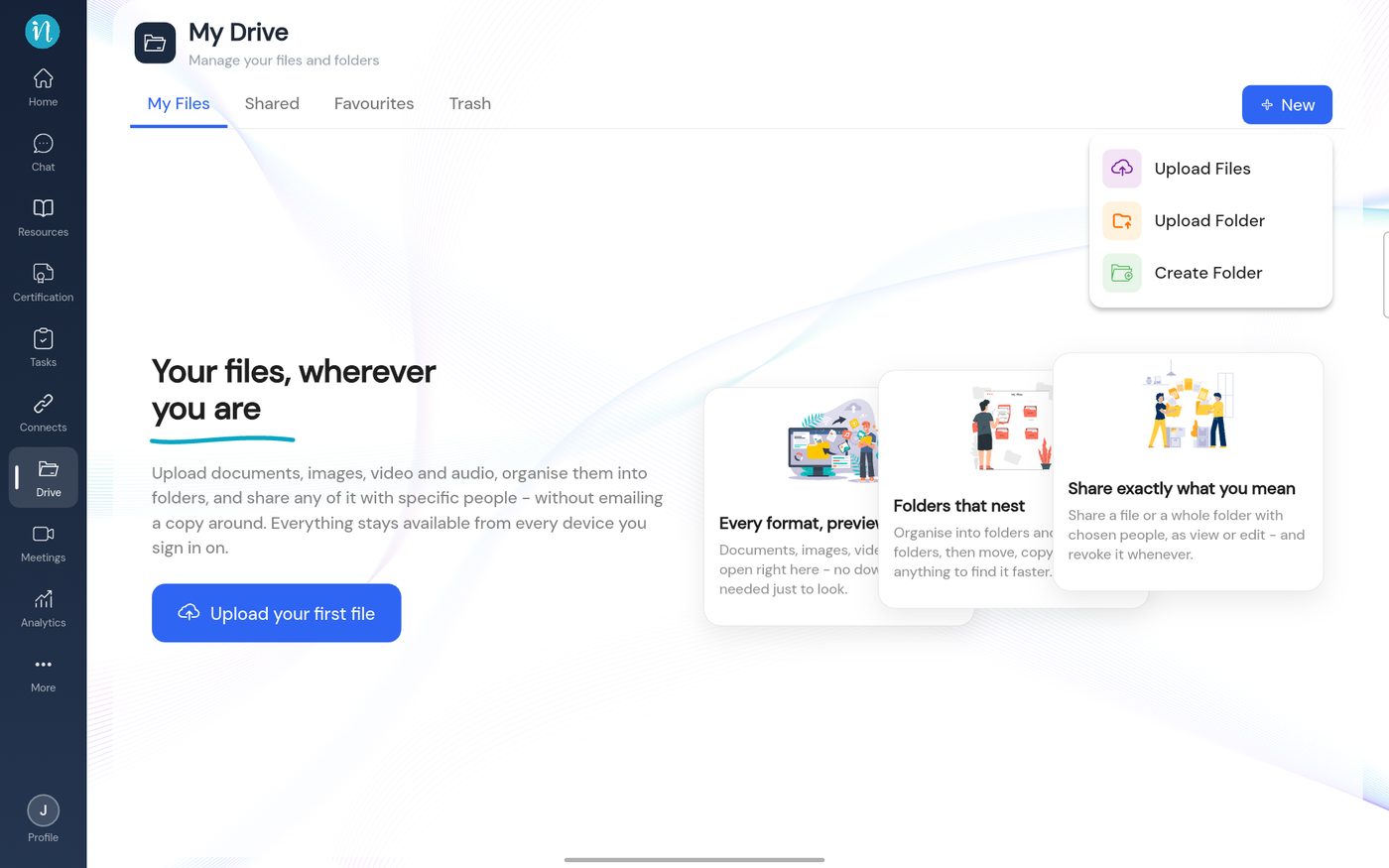
Tap + New, then choose Upload Files.
The New menu
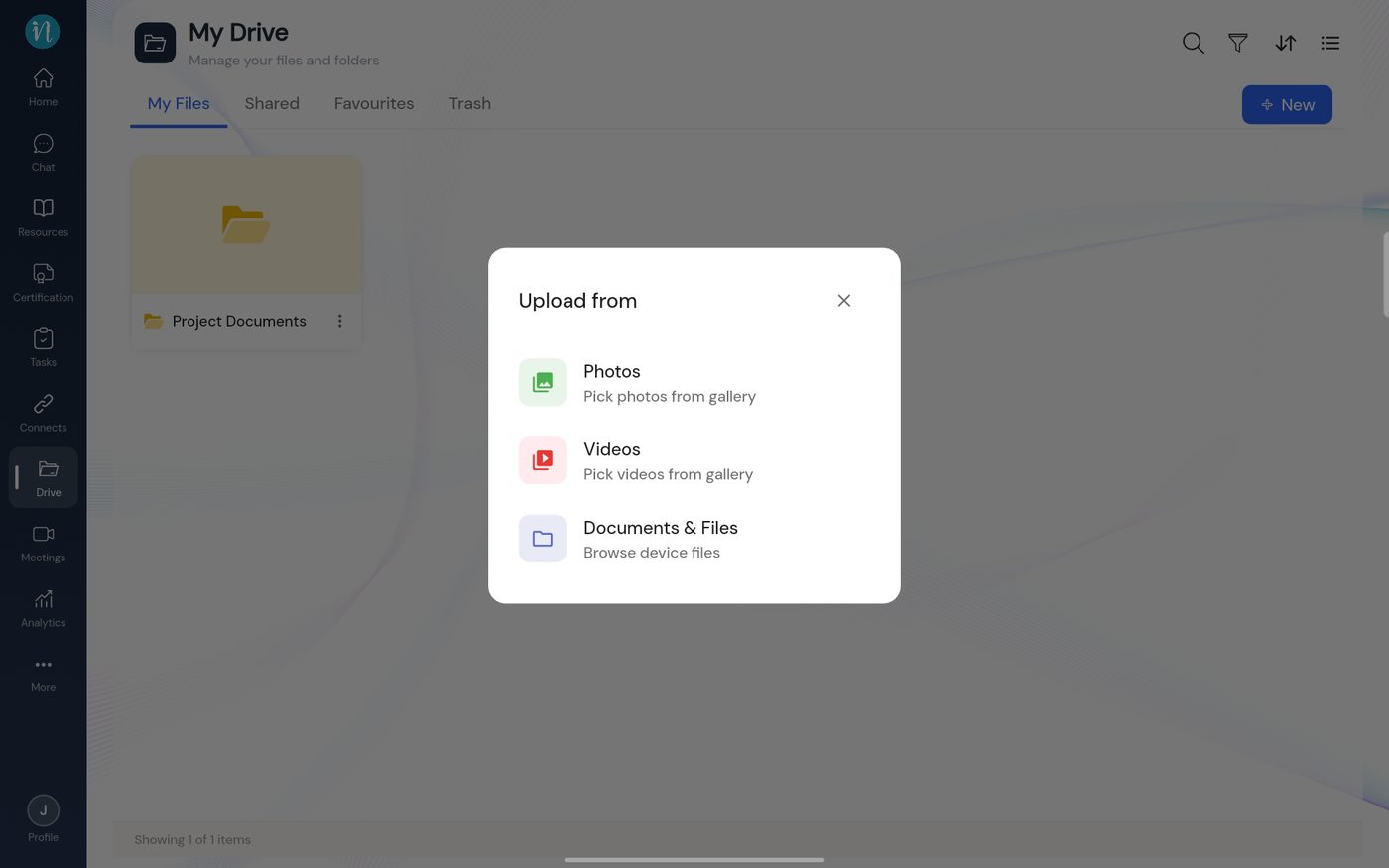
Choose where to upload from. A dialog titled Upload from lists your options.
Upload from dialog
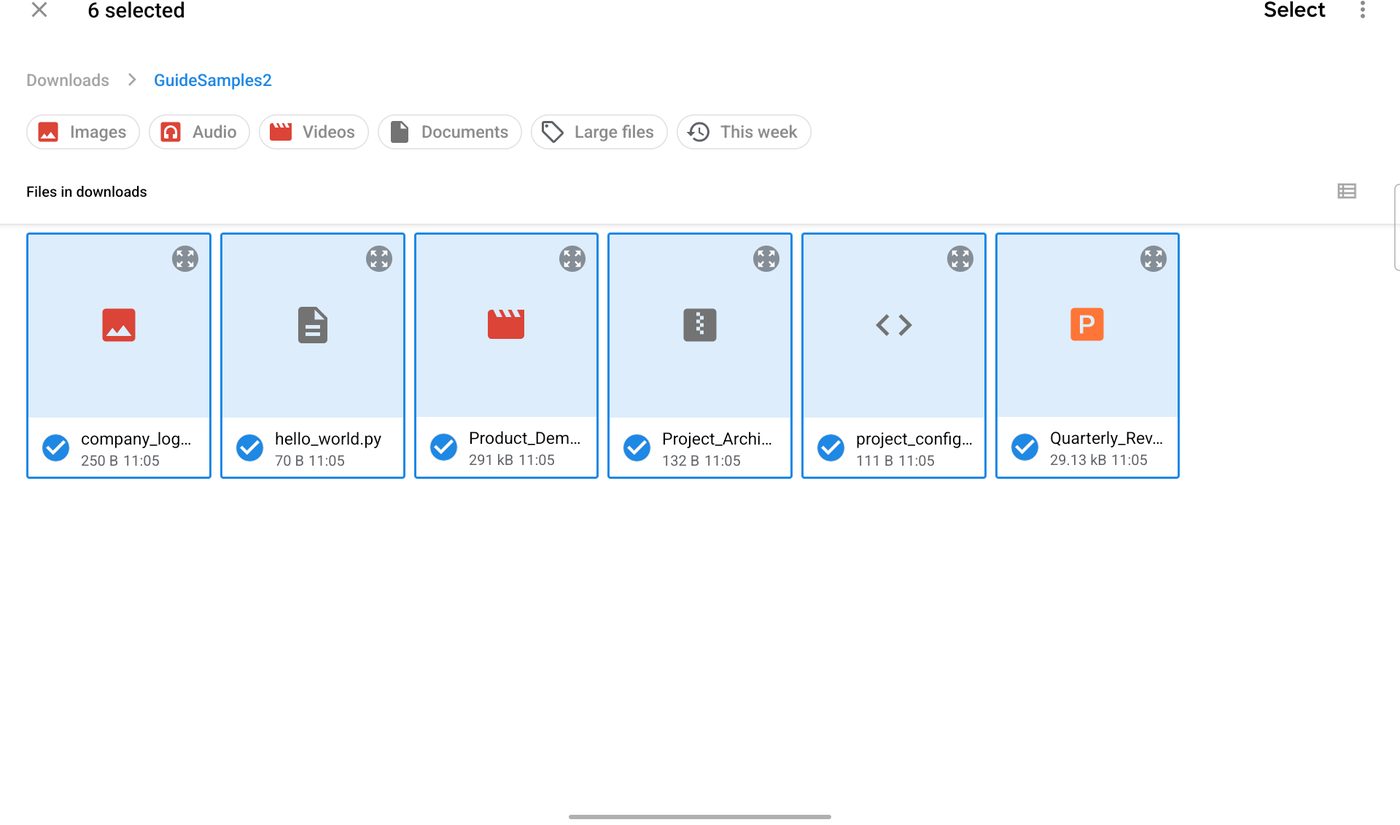
Your device's file picker opens. Browse to the files and tick the ones you want. Press and hold a file to start selecting, then tap the others.
Choosing files in the device picker
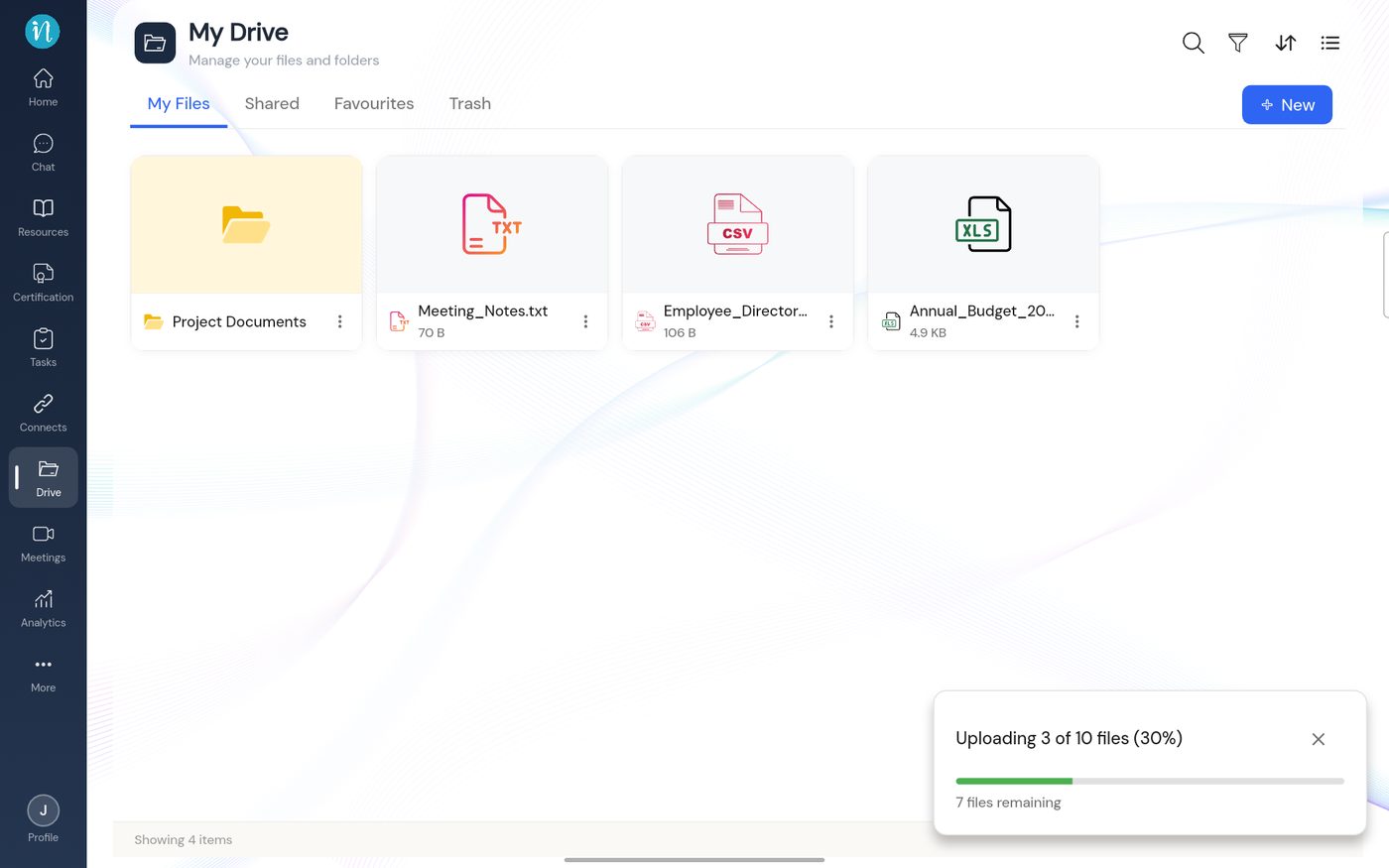
The upload starts straight away. You can keep using Drive while it runs.
Upload in progress
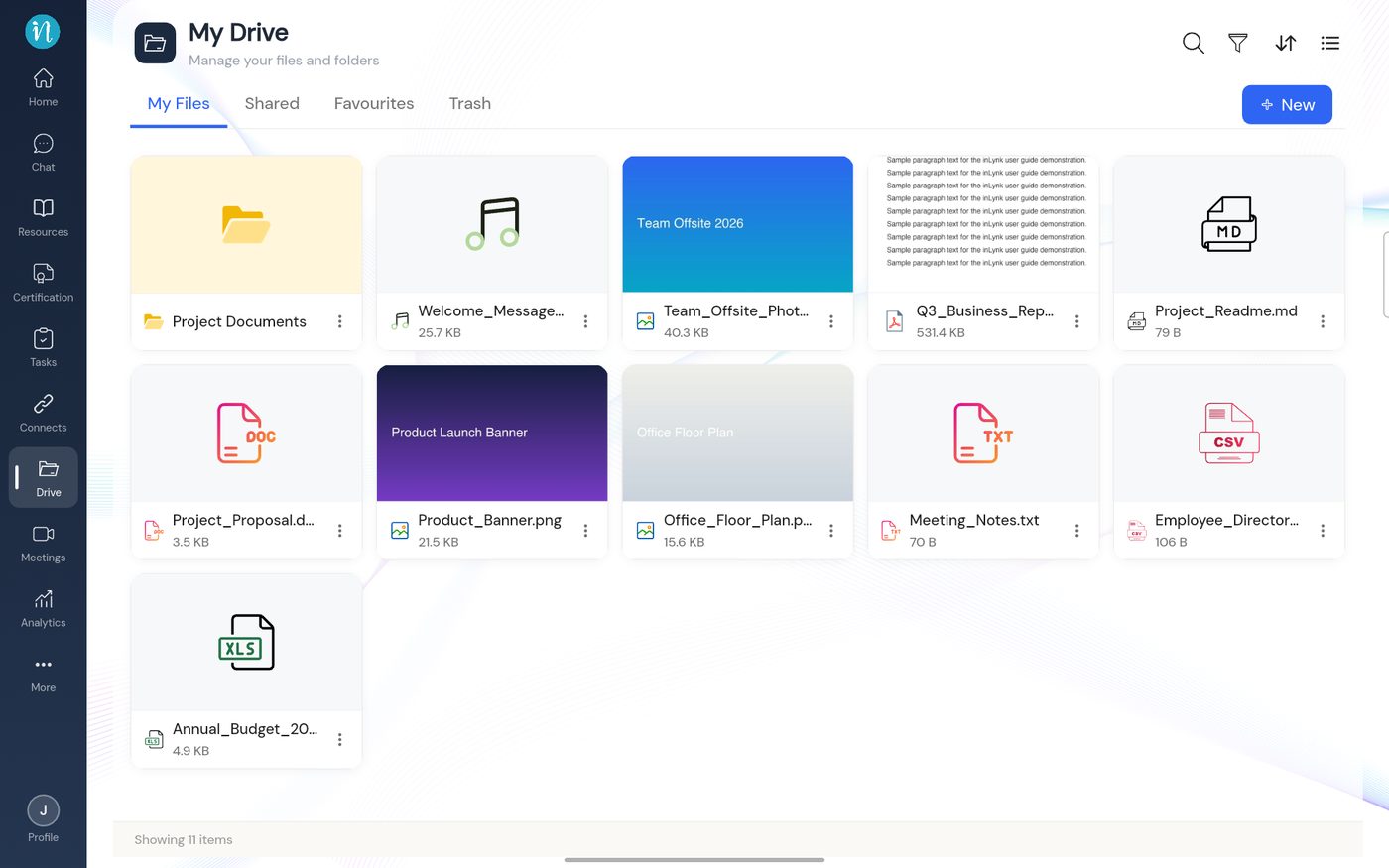
Wait for the card to finish. Your files are now in the grid.
Files after upload
Upload a folder
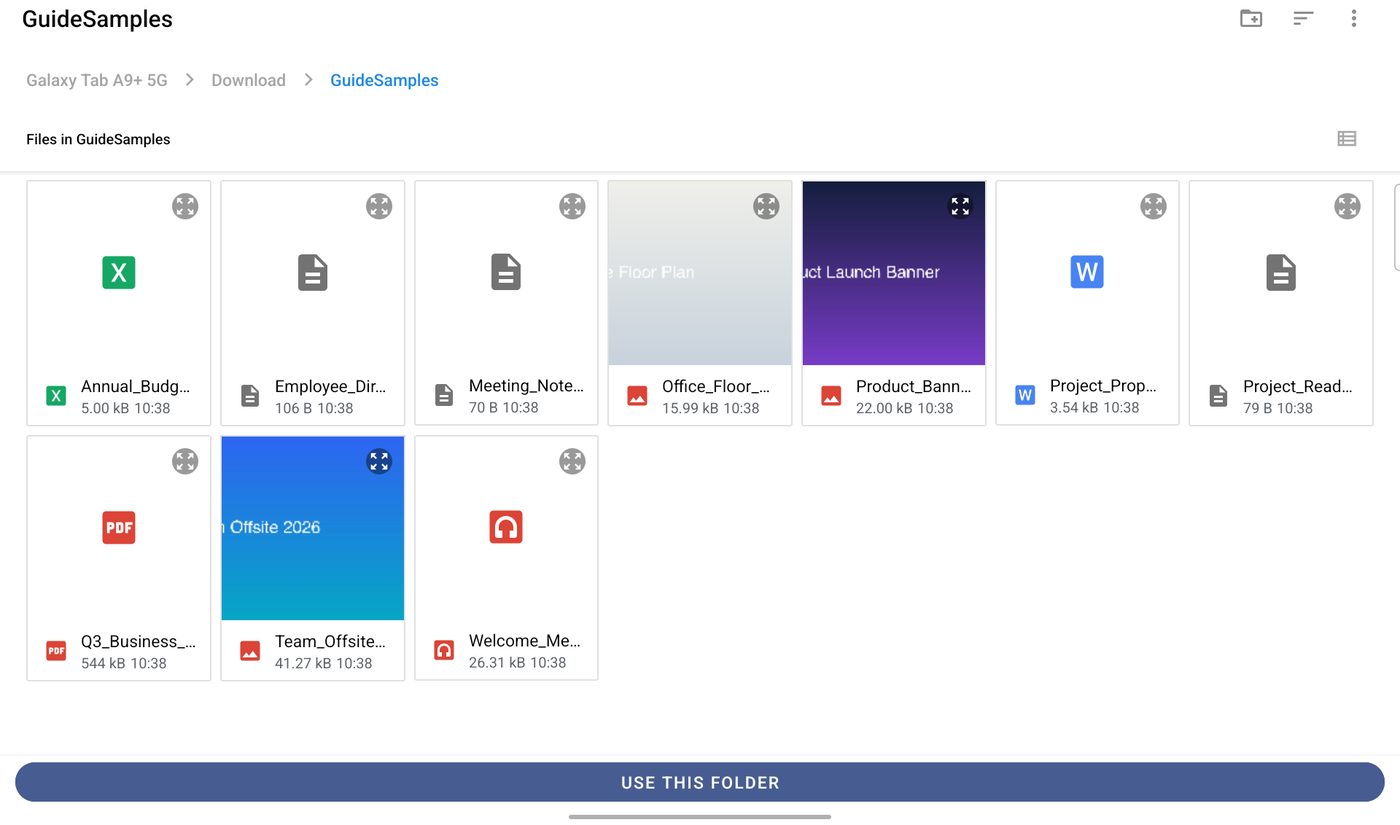
Tap + New, then Upload Folder. Your device's folder picker opens.
Choosing a folder to upload
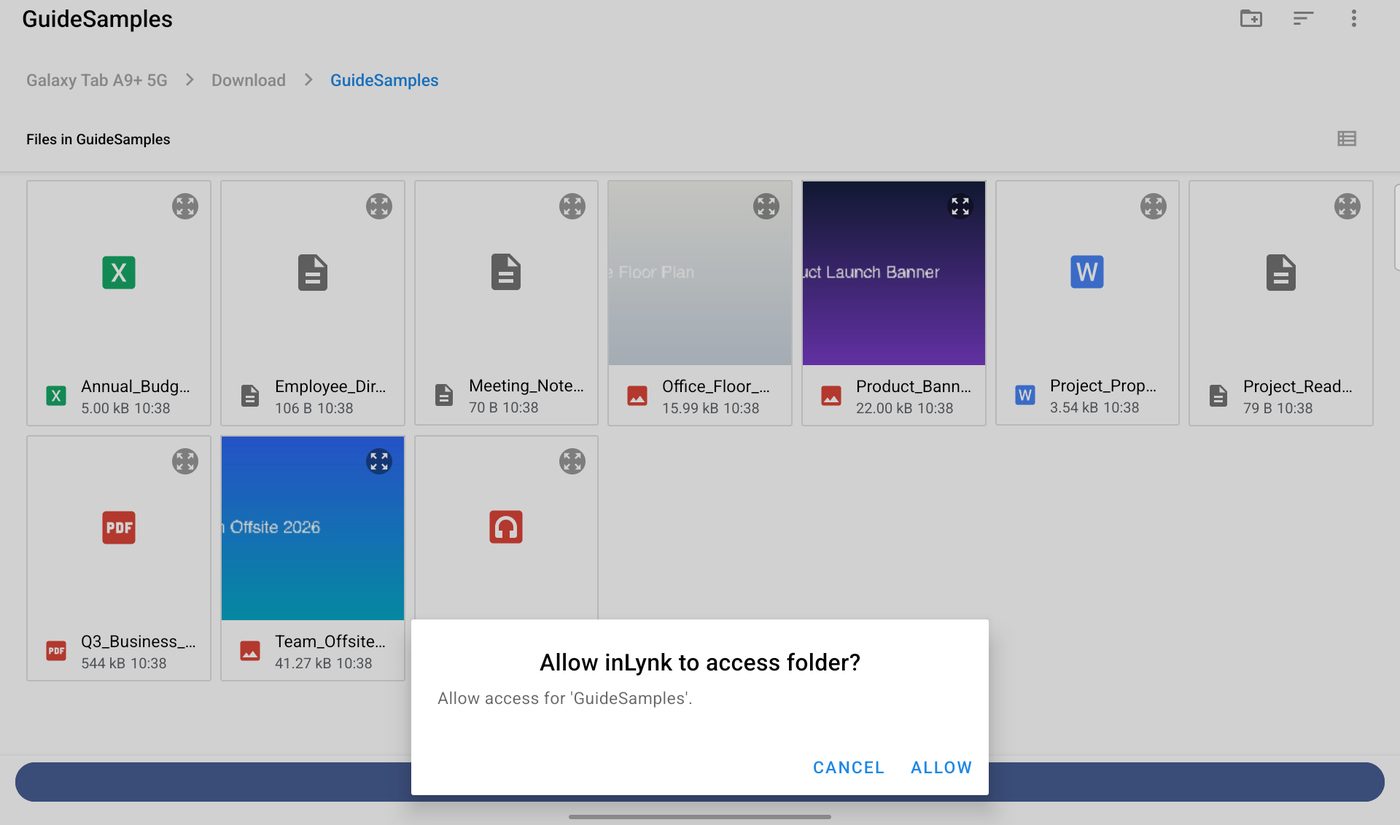
Tap Use this folder, then allow access when your device asks.
Allow access to the folder
Limits and errors
There is no fixed per-file size limit. Your storage quota is the limit (10 GB by default; your admin can change it).