
The Storage tab and storage quotas
The Storage tab shows how much of the workspace's storage is used and by whom, and it is where you set limits.
Who sees what depends on two permissions:
- View Storage Tab (media-drive:view_storage) – read-only.
- Manage Storage Quotas (edit) (media-drive:manage) – can change limits; includes viewing.
Read the Storage tab
-
Open Drive and tap Storage.
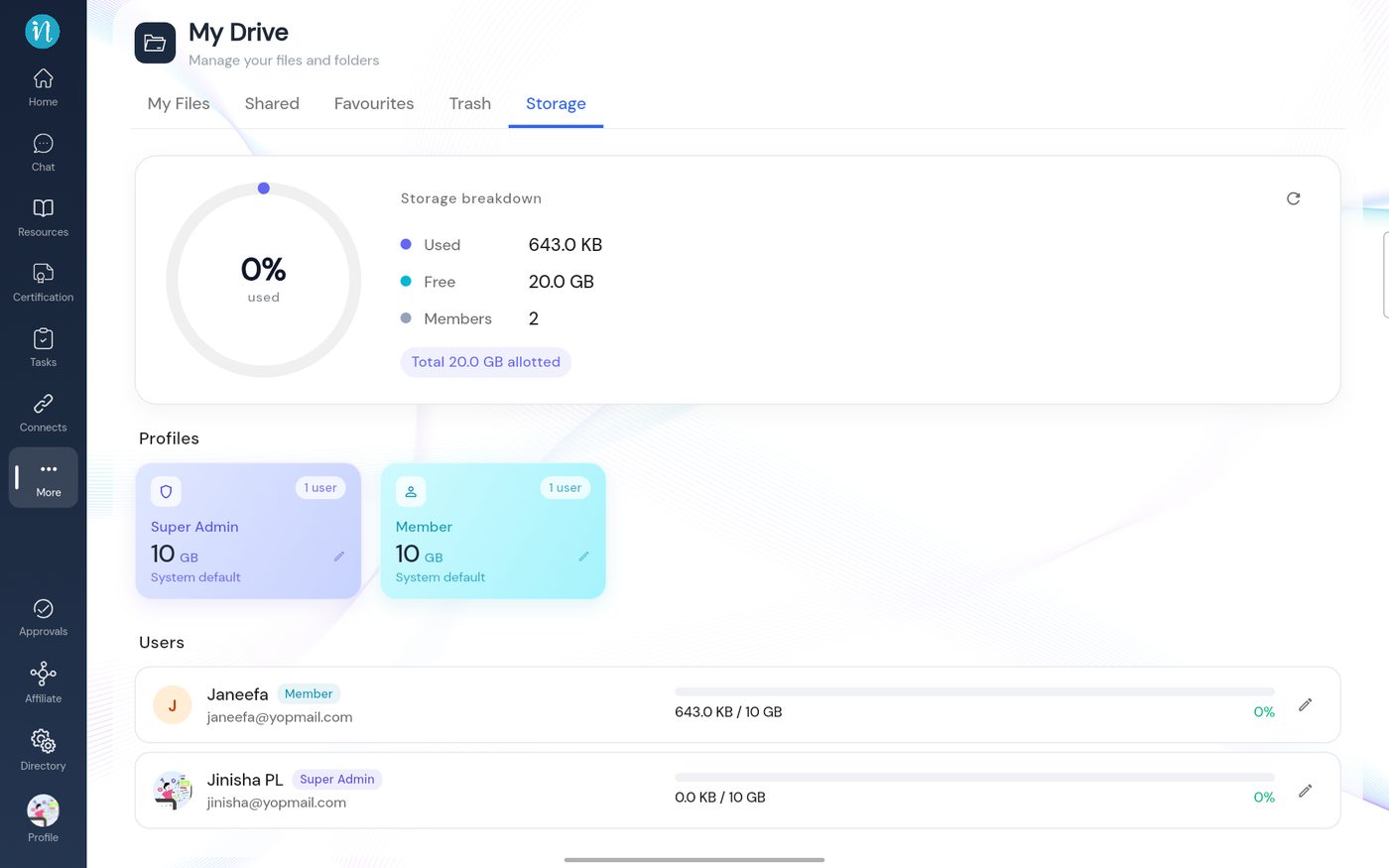
Storage tab
Set a limit for a role
-
In the Profiles section, tap the pencil on the role's tile, for example Member.
-
Enter a number of GB, or leave the field empty to return to the default.
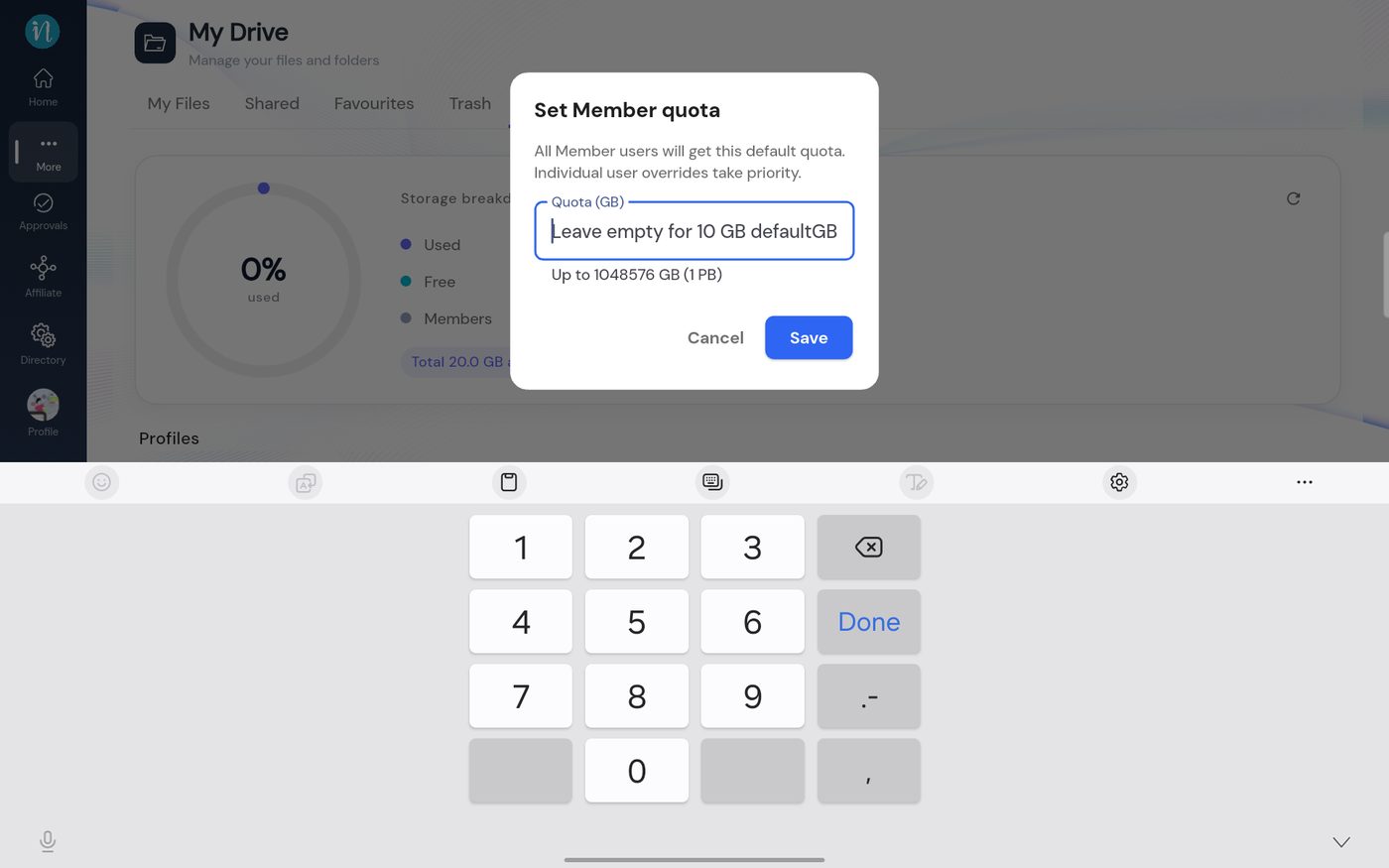
Set Member quota -
Tap Save. Everyone in that role gets the new allowance, unless they have their own override.
To change one person only, tap the pencil beside their name in the Users list.
How a person's limit is worked out
In this order, the first one that applies wins: 1. The person's own override. 2. Their role's quota. 3. The 10 GB default.
Files uploaded into a shared folder count against the workspace's shared storage pool, not the uploader's own limit.
Last updated 2026-10-22