
Setting Drive permissions for each role
Who can use thisSuper Admins only
This article is written for Super Admin. Use the role switch at the top to change what the menus show.
Each profile (role) has its own set of Drive permissions. You set them in Directory → Profiles. A change takes effect for people straight away; they do not need to sign in again.
-
Open Directory in the sidebar and tap Profiles. Pick a profile on the left: Admin, Member or Super Admin (custom profiles you create appear here too).
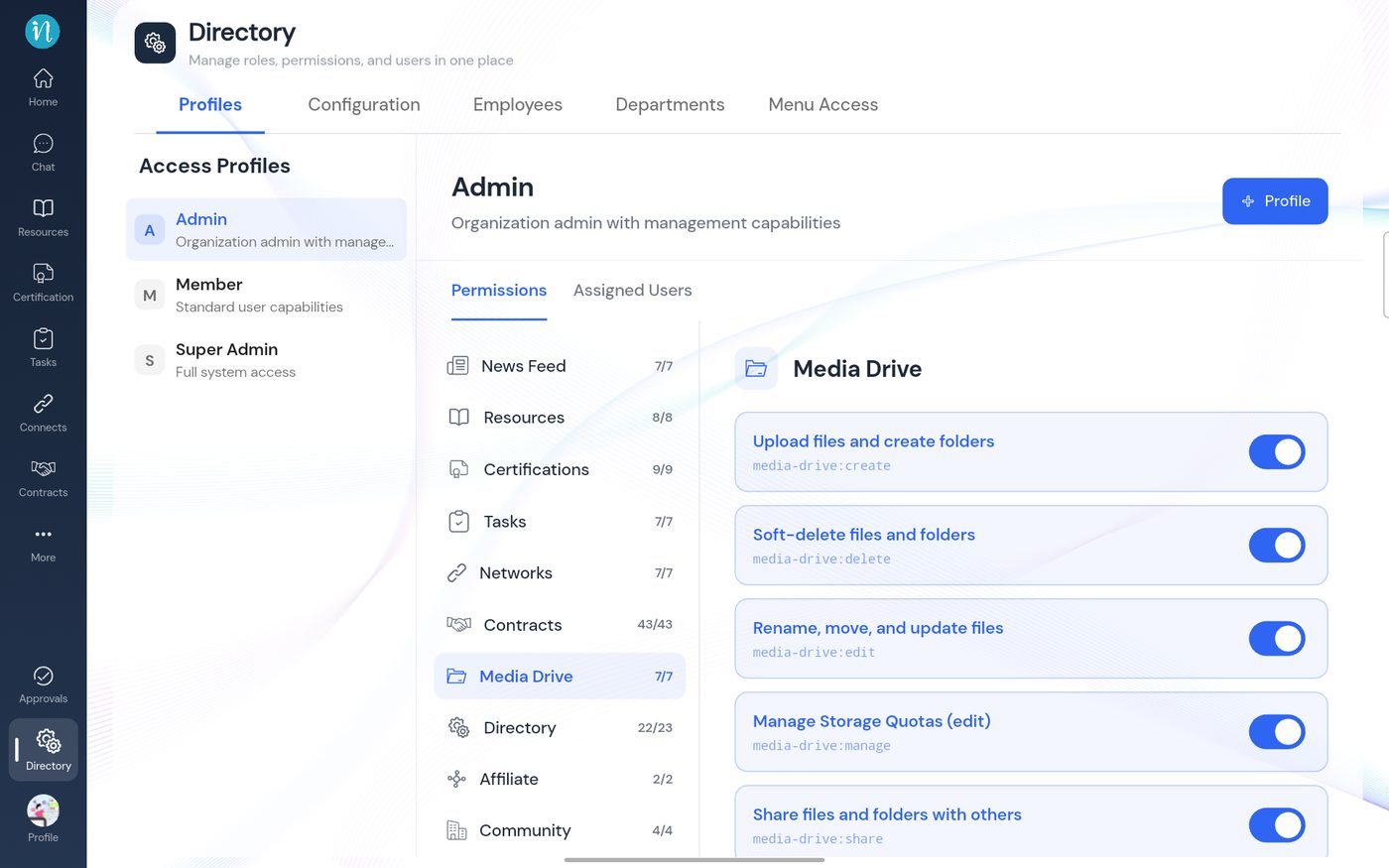
Directory, Profiles, Media Drive -
Choose Media Drive in the module list. Scroll the right panel to see every Drive permission.
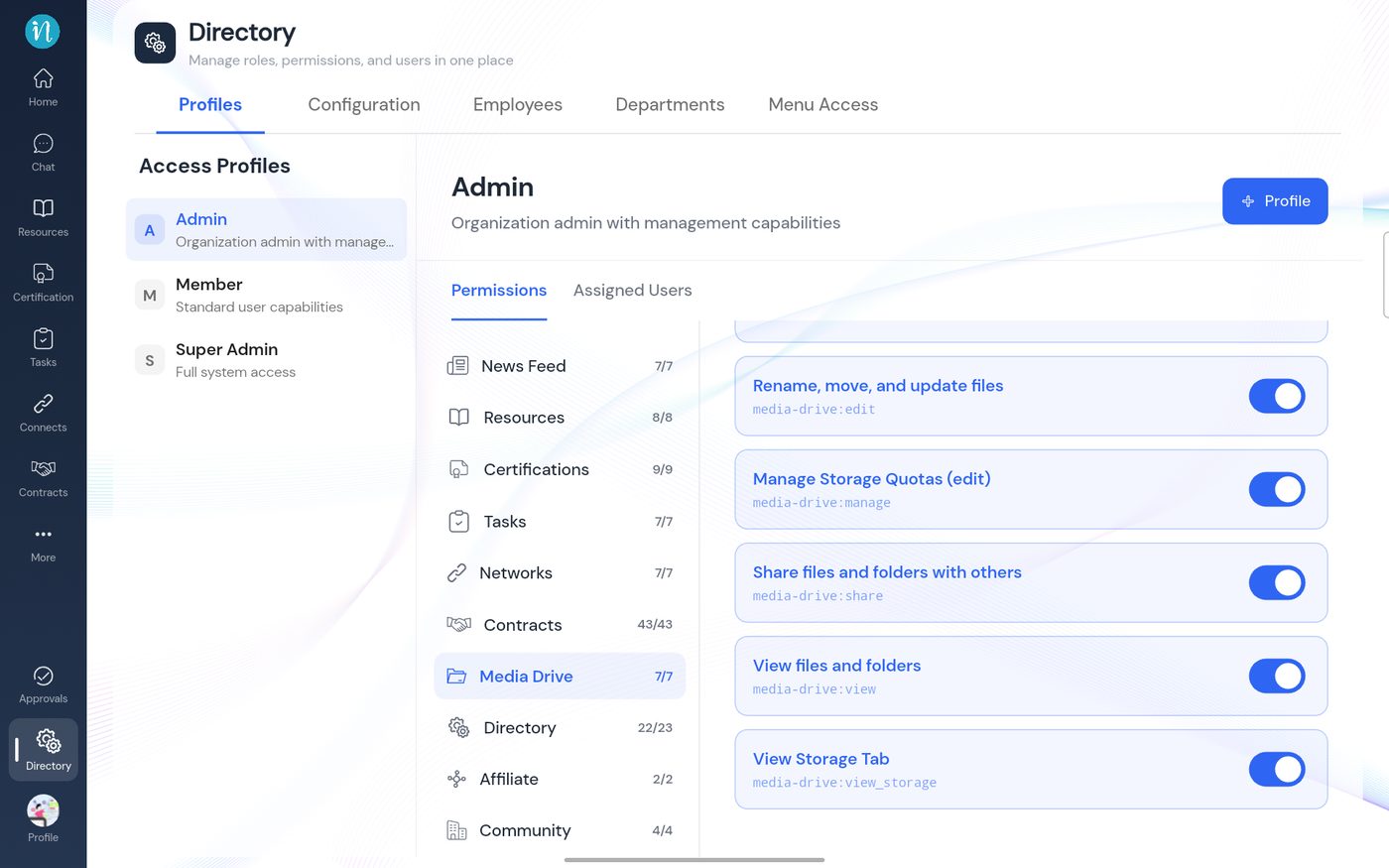
The rest of the Drive permissions -
Switch to another profile to compare. This is Member.
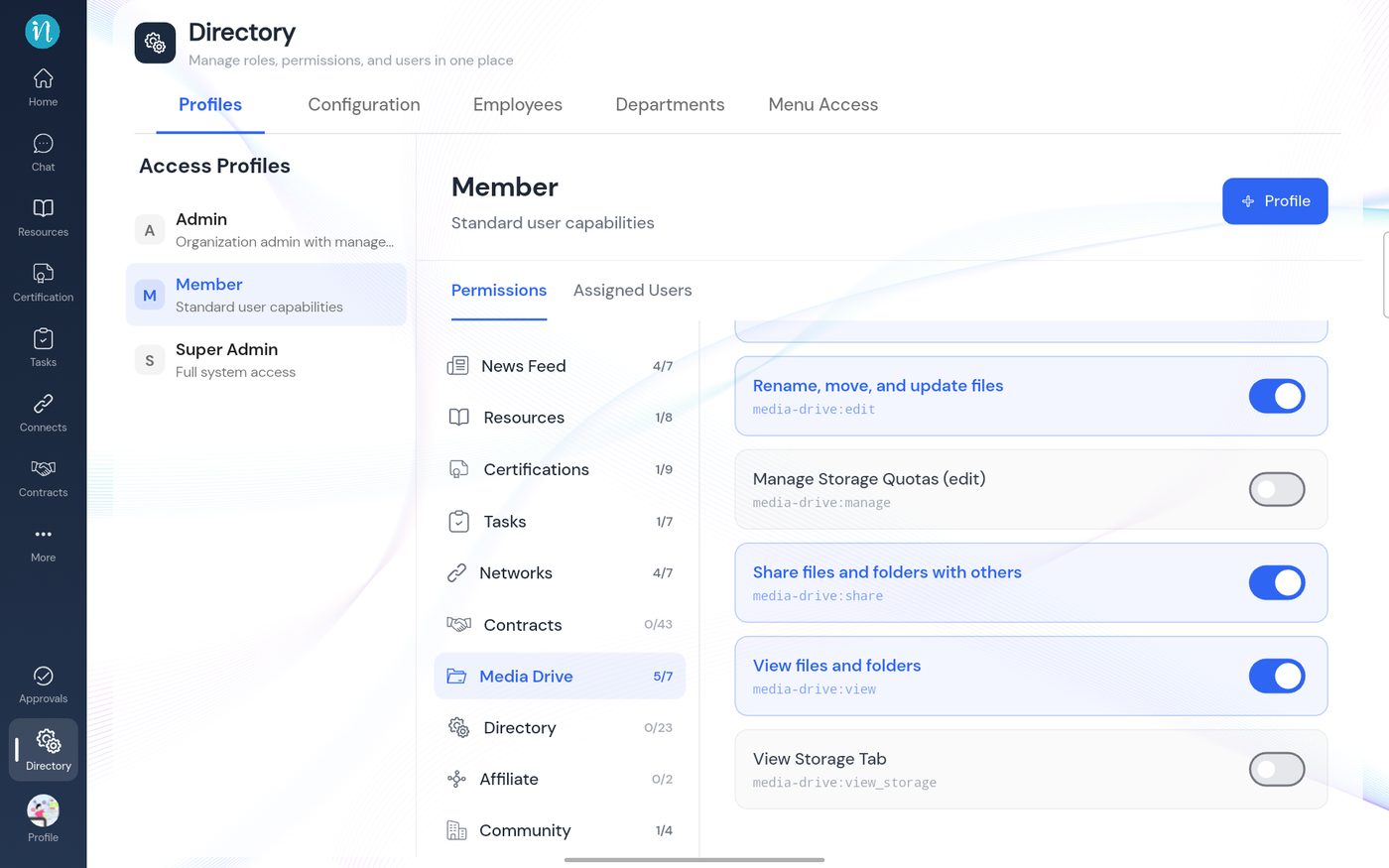
Member profile -
And this is Super Admin.
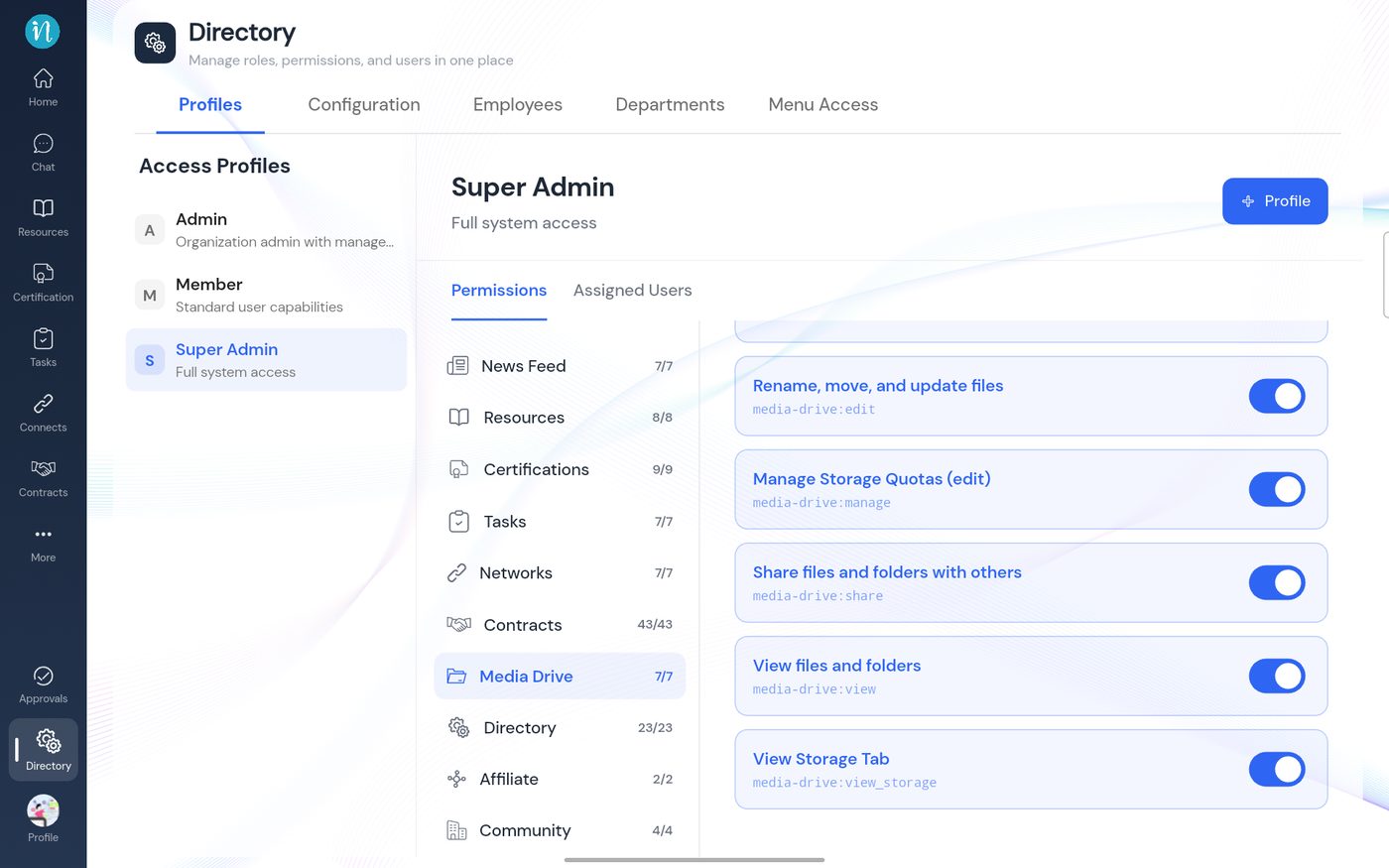
Super Admin profile
The Drive permissions
| Permission (as shown) | Key | What it controls |
|---|---|---|
| View files and folders | media-drive:view |
Open Drive; browse, search, preview, favourites, Trash, Shared |
| Upload files and create folders | media-drive:create |
Upload, New folder, Copy |
| Rename, move, and update files | media-drive:edit |
Rename, Move, Restore |
| Soft-delete files and folders | media-drive:delete |
Move to Trash, delete permanently, Empty Trash |
| Share files and folders with others | media-drive:share |
Share, change and revoke access |
| View Storage Tab | media-drive:view_storage |
Storage tab, read-only |
| Manage Storage Quotas (edit) | media-drive:manage |
Change quotas (includes view) |
What the profiles hold in this workspace
| Profile | Media Drive | Notes |
|---|---|---|
| Super Admin | 7 / 7 | Full access |
| Admin | 7 / 7 | Includes both storage permissions |
| Member | 5 / 7 | Everything except View Storage Tab and Manage Storage Quotas |
Defaults can differ between workspaces, and a workspace can customise them. Always check the counts in Directory → Profiles rather than assuming.
Last updated 2026-10-22