Set by your workspace admin. If you cannot do this, ask them for access.
This article is written for Member and Super Admin. Use the role switch at the top to change what the menus show.
Sharing gives specific people access to a file or folder, without sending it by email. You choose who and what they can do, and you can take the access away whenever you like.
Before you start: you need the Share permission.
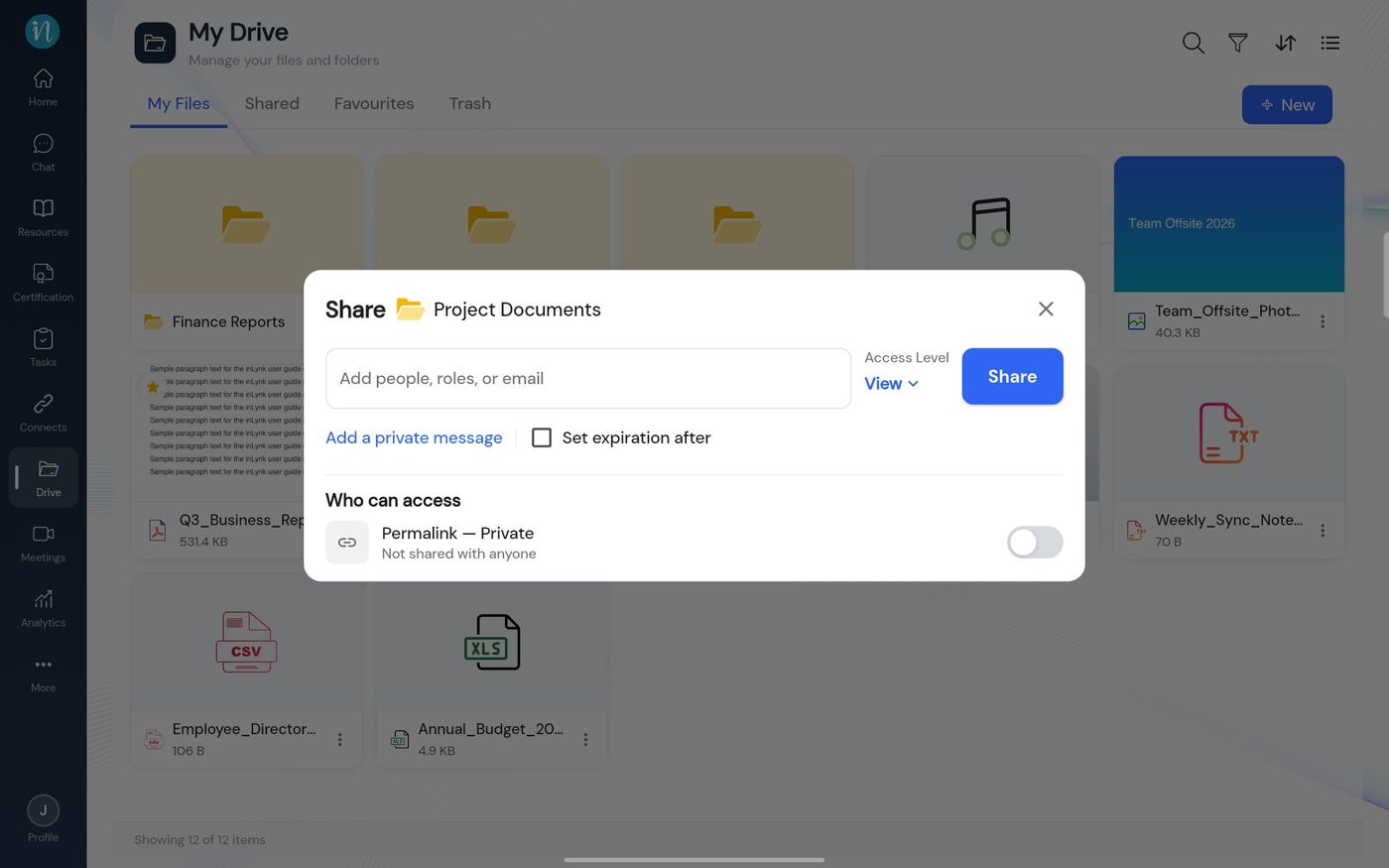
Tap the ⋮ on the file or folder and choose Share. The Share dialog opens.
Share dialog
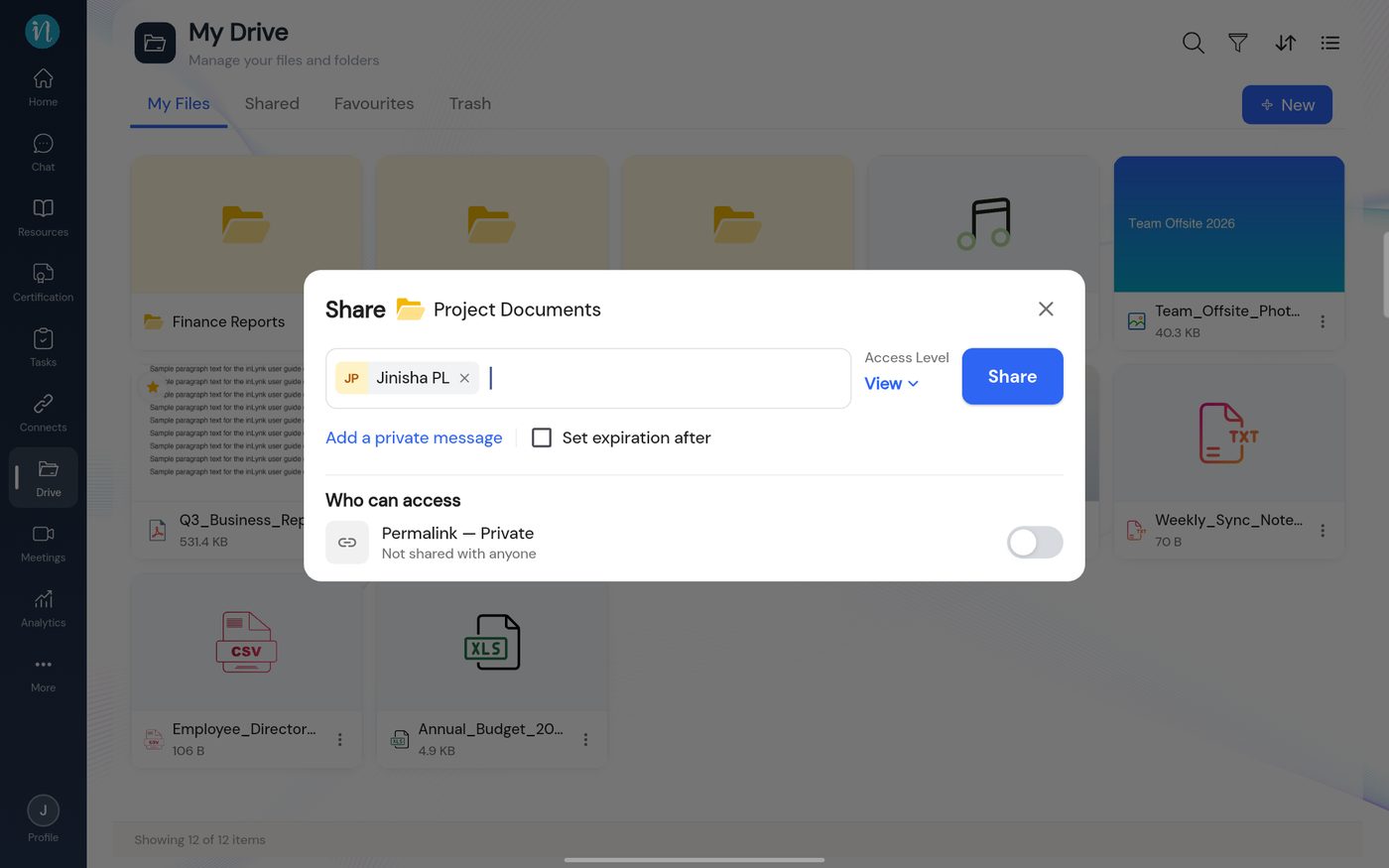
Type a name and pick the person from the list. They appear as a chip in the field.
A person added
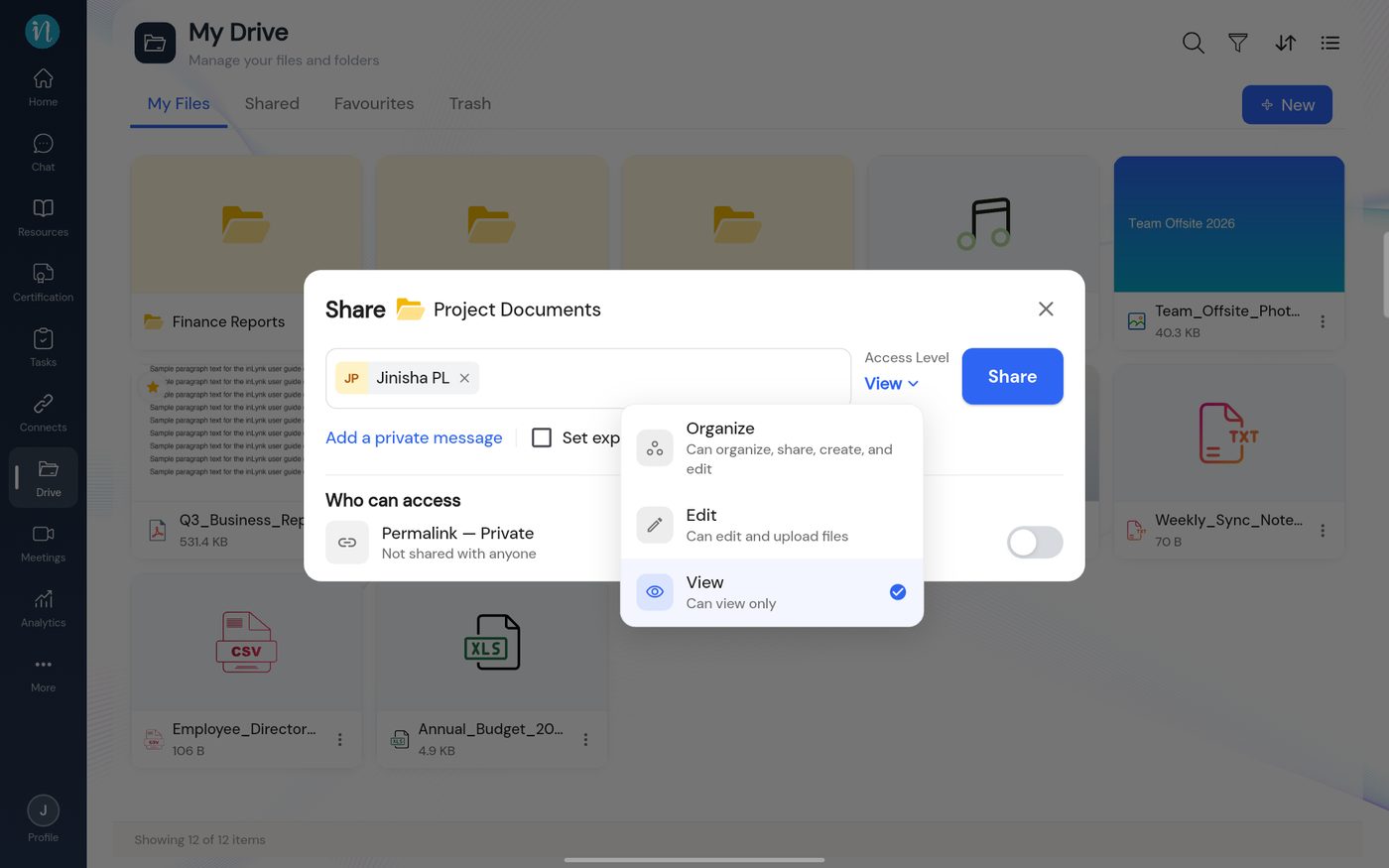
Choose the Access Level.
Access levels
Optional: tap Add a private message, or tick Set expiration after and choose when the access should end.
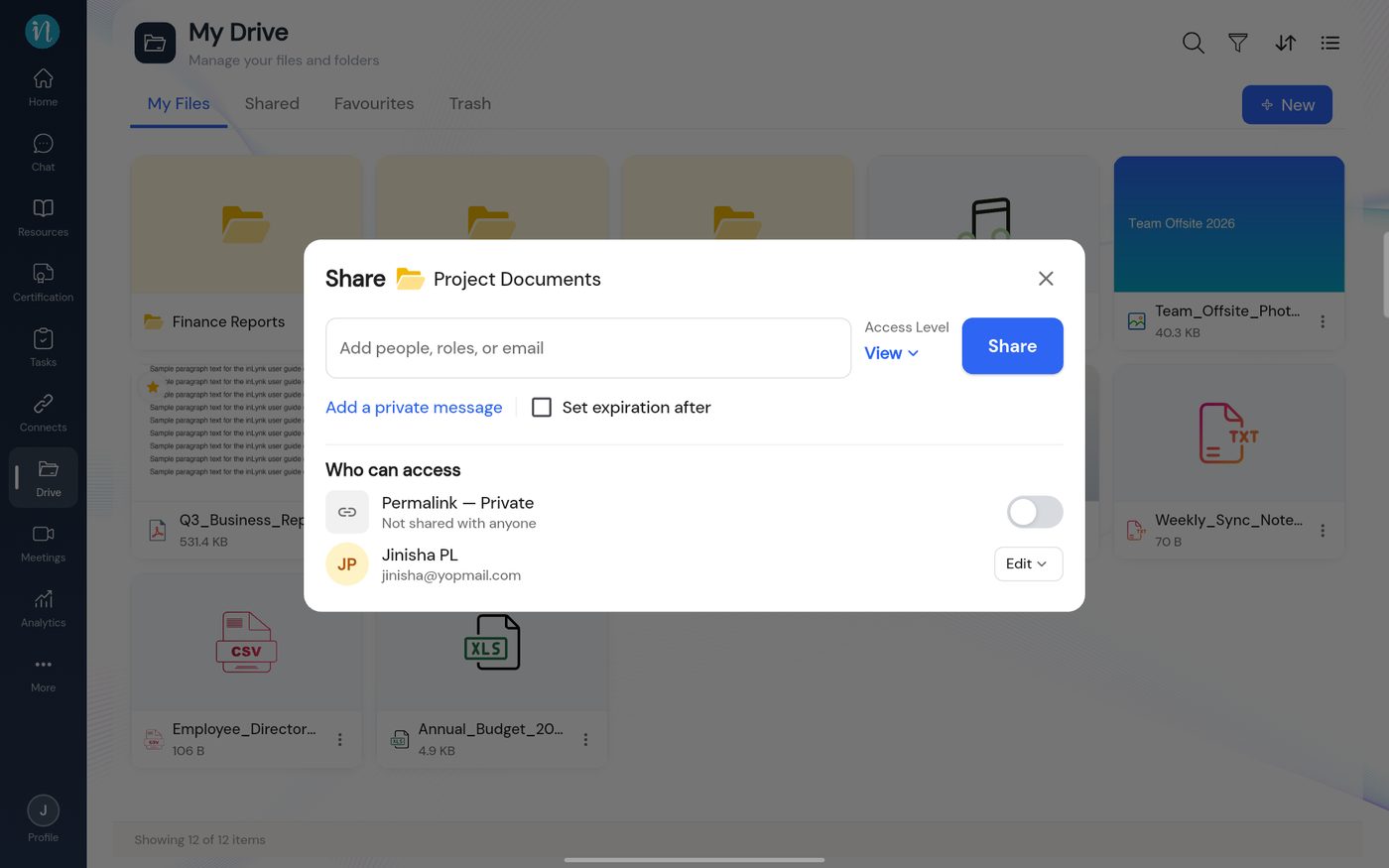
Tap Share. The person is added, and the item appears in their Shared tab.
Who can access
Reopen Share at any time to see who has access and change it. To see what the other person gets, read What the other person sees.