Soft-delete files and foldersRename, move, and update files
Set by your workspace admin. If you cannot do this, ask them for access.
This article is written for Member and Super Admin. Use the role switch at the top to change what the menus show.
Deleting in Drive is a two-step safety net. Move to Trash takes an item out of your drive but keeps it. From Trash you can restore it, delete it permanently, or empty the whole Trash.
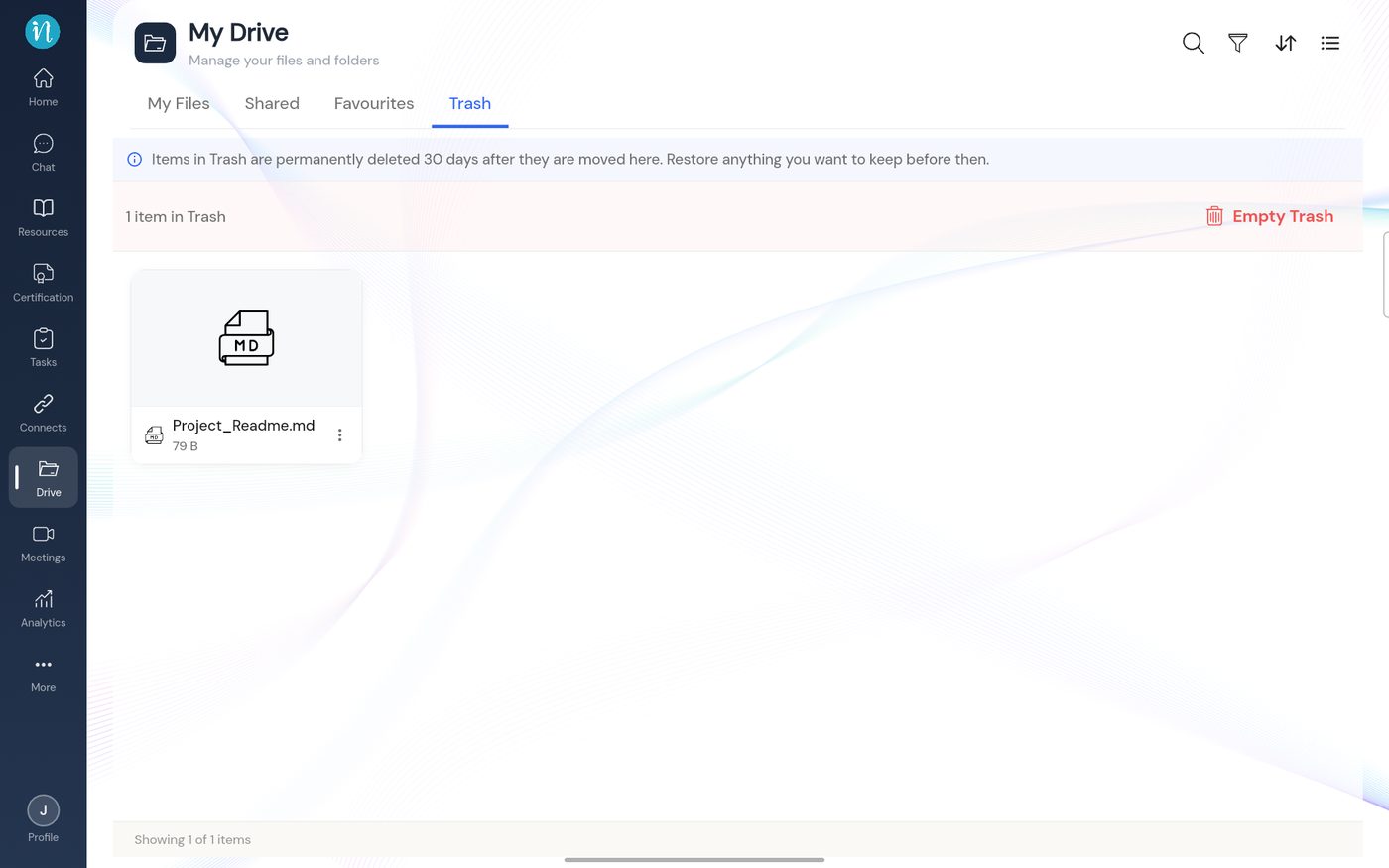
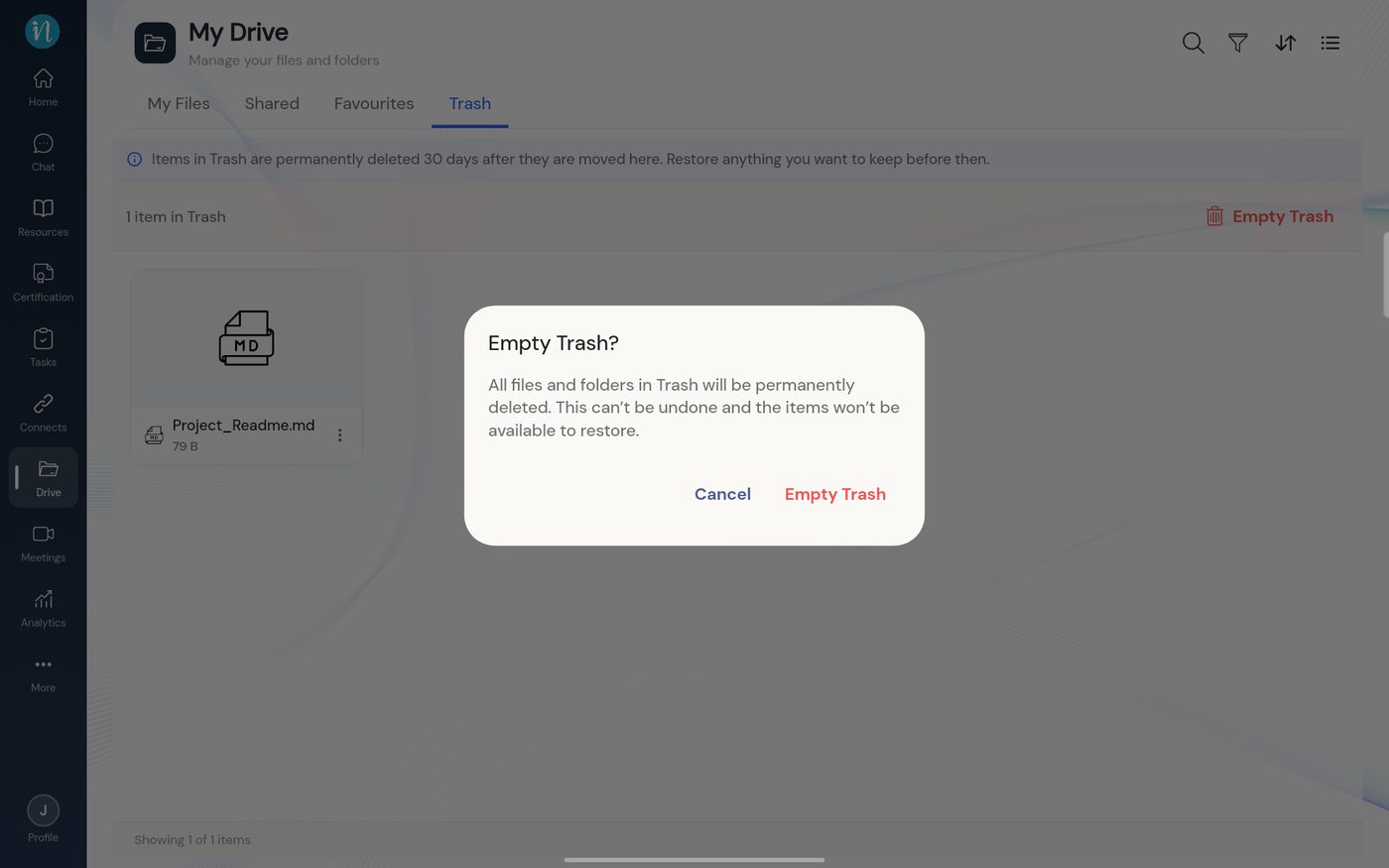
Items in Trash are permanently deleted 30 days after they were moved there. They still count towards your storage until they are gone.
Permissions: moving to Trash, deleting permanently and emptying Trash need the Delete permission. Restoring an item needs Edit.
Move an item to Trash
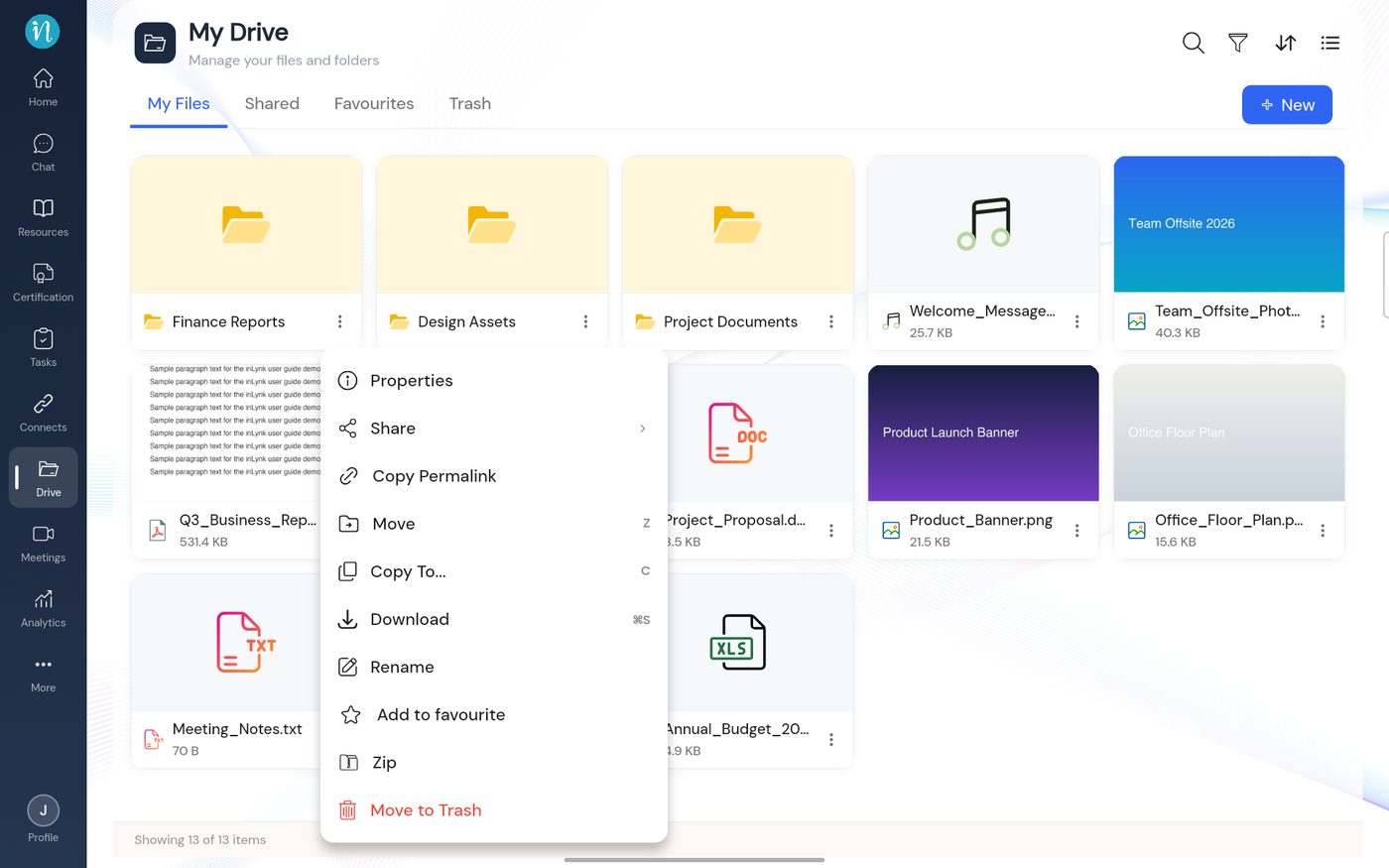
Tap the ⋮ on the item and choose Move to Trash (the red entry at the bottom).
Item menu with Move to Trash
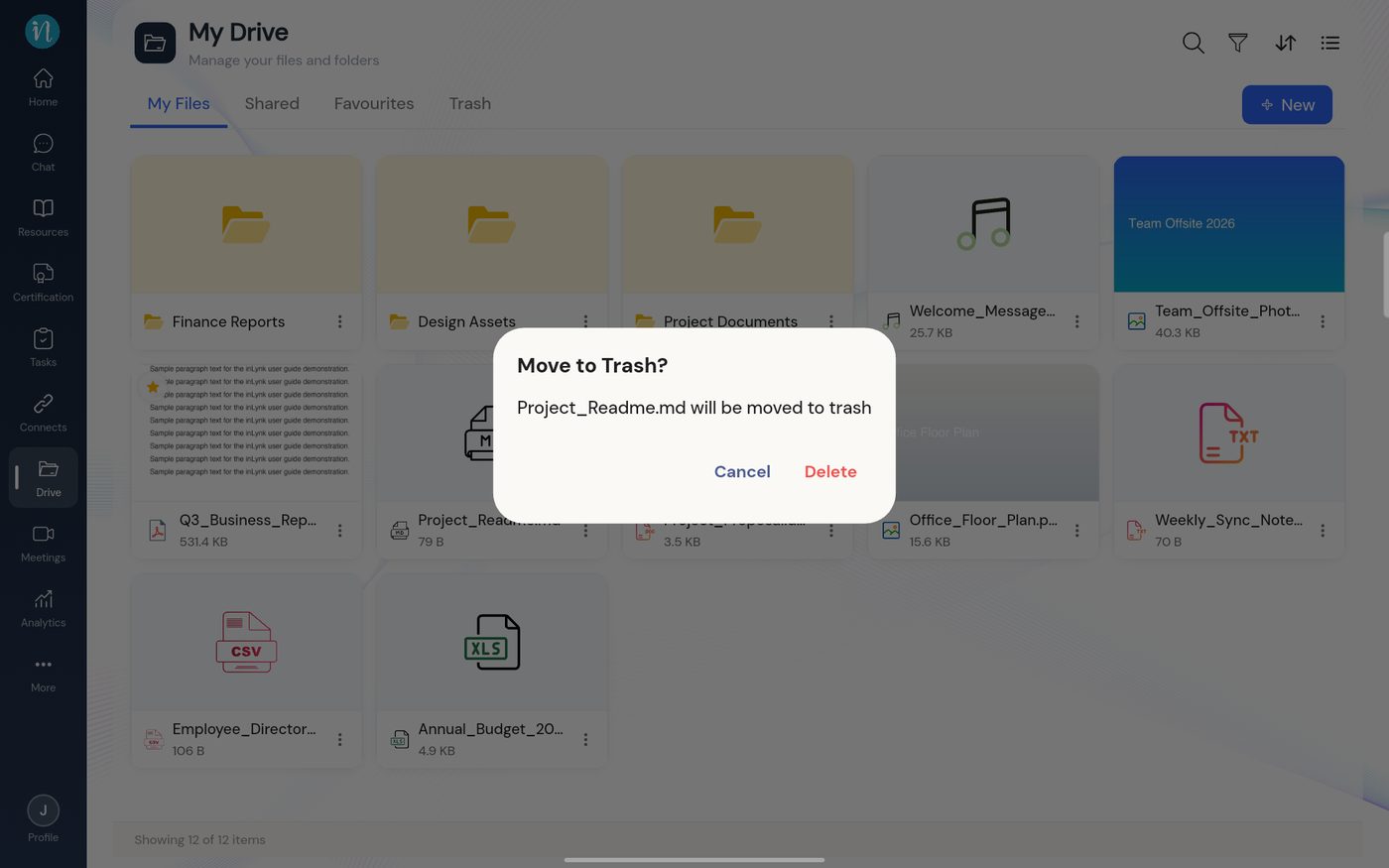
Confirm in the dialog.
Move to Trash confirmation
Look at what is in Trash
Open the Trash tab.
Trash tab with an item
Restore an item
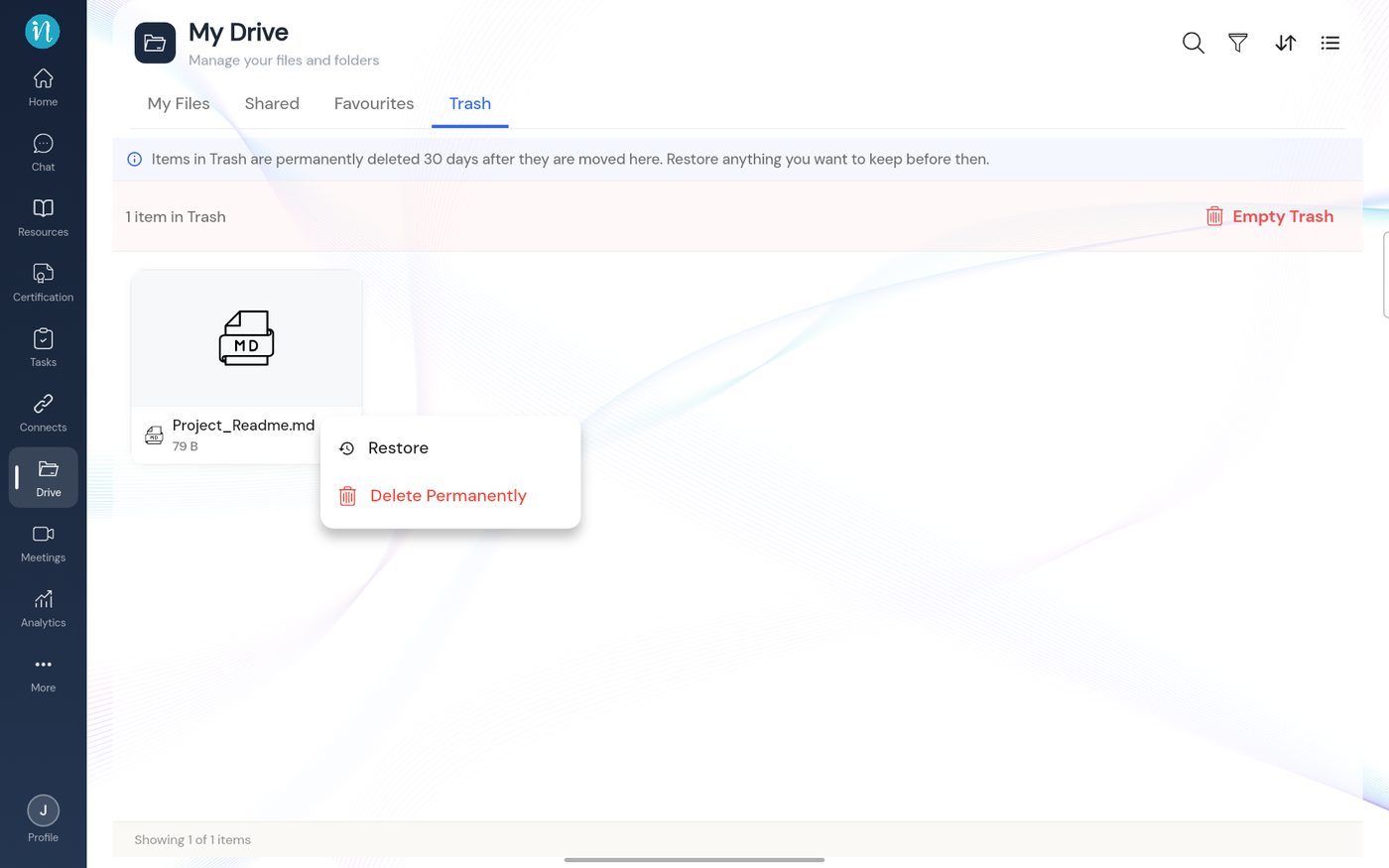
Tap the ⋮ on the item in Trash.
Trash item menu
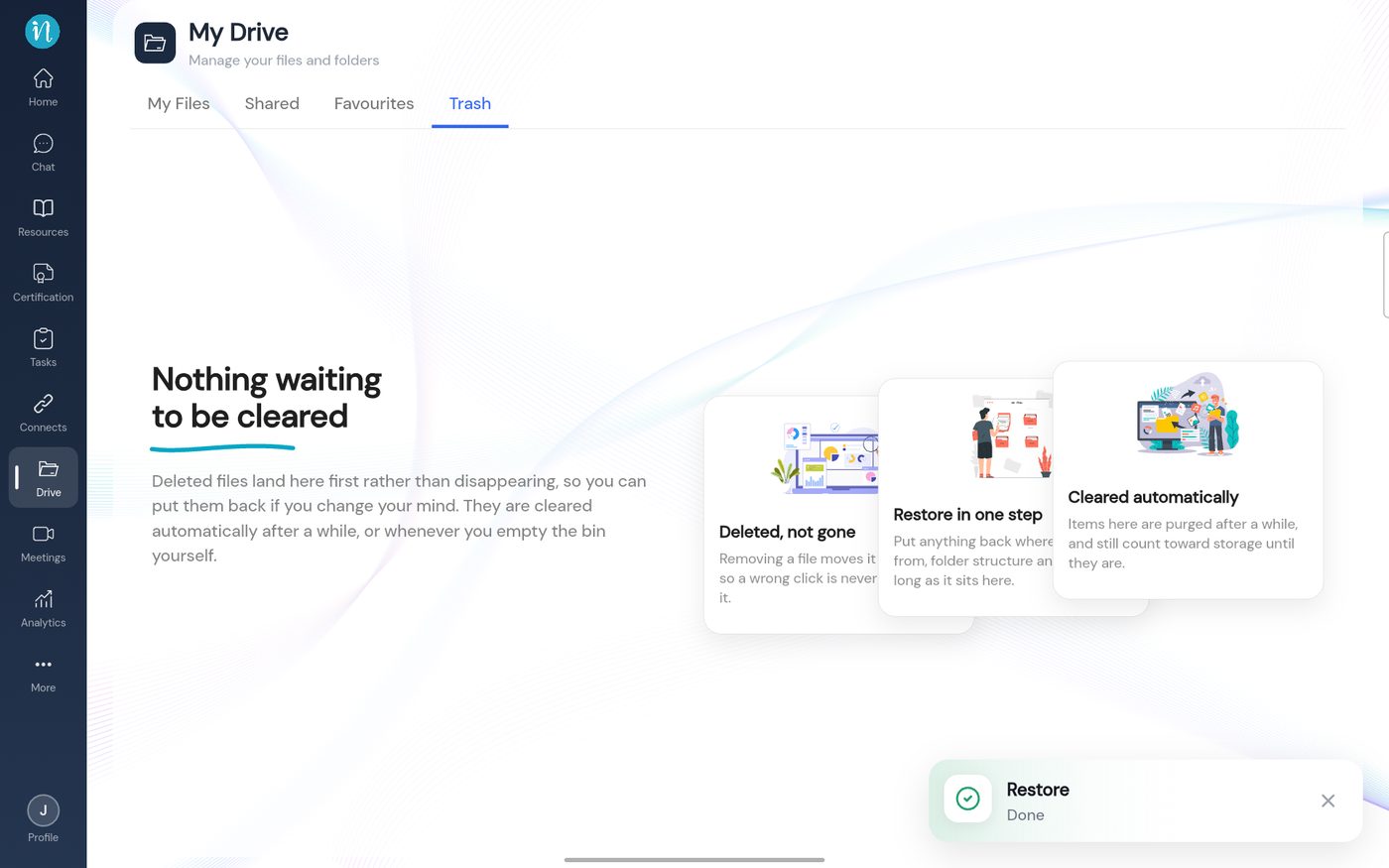
Tap Restore. The item returns to its original place.
After restoring
Empty the whole Trash
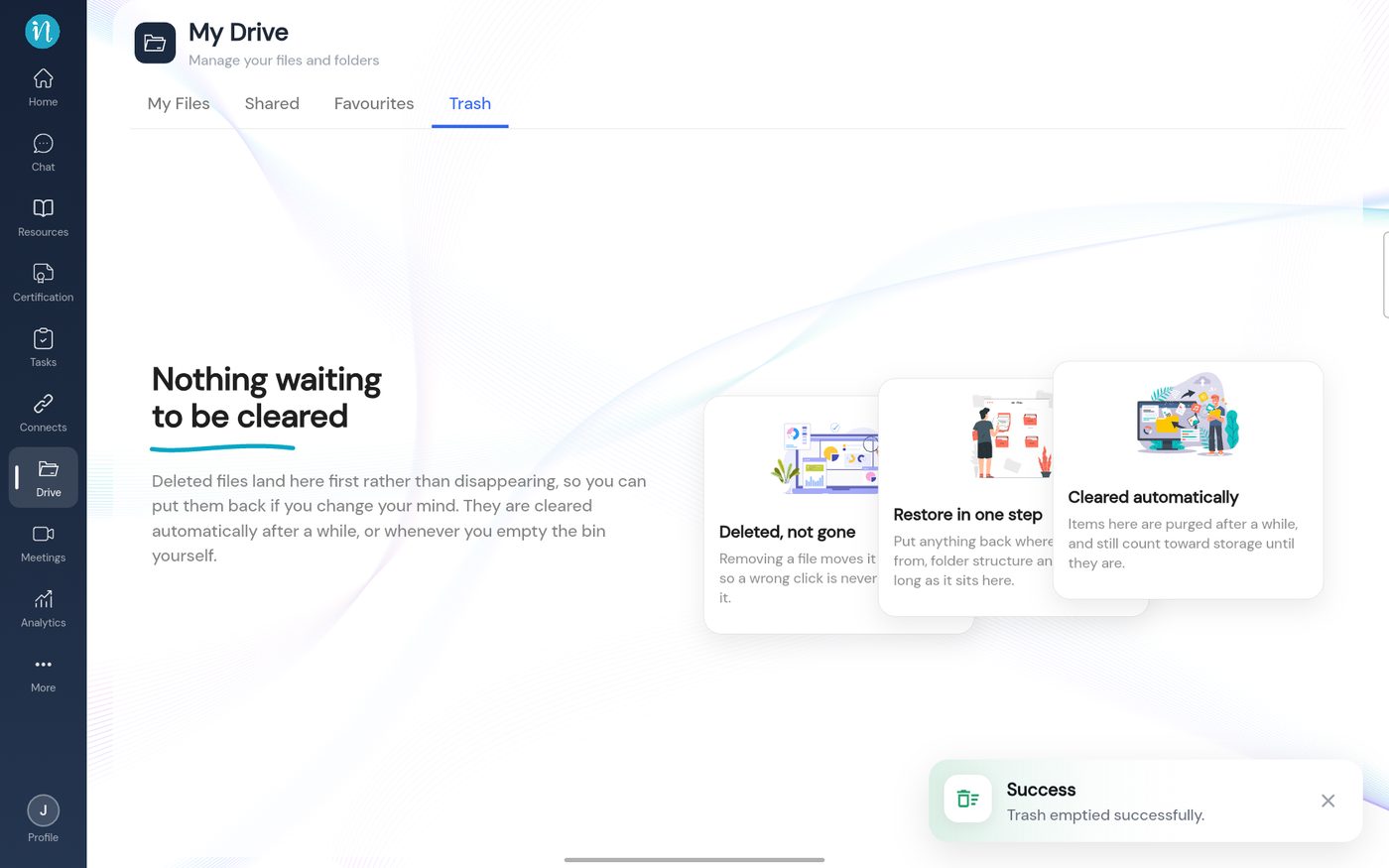
In the Trash tab, tap Empty Trash at the top right and read the warning.